
How to Send a Snap With the Cartoon Face Lens on Snapchat (2026 Guide + Troubleshooting)
This article was generated with AI assistance and carefully verified and edited by our expert team for accuracy as of May 2026.
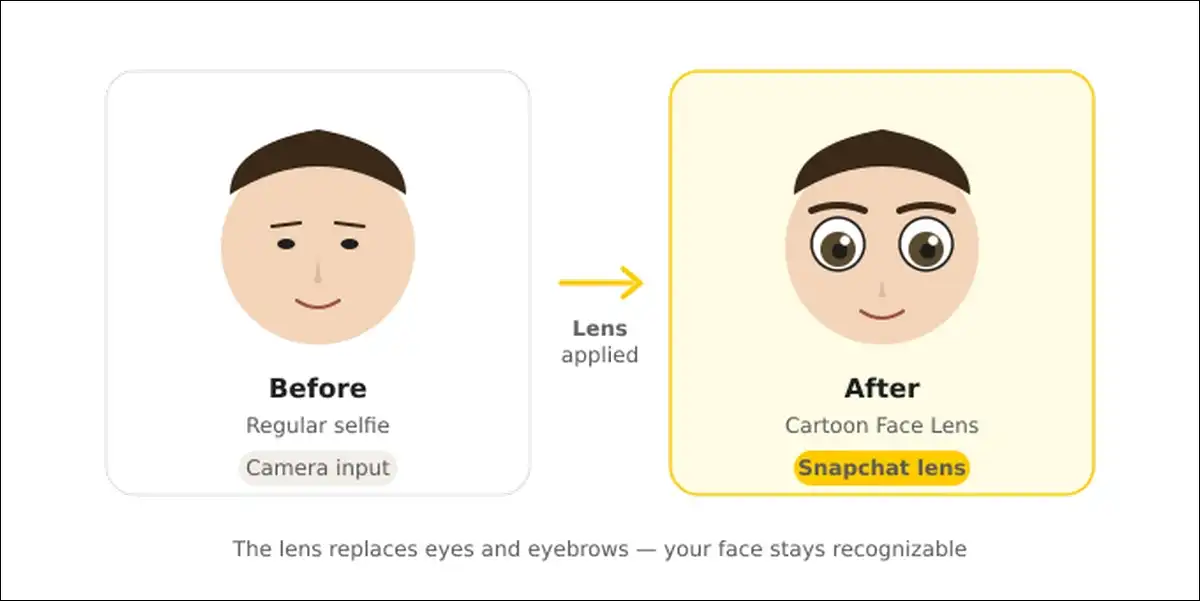
Snapchat’s Cartoon Face Lens transforms your eyes and eyebrows into oversized animated features. It went viral in August 2020 and is still trending six years later.
In this guide, we’ll walk through finding the lens, sending the snap, fixing it when it breaks, and using lesser-known tricks competitors skip.
Why the Cartoon Face Lens Still Matters in 2026
The Cartoon Face Lens remains one of Snapchat’s most-used face lenses because it works on humans, pets, and saved photos.
Just for scale, Snapchatters interact with AR Lenses 8 billion times every day, according to GrabOn’s Snapchat statistics report. That’s roughly 17 lens taps per daily user.
It all started with pets. The Cartoon Face Lens specifically rode the #disneydog TikTok wave, with owners “Disney-ifying” their dogs until the hashtag exploded across platforms.
One quick clarification, though: most articles call this lens “the Disney filter.” It isn’t. Snapchat has no partnership with Disney. The aesthetic only borrows the Disney look — nothing more.
Also read: Zonpay QRIS & PPOB App Indonesia Explained
What the Cartoon Face Lens Actually Does
In short, the Cartoon Face Lens replaces only your eyes and eyebrows with animated cartoon versions. It does not redraw your full face.
This matters because three Snapchat lenses share confusingly similar names. Pick the wrong one and you’ll get the wrong effect.
| Lens Name | Launched | What It Changes | Visual Style |
|---|---|---|---|
| Cartoon Face | Aug 7, 2020 | Eyes + eyebrows only | Disney-style eyes |
| Cartoon | Late 2020 | Entire face | Full Disney character |
| Cartoon 3D Style | June 2021 | Entire face, 3D depth | Pixar-style |
Source: Pocket-Lint, Elite Daily original launch coverage.
[Image suggestion: Side-by-side comparison of all three cartoon lenses on the same face. Alt text: “Snapchat Cartoon Face vs Cartoon vs Cartoon 3D Style comparison”]
Worth noting: Cartoon 3D Style has racked up roughly 1.7 billion views according to HaulPack. That beats the original Cartoon Face lens.
Lenses vs Filters: The 30-Second Difference
Put simply, lenses use augmented reality and apply before you capture. Filters, on the other hand, sit on top of a snap after you capture it.
What this means is you cannot add a Cartoon Face Lens to a snap after capturing it through the normal flow. The lens has to run live when the camera fires.
That said, there’s one exception we’ll cover below.
How to Send a Snap With the Cartoon Face Lens: Step by Step
Here’s the fastest method: open Snapchat, tap the smiley face, search “Cartoon Face,” select the one made by Snapchat, capture, then hit the blue send arrow.
Method 1: Find It Through Lens Explorer
This is the most reliable approach for first-time users.
- Update Snapchat to the latest version from the App Store or Play Store.
- Open the app and stay on the camera screen.
- Tap the smiley face icon next to the white shutter button.
- Tap “Explore” (magnifying glass) at the bottom right.
- Type “Cartoon Face” in the search bar.
- Choose the result where the creator name reads “Snapchat” — not a community copy.
- Tap the star icon to favorite the lens. It now stays on your carousel.
- Capture your snap: tap for a photo, hold for video up to 60 seconds.
- Tap the blue arrow to open the Send To screen.
- Pick recipients: friends, your Story, Spotlight, or Memories.
Method 2: Use the Direct Lens Link
For a faster route, Snapchat lets you open any lens directly through its public URL. Tap a Cartoon Face Lens link from a browser, and Snapchat launches straight into the lens.
This bypasses the search entirely. It’s how you reach the lens when Snapchat rotates it off the public carousel.
Method 3: Apply the Lens to a Saved Photo
Now here’s the feature nobody else writes about clearly.
With the Cartoon Face Lens active, tap the small Camera Roll thumbnail at the bottom-left of your screen. Choose a saved photo. The lens then renders cartoon eyes onto that static image.
Snap’s official statement confirms this: “Tap the Camera Roll button when the Lens is activated to see another image appear in anime-style too.”
The best part? This works on photos of pets, friends, even old selfies from years ago. You don’t need to sit in front of the camera.
Also read: Sniffies Android App Download Latest Version
Pro Tips for the Best-Looking Cartoon Snap
Three small adjustments produce dramatically better results than the defaults.
Lighting Beats Everything Else
Face soft, indirect light. Window light works better than ceiling bulbs. And avoid backlight — it confuses the face tracker.
Centre Your Eyes
Here’s the thing: the lens tracks your eyes specifically. Look at the camera, not the screen. The tracking locks faster that way.
Tilt Slowly
Small head movements show off the animation. Fast jerks, on the flip side, break the tracking and look choppy in playback.
For Pets
Hold a treat just above the lens. Your pet looks up, exposing both eyes for tracking. Also, bright daylight handles fur textures better than indoor lighting.
One more thing: pets with darker fur around the eyes (huskies, German shepherds) track noticeably better than flat-faced breeds like pugs. The lens needs visible eye contrast to lock on.
How to Send the Cartoon Snap: Friends, Story, or Spotlight
Snapchat gives you four destinations after capture. Each behaves differently.
| Destination | Who Sees It | How Long | Replay Rules |
|---|---|---|---|
| Direct to friends | Only chosen friends | Until viewed, then 24h | One replay allowed |
| My Story | All friends | 24 hours | Unlimited views |
| Spotlight | Public, algorithm-driven | Indefinite | Public engagement |
| Memories | Only you | Saved permanently | Re-share anytime |
To send, hit the blue arrow, tap recipients (you can pick multiple at once), then press “Send.” The same snap goes to everyone you picked without re-recording.
Cross-Posting Your Cartoon Snap to TikTok, Reels, and Shorts
The cleanest workflow: save to Memories first, then export and upload natively to each platform.
- After capture, tap the download icon to save to Memories.
- From Memories, tap Export → Camera Roll.
- Open TikTok, Instagram Reels, or YouTube Shorts.
- Upload the file natively from your gallery.
Why bother? Native uploads avoid the Snapchat watermark and preserve resolution. Screen-recording the snap, in contrast, drops quality by roughly 30% and crops your aspect ratio.
Cartoon Face Lens Not Working? Fix It in Under 60 Seconds
The most common cause is an outdated app. Update Snapchat, force-quit it, and reopen. That fixes roughly 70% of cases.
If updating doesn’t work, run through this list.
Check Your Device Compatibility
Snapchat Support states lenses require iOS 12 or newer, or Android 4.4 (KitKat) or newer. Older Androids may take photos but cannot record video with face-shift lenses.
Clear the Lens Cache
Next, go to your profile → settings gear → Privacy Controls → Clear Cache. This forces fresh lens downloads. Don’t worry — you won’t lose chats or memories.
Switch Your Network
Try toggling between Wi-Fi and mobile data. Some lenses fail to load on restrictive networks like school or office Wi-Fi.
Check Region Availability
Snapchat rotates lenses by region. If the Cartoon Face Lens doesn’t show in search, the direct Lens URL bypasses regional carousel limits.
Lens Permanently Retired?
Snapchat Support confirms lenses rotate in and out: “The available Lenses are always updating so we can make room for new experiences.”
In that case, head to Lens Explorer → Community Lenses. Search “cartoon eyes” or “Disney eyes” for near-identical community-built versions.
Also read: CricFy TV APK: What You Should Know Before Installing It
What Snapchat Does With Your Face Data
Most how-to posts skip this question. They shouldn’t.
For starters, standard face lenses process facial landmark data on your device. The mapping happens locally, not on Snap’s servers, for the basic Cartoon Face Lens.
Connected Lenses, however, behave differently. Per Snapchat Support: face tracking and body tracking data “may be shared with others who have been invited into the same Lens.”
The good news: the Cartoon Face Lens isn’t a Connected Lens. Your face data stays on-device for this specific lens. This should reassure parents asking about teen privacy.
For extra peace of mind, you can also disable Memories backup in Settings → Memories → Backup Progress.
Other Cartoon Lenses Worth Trying in 2026
Once you’ve nailed the Cartoon Face Lens, the rest of Snap’s cartoon library opens up.
| Lens | Style | Best For |
|---|---|---|
| Cartoon | Full-face Disney transformation | Whole-face makeover |
| Cartoon 3D Style | Pixar-style 3D depth | Realistic animated look |
| Anime Style | East-Asian animation | Anime fans |
| Cartoon Kid | De-ages your face | Throwback selfies |
| Dreams | Snap’s Gen-AI selfie lens | AI-generated variants |
| AI Cute Cartoon | AI cartoon avatar | Profile pictures |
To put that in numbers, more than 700 million users engaged with Gen-AI Lenses 17 billion times in 2025, according to Resourcera’s Snapchat statistics report. Dreams leads the pack in growth.
Cartoon Face Lens vs Instagram, TikTok, and Voilà
Snapchat isn’t the only cartoon-effect option. Here’s how it stacks up.
| Feature | Snapchat Cartoon Face | Instagram Filters | TikTok “Comic Me” | Voilà AI Artist |
|---|---|---|---|---|
| Real-time video | ✅ | ✅ | ✅ | ❌ (stills only) |
| Works on pets | ✅ | Limited | Limited | ❌ |
| Direct deep link | ✅ | ❌ | ❌ | N/A |
| Apply to saved photo | ✅ | Partial | ❌ | ✅ |
| Send to friends in-app | ✅ | DM only | DM only | Export only |
So Snapchat wins on flexibility. Voilà wins on AI-rendered detail, but only for stills.
The bottom line: Snapchat is the only platform that lets you apply a cartoon lens to an existing photo and send the result natively to a contact — all in one app.
Using the Cartoon Face Lens for Streaks
Snap streaks reward consistency, and the Cartoon Face Lens makes a perfect daily snap tool.
To set it up, favorite the lens with the star icon. It locks to your carousel permanently, so you can fire a streak snap in under five seconds each morning.
For context, the longest Snap streak on record sits at over 3,701 consecutive days, per Market.biz Snapchat statistics. That’s a decade of daily snaps.
One thing I’ve noticed is that streak partners who switch lenses daily report longer streaks than those who send blank selfies. Variety keeps the habit fresh.
Frequently Asked Questions
Yes. You don’t need a Snapchat+ subscription. All three cartoon lenses run free for any Snapchatter on a supported device.
Snapchat personalises lens availability by region, device, and its rotation schedule. To work around it, use the direct Lens URL or check Lens Explorer.
Yes. Snapchat supports multi-snap video up to 60 seconds total, recorded as linked segments. Just hold the shutter and release between segments.
No. Screenshots of your own unsent snaps don’t trigger notifications. Screenshots of received snaps, however, do notify the sender.
Snapchat rotates lenses regularly. To stay safe, favourite it (star icon) and save the direct Lens URL — that way you keep access even if Snapchat pulls it from the public carousel.
Yes, with iPadOS 12 or newer. Note that Snapchat discontinued Snap Camera for desktop in 2023, so desktop use no longer works.
Partially. The shutter button and send screen include accessibility labels. The lens carousel itself, though, has limited screen-reader support.
Wrapping Up!
The Cartoon Face Lens earned its place by being simple, viral, and pet-friendly. Six years after launch it still drives daily snaps for millions of users.
To put that in perspective, Snapchat now hosts 300 million daily AR users, per Snap Inc. data cited by Affmaven. The Cartoon Face Lens remains a gateway lens — the one new users try first and long-time users return to for streaks.
Here’s the thing: the lens’s staying power comes from one design choice — changing only the eyes and eyebrows. It keeps you recognisable while making the snap shareable. Full-face transformations like Cartoon 3D Style trend harder, but people send them less often because friends can’t tell who’s in the snap.
So go ahead — favourite the lens, save the direct URL, and experiment with the Camera Roll method on old photos. Then send your cartoon snap and start the longest cartoon-eye streak in your group chat.
![20 Most Essential iPhone 16 Settings [iOS 26 Easy Tweaks]](https://www.techdemis.com/wp-content/uploads/2026/06/Essential-iPhone-16-Settings-800x450.webp)

![vnROM Bypass Complete Guide [2026]: How It Works, Android Compatibility, Security Risks & Alternatives](https://www.techdemis.com/wp-content/uploads/2026/06/vnROM-Bypass-Complete-Guide-800x450.webp)


