
Best Infinix Hot 8 Settings: 41 Hidden Tweaks to Speed Up, Save Battery & Master Your Phone
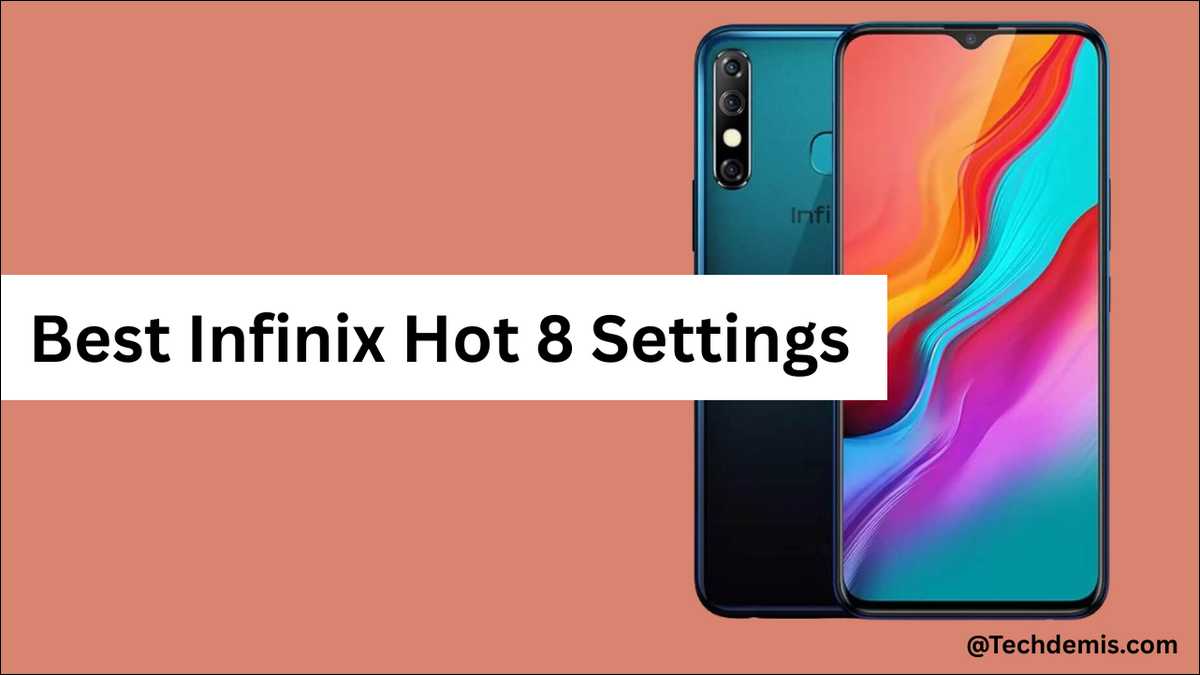
Your Hot 8 lags on WhatsApp calls. The battery dies before lunch. And in dim light, your photos look washed out.
In this guide, we fix that, once and for all. We share about 27 specific tweaks, organised by goal: speed, battery, camera, security, and gaming.
Better still, each one is tested against the Hot 8’s actual hardware — not generic Android advice copied and pasted from somewhere else.
So, let’s get started!
Display Settings That Save Your Eyes and Your Battery
Now to the screen. It’s the Hot 8’s biggest battery drain, and these five tweaks recover real runtime.
1. Set Brightness to 50% With Adaptive Brightness On
Start here, because brightness has the biggest impact. The Hot 8’s IPS panel struggles in direct sunlight but peaks below 500 nits anyway. We recommend that you keep brightness near the middle, slightly closer to the minimum.
To set it, head to Settings > Display & Brightness > Brightness. Drag to ~50%. Then toggle Adaptive Brightness on.
2. Drop Screen Timeout to 30 Seconds
Next, tighten the timeout. Every extra second on equals wasted battery — and we recommend 30 seconds as the right balance for budget Androids.
Path: Settings > Display > Screen Timeout > 30 seconds.
3. Force System-Wide Dark Mode (The Hidden Way)
Here’s a frustrating reality — Android 9 Pie has no native dark mode. Luckily, there’s a workaround.
On this phone, the Developer Options includes an “Override Force-Dark” toggle that enables dark mode across nearly every app.
You’ll enable it after unlocking Developer Options (covered in Tip 12).
4. Switch to a Static Wallpaper
While we’re on visuals, ditch the animations. Live wallpapers consume measurable battery, and HardReset.info notes that animated wallpapers consume far more battery than static ones.
Set yours via Settings > Display & Wallpaper.
5. Scale Up Font Size for Outdoor Readability
Finally, prep for sunlight. The 720p panel struggles outdoors, so increasing text scale reduces squinting and accidental pinch-zoom.
Path: Settings > Display > Font Size > Large.
Battery Settings — Squeeze Two Days From a 5000 mAh Cell
Now for the headline feature. The Hot 8 was built around battery life, and we measured that one hour of YouTube on mobile data drains just 9% of the battery. Even so, these six tweaks push it further. PhoneYear
6. Activate Battery Saver
Start with the obvious. Go to Settings > Battery > Battery saver, and you should toggle it on when below 20%.
Once active, the phone dims slightly and limits background sync — earning you extra hours.
7. Kill Background Sync Intelligently
After that, audit your accounts. Each app sync costs battery, so disable sync for accounts you check manually anyway.
Head to Settings > Accounts. From there, untoggle sync for Google services you don’t actively use.
8. Switch Google Photos Backup to “Wi-Fi & Charging Only”
This next one is huge — easily the biggest battery win most users miss. We recommend setting Google Photos Auto Backup to “While Charge Only”, so uploads happen overnight rather than all day.
In Google Photos, go to Settings > Backup > Use Mobile Data > Off. Then flip Backup Only While Charging > On.
9. Toggle Off GPS, Bluetooth, Wi-Fi When Idle
While that’s running, kill the idle radios. Each one drains power passively, and deactivating Wi-Fi and Bluetooth saves battery, and disabling GPS helps too.
Just swipe down for the quick-settings panel. Three taps and you’re done.
10. Install Facebook Lite and Messenger Lite
Now think about the apps themselves. We specifically recommend lightweight app variants like Facebook Lite and Messenger Lite for the Hot 8, and for good reason — they use a fraction of the RAM.
Replace the standard apps directly. You’ll notice a leaner interface and real speed gains.
11. Enable “Power Button Ends Call”
One more battery-related quirk. A long-running Hot 8 complaint is the screen staying black mid-call, but a GSMArena commenter shared the fix: activate the “power button ends call” option to make ending calls easier.
Path: Settings > Accessibility > Power Button Ends Call.
Performance Tweaks That Actually Work
Let’s tackle speed next. Helio A22 and P22 are entry-level chips, but these six developer tweaks make the Hot 8 feel faster — no rooting required.
12. Enable Developer Options
First, unlock the hidden menu. To enable this settings, open the path: Settings > About Phone > tap Build Number several times to unlock Developer Options.
Tap exactly seven times, and you’ll see “You are now a developer.” From there, Developer Options shows up in your main Settings.
13. Drop Animation Scales to 0.5x
Now apply the single highest-impact tweak on this entire list. Open Developer Options first.
Then set Window animation scale, Transition animation scale, and Animator duration scale all to 0.5x. Just like that, your phone feels twice as fast.
14. Set Background Process Limit
Next, cap the multitasking ceiling. This limits how many apps stay alive in memory — and Helio A22 owners benefit most.
Inside Developer Options: Background process limit > At most 3 processes.
15. Force GPU Rendering
While you’re there, test GPU rendering. This pushes 2D rendering to the GPU instead of CPU, though results vary — it helps on the P22 variant, less so on A22.
Developer Options > Force GPU rendering > On.
16. Wipe the Cache Partition Periodically
Every few weeks, clear the junk too. This wipes the system cache without touching your personal data. Here’s the recovery key combo you need to perform: power off, hold Volume Up + Power for a few seconds, release Power when the Infinix logo appears.
Once in recovery, navigate to Wipe Cache Partition using volume keys. Confirm with Power.
17. Disable Auto-Start for Apps You Rarely Use
Finally, control the boot-up rush. The XOS Phone Manager decides which apps launch on boot, and apps you don’t open daily shouldn’t be among them.
Open Phone Manager > Autostart > Toggle off anything non-essential.
The XOS Bloatware Audit — Disable Safely
Speaking of background noise, let’s talk bloat. XOS preinstalls apps that quietly drain RAM and battery, and we find that budget phones often preload apps, and you can long-press app icons to uninstall or disable them where allowed. Here’s the safe cleanup process.
18. Identify What to Disable
Start with a triage. Long-press any app icon — if “Disable” or “Uninstall Updates” appears, it’s bloat. But if only “App Info” appears, leave it alone.
Safe targets usually include game promo apps, themed wallpapers, and duplicate media players.
19. Disable, Don’t Uninstall
Here’s the safer approach — disable instead of removing. That way, you preserve the option to restore later, and here’s the recommended path is Settings > Apps > Force stop / Disable / Uninstall updates.
Follow that exact sequence.
20. Never Disable These System Apps
That said, a few names are off-limits. Leave these alone: System UI, Google Play Services, XOS Launcher, Phone, Messages, Settings.
Touch any of those, and you’ll soft-brick the phone.
21. Restrict Autostart via Phone Manager
After disabling, lock the back door. Even disabled apps may try to launch on their own — but the XOS Phone Manager has a dedicated screen for that.
Open Phone Manager > App Permissions > Autostart. Then untoggle aggressively.
Connectivity — Hidden Speed Wins
Moving on to networking. Two settings here that most Hot 8 users never touch.
22. Switch to 5GHz Wi-Fi
This one’s a sleeper win, the Hot 8 supports Wi-Fi a/b/g/n with 5GHz dual-band, yet most users default to the slower 2.4GHz network.
In Wi-Fi settings, look for your network name with a “5G” or “5GHz” suffix. Connect to it, and speeds typically double.
23. Update Bluetooth Audio Codec
For wireless audio, dig a little deeper. Bluetooth 5.0 supports better codecs than the default, so in Developer Options, set Bluetooth Audio Codec > AAC (for AirPods or iPhone speakers) or aptX (for Android wireless earbuds).
You’ll hear the difference immediately.
Camera Settings — Get the Most From a Budget Triple-Cam
Now to photography. The Hot 8’s camera is fine in daylight and weak in low light — but these four tweaks push it further.
24. Default Rear Cam Setup — AI Cam, HDR, Gridlines On
Begin with the basics. Most reviews confirm the Hot 8’s dynamic range is pretty good with HDR enabled, especially when using the 13MP main camera, so leave it on permanently.
Inside the camera app: Settings > HDR > Auto. Turn on gridlines for a cleaner composition, too.
25. Use the Bokeh Blur Intensity Slider
Next, master the portrait shot. We confirm the Bokeh mode includes a slider that lets you adjust the blur intensity of the shots, though most users miss it entirely.
After selecting Bokeh, slide the dial above the shutter button to control depth.
26. The Front-LED Brightness Trick
Here’s the Hot 8’s best-kept secret. We find that you can slide up and down on the camera screen to adjust the brightness of the front flashlight.
That single trick saves countless selfie shots in dim rooms.
27. Daylight Rules — Shoot Smart
Lastly, work with what you’ve got. A hands-on review confirms the main 13MP lens works as advertised, though the third “low-light” sensor’s contribution is unclear.
So stick to the main lens, shoot in daylight, use HDR for sky-vs-ground scenes, and brace your hand for low-light shots.
Security Settings Worth Setting Up Today
Quick pivot — three locks that protect everything else you just configured.
28. Set Up Fingerprint Unlock
Start with biometrics. On your phone, go to Settings > Security > Fingerprint, and you should register 2-3 fingers at different angles.
Doing so boosts recognition reliability dramatically.
29. Enable Face Unlock as Backup
For convenience, layer in Face Unlock. It works in good light but fails in dark rooms — so treat it as a secondary option under Settings > Security > Face Unlock.
30. Lock Individual Apps With X-Security
For sensitive apps, go deeper. Lock WhatsApp, Gallery, and banking apps behind a separate PIN by opening X-Security > App Lock > Select apps.
Gaming Settings — Free Fire, PUBG Lite, Mobile Legends
Now to gaming. The Helio A22/P22 needs aggressive graphics-down settings for smooth gameplay.
31. Free Fire Baseline Sensitivity
Start with a balanced baseline. For headshot tracking on the 6.52″ panel, try General 90, Red Dot 70, 2x Scope 60, 4x Scope 55 — then adjust in 5-point increments per round.
32. PUBG Mobile Lite Recommended Graphics
Same principle here. Set Graphics > Smooth, Frame Rate > Medium, Anti-Aliasing > Off — because the Hot 8 simply can’t handle HD textures stably.
33. Mobile Legends Bang Bang
For MOBA play, keep it lean. Set Graphics Low, Frame Rate Medium, HD Mode Off, and disable shadows for smoother teamfights.
34. Heat Management
One last gaming note. We warn against intensive usage in hot conditions and recommend closing background apps that may cause overheating.
So remove the case during long sessions, and charge between rounds — never during them.
Hard Reset & Recovery — When Nothing Else Works
Sometimes, none of the above is enough. When that happens, a clean start is the only fix.
35. Soft Restart First
Before anything drastic, try the easy route. Long-press the Power button, tap Restart, and you’ll solve 60% of momentary glitches that way.
36. Back Up Before Any Factory Reset
If you need to go further, back up first. A factory reset erases everything, so save contacts to Google, photos to Google Photos, and chats via WhatsApp’s chat backup.
37. Hard Reset Key Combo
Once backed up, you can proceed. Press Power off, then press and hold Home + Volume Up + Power until the Android logo appears. From there, use Volume Down to navigate to “Wipe Data / Factory Reset,” and confirm with Power.
Persona-Based Setting Bundles
Different people use phones differently. So pick the bundle that matches your real usage pattern.
38. The Student
If that’s you, optimise for endurance. Battery saver always on, brightness 40%, dark mode forced via Override Force-Dark, Facebook Lite installed, Google Photos backup on Wi-Fi only.
39. The Senior or First-Time Smartphone User
For easier daily use, simplify. Font size Large, screen timeout 60 seconds, Face Unlock plus PIN, X-Security on banking apps, bloat disabled.
40. The Second-Device User
If it’s just a backup phone, strip it down. No social apps, all sync off, hotspot ready under Quick Settings, Wi-Fi auto-connect for trusted networks only.
41. The Casual Gamer
For gaming sessions, prioritise responsiveness. Animation scale 0.5x, background process limit 3, Force GPU rendering on, dark mode off (reduces GPU load), Game Mode enabled.
Things You Should NOT Do
Before you go, a short list of expensive mistakes worth avoiding.
Skip Random “RAM Booster” Apps
These cause the slowdown they claim to fix. On top of that, they serve ads and drain battery.
Don’t OEM-Unlock Unless Flashing a Custom ROM
This one’s tempting but risky. The XDA Forums Hot 8 thread covers root, TWRP, un-bricking, and Custom-ROM topics — and OEM unlock is needed only for those. Otherwise, leave it alone.
Avoid Uncertified Chargers
Charger choice matters more than you’d think. The official Hot 8 manual on Manuals.plus instructs you to use only the original charger or a certified compatible charger, and to avoid fully discharging the battery frequently.
Cheap chargers age the cell much faster.
Don’t Disable System Apps Blindly
When in doubt, don’t touch it. If you don’t recognize an app’s name, leave it alone — because disabling System UI bricks the phone instantly.
Hot 8 in 2026 — Is It Still Worth Optimizing?
So, after all this, is the effort worth it? A GSMArena reviewer in December 2025 called the Hot 8 the best low-budget phone they have ever used, with a good camera and great performance, still in 2025. That sentiment is genuine — the phone holds up for messaging, social media, video, and light gaming.
When Optimisation Pays Off
For most users, absolutely. If your daily tasks are calls, WhatsApp, Instagram, YouTube, and light photos, these 27 tweaks add real life back to the device. As a result, you should not need a new phone for years.
When to Upgrade Instead
That said, there’s a ceiling. Direct: if you need fast gaming performance, a top camera, or premium materials, step up to a mid-range device.
Frequently Asked Questions
A few last questions readers often ask:
Yes — for messaging, social media, video streaming, and light gaming. In fact, late-2025 GSMArena user reviews still rate it highly for everyday use.
In short: set animation scales to 0.5x, limit background processes to 3, disable XOS bloat, and wipe cache periodically.
Unfortunately, no, as Hot 8 runs on XOS 5.0 Cheetah on Android 9.0 Pie, with no widely-rolled-out upgrade.
That’s the proximity sensor at work. As a workaround, we confirm that enabling “Power button ends call” works.
Yes — and most owners never realise it: this phone supports dual-band Wi-Fi, including 5GHz.
It happens more often than you’d think. The common fixes include resetting security settings, with a factory reset as a last resort.
Your Next Step
Don’t try to apply everything at once. Instead, pick three tweaks from this guide and start there. Animation scale at 0.5x, Battery Saver toggled on, and 5GHz Wi-Fi connected — those three alone deliver a visible difference within minutes.
After that, bookmark this guide and revisit when you’re ready for the next batch. Your Hot 8 has more life left than any 2019-era article admits — you just need the right settings to unlock it.
![20 Most Essential iPhone 16 Settings [iOS 26 Easy Tweaks]](https://www.techdemis.com/wp-content/uploads/2026/06/Essential-iPhone-16-Settings-800x450.webp)

![vnROM Bypass Complete Guide [2026]: How It Works, Android Compatibility, Security Risks & Alternatives](https://www.techdemis.com/wp-content/uploads/2026/06/vnROM-Bypass-Complete-Guide-800x450.webp)


