
Retrieve Formatted SD Card: How to Recover Lost Files Easily
Formatting an SD card does not always mean your files are gone forever. In many cases, you can still retrieve a formatted SD card if the old data has not been overwritten. If you need a practical solution, Wondershare Recoverit is one of the simplest ways to scan the card and restore lost photos, videos, and documents.
Whether the card was formatted by mistake, became unreadable, or was reformatted to fix an error, quick action matters. The less you use the card after formatting, the better your recovery chances.
Why It Is Possible to Retrieve a Formatted SD Card
When an SD card is formatted, the storage system usually removes file references instead of destroying all file data immediately. That means the files may still exist on the card until new data replaces them.
Your data recovery success mainly depends on these factors:
- Whether the format was quick or full
- Whether new files were written after formatting
- The condition of the SD card
- The data recovery for windows you use
- How quickly you stop using the card
A quick format often leaves more recoverable data behind than a deep overwrite process. That is why many users can still recover photos, videos, and work files after an accidental format.
Why Formatted SD Cards Lose Data
A formatted SD card can happen for many reasons, not only by mistake. Common causes include:
1. Accidental formatting
You may click the wrong option on a camera, phone, drone, or computer.
2. File system corruption
If the card becomes RAW or unreadable, some users reformat it before trying recovery.
3. Device compatibility issues
A camera or phone may ask you to format the card before using it.
4. Virus or malware problems
Some infections damage the card structure and push users toward formatting.
5. Interrupted transfer or improper ejection
Removing the card during a write process can corrupt it and lead to formatting prompts.
Can You Recover All Files From a Formatted SD Card?
Not always. You can often recover:
- Photos: JPG, PNG, RAW, HEIC
- Videos: MP4, MOV, AVI
- Audio: MP3, WAV
- Documents: PDF, DOCX, XLSX, PPT
- Archives and other common file types
But recovery may be limited if:
- The SD card was heavily reused after formatting
- The card has physical damage
- A full overwrite happened
- The memory cells are failing
So the right expectation is this: formatted SD card recovery is often possible, but not guaranteed.
How to Retrieve a Formatted SD Card Safely
The safest path is simple:
- Stop using the SD card immediately
- Remove it from the device
- Connect it to a computer with a card reader
- Scan it with a recovery tool
- Save recovered files to a different drive
Do not restore recovered files back to the same SD card during the process. That increases overwrite risk.
What to Look for in a Formatted SD Card Recovery Tool
Before choosing a tool, check these points:
- Supports formatted drive recovery
- Can recover photos, videos, and documents
- Works with SD, microSD, CF, and similar cards
- Allows preview before recovery
- Has a simple scan-and-restore workflow
- Supports Windows and Mac if needed
If you want a beginner-friendly option, Recoverit Memory Card Recovery is designed for exactly this type of job.
How Recoverit Helps Retrieve a Formatted SD Card
Recoverit is built for data loss situations including accidental deletion, formatting, corruption, and inaccessible storage media. It supports thousands of file types and many common removable devices.
Key advantages include:
- Recovery from formatted SD cards
- Support for photos, videos, audio, and documents
- Deep scan for hard-to-find files
- Preview before recovery
- Clean interface with low learning curve
- Works with SD cards from cameras, phones, drones, and other devices
For users dealing with media loss, SD card recovery solutions from Recoverit fit both accidental formatting and corruption scenarios.
3 Steps to Retrieve a Formatted SD Card With Recoverit
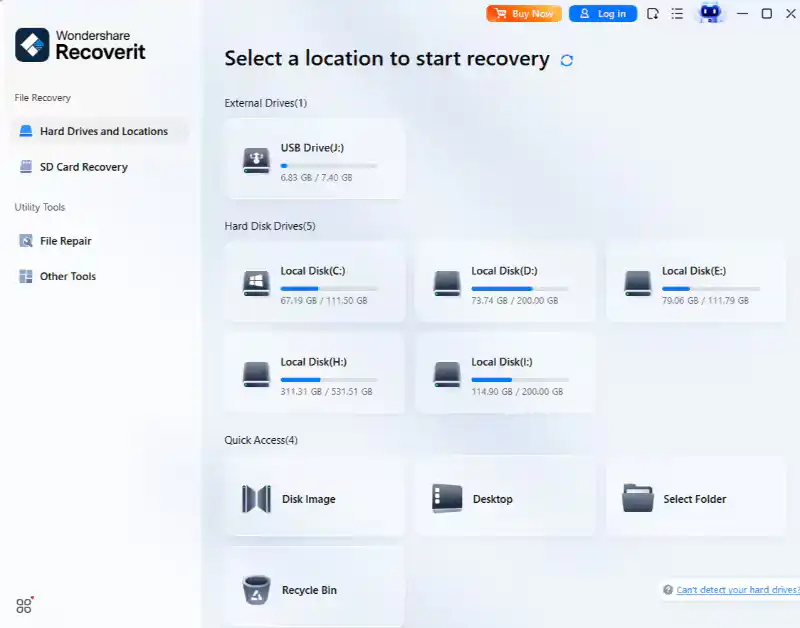
Step 1: Connect the formatted SD card and launch Recoverit
Insert the SD card into your computer using a built-in slot or external card reader. Open Recoverit and select the formatted SD card from the device list.
Purpose: Let the software identify the correct storage device
Action: Choose the SD card you want to scan
Result: Recoverit prepares the card for recovery analysis
Step 2: Scan the SD card for lost files
Start the scan and allow Recoverit to search for recoverable data. The software will look through the formatted card and list files it can detect.
Purpose: Find deleted file entries and remaining stored data
Action: Run a full scan on the formatted SD card
Result: Recoverable photos, videos, and documents appear in categories

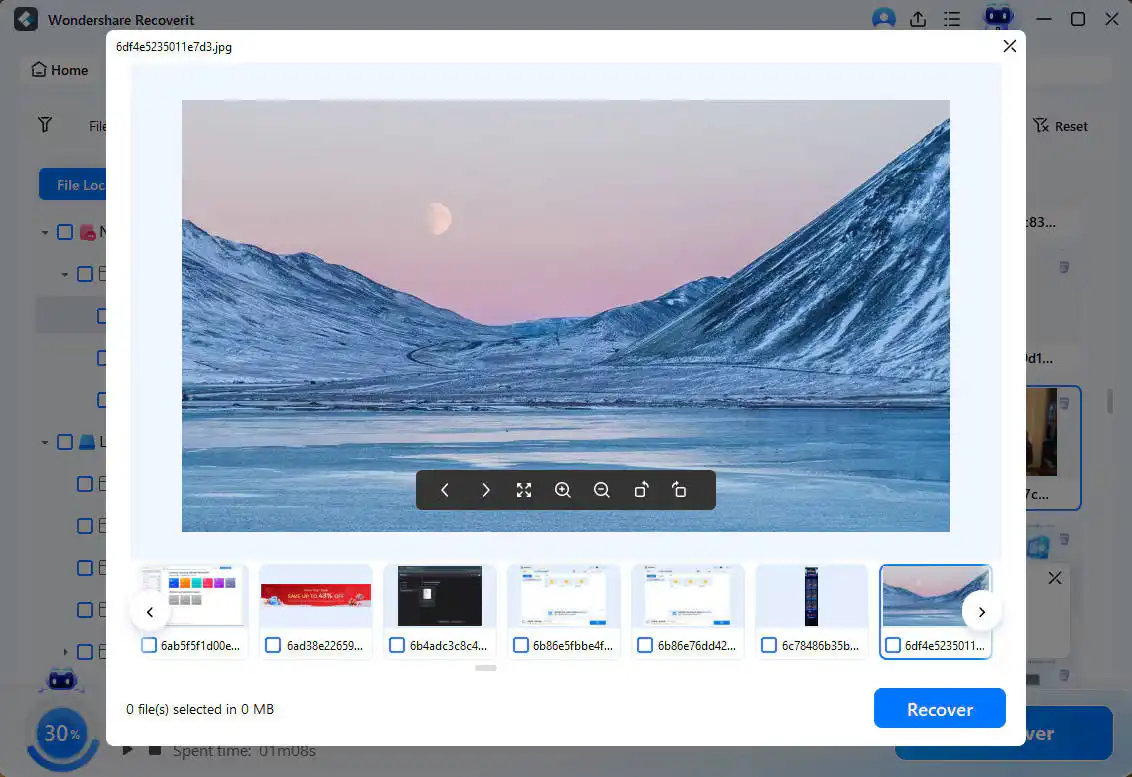
Step 3: Preview and recover files to another location
Preview the found files, select what you need, and recover them to your computer or another external drive.
Purpose: Restore only the files you need without overwriting the card
Action: Select files and save them to a safe location
Result: Your recovered data is stored separately and protected
Tips to Improve Formatted SD Card Recovery Success
If you want better results, follow these rules:
- Stop writing new data to the card
- Avoid reformatting again
- Do not run repair tools before recovery unless necessary
- Use a reliable card reader
- Recover to another drive, not the original SD card
- Start recovery as soon as possible
These steps reduce overwrite risk and improve the chance of retrieving usable files.
When Recovery May Fail
Sometimes recovery software cannot fully restore the data. That usually happens in these cases:
- Physical damage to the SD card
- Severe NAND wear
- Repeated overwrite after formatting
- Encryption problems
- Full formatting with secure erase behavior on some devices
If the card shows hardware failure signs such as disconnecting repeatedly, overheating, or not being detected at all, stop experimenting. Continued use can make the situation worse.
Why Choose Recoverit
Recoverit fits this scenario well because it balances ease of use with strong recovery coverage. For external SEO content, that matters: readers looking up “retrieve formatted sd card” usually want a tool that is simple, fast, and made for common storage accidents.
Why it stands out:
- Designed for everyday recovery cases
- Friendly for non-technical users
- Good support for media files from SD cards
- Practical preview and selective recovery
- Broad compatibility across storage devices
If your card was formatted by accident and you need a straightforward way to restore files, Recoverit is a strong option to start with.
Final Thoughts
If you need to retrieve a formatted SD card, the most important step is to stop using the card right away. In many cases, the files are still recoverable until new data overwrites them. A recovery tool like Recoverit can help you scan the formatted card, preview lost files, and restore them in a few steps.
The sooner you act, the better your chances.

![How to Recover Deleted Files from the Recycle Bin on Windows 11? [Free Methods]](https://www.techdemis.com/wp-content/uploads/2026/06/How-to-Recover-Deleted-Files-from-the-Recycle-Bin-on-Windows-11-800x450.webp)

![Restart Bluetooth Service In Windows 11 & 10 [Full Guide]](https://www.techdemis.com/wp-content/uploads/2026/06/Restart-Bluetooth-Service-In-Windows-11-and-10-800x450.webp)

