
Restart Bluetooth Service In Windows 11 & 10 [Full Guide]
![Restart Bluetooth Service In Windows 11 & 10 [Full Guide]](https://www.techdemis.com/wp-content/uploads/2026/06/Restart-Bluetooth-Service-In-Windows-11-and-10.webp)
The Bluetooth Support Service, internal name bthserv, serves as a core user-mode component in Microsoft Windows. It manages device discovery, inquiry caching, and coordination between user applications and the kernel-mode stack.
Restarting it reinitialises these functions. You skip a full system reboot or hardware driver reload. That makes it a precise intervention for many transient connectivity issues.
To understand why this targeted reset often succeeds, look at the larger architecture.
Windows builds Bluetooth support in layers. Some components run in user mode. Others operate in the kernel. The service sits in the middle as a bridge.
What this means is that bthserv handles inquiry results and forwards them via RPC calls. It works with BthProps for APIs and user interfaces.
Profile drivers for HID, audio, and other functions build on top. Kernel pieces like BthPort.sys manage the actual radio protocols through HCI, L2CAP, SCO, and SDP. BthUsb.sys abstracts the bus connection.
Here’s the thing. Restarting bthserv mainly refreshes the user-mode coordination layer. It clears stale caches and re-establishes connections. The kernel radio and miniport drivers usually stay loaded. This explains the quick relief for software-state problems without touching hardware.
But why does the service land in a bad state to begin with? Common triggers include sleep transitions, partial driver loads after updates, or simple desync between components.
We’ve found that these glitches show up as failed pairings, dropped audio profiles, or an unresponsive Bluetooth toggle.
Still, before you restart anything, a few precautions keep things safe.
- You need administrative privileges.
- Any active Bluetooth connections drop when the service stops.
- No data loss usually occurs, yet ongoing transfers pause.
- Also, confirm your Bluetooth radio shows up in Device Manager.
Several paths reach the same result. The Services console gives most people full visibility and control.
Method 1: Services Management Console (services.msc)
Here’s the most common method used to restart the Bluetooth service on Windows:
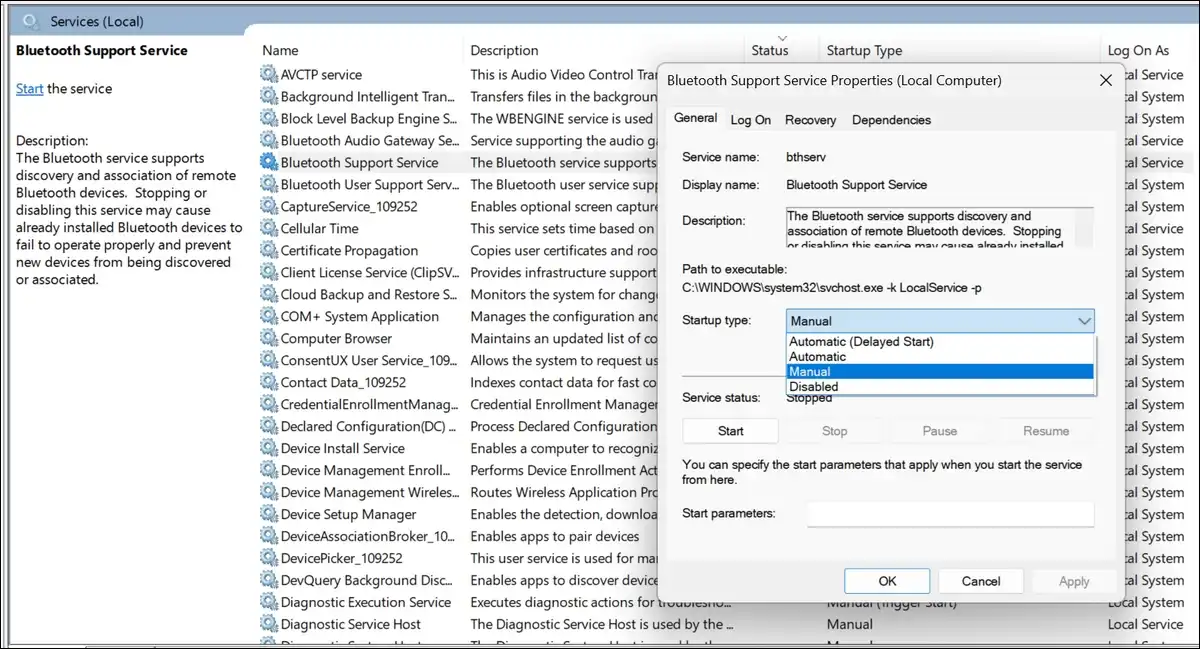
- Press Win + R, type services.msc, and press Enter.
- Locate Bluetooth Support Service, or bthserv.
- Right-click it and choose Properties.
- On the General tab, check the current status.
- If it has stopped, click Start. For a running service that feels stuck, click Stop first. Wait for the status to update, then click Start again.
- Set Startup type to Automatic for normal boot behaviour.
- Automatic (Delayed Start) eases boot load on lighter systems. Manual lets dependent apps trigger it. Disabled turns Bluetooth off completely.
- Click Apply and OK.
The Dependencies tab shows what relies on this service and what it needs in return. Recovery options let you set automatic restart attempts on failure.
Command-line users have a faster route. Open an elevated Command Prompt or Terminal.
Method 2: Elevated Command Prompt
Type these lines one after another:
net stop bthserv net start bthserv
Or combine them: net stop bthserv && net start bthserv. The short service name works across language versions. Use the display name only if the short one fails on your system. A five-second pause between stop and start gives dependent parts time to settle.
PowerShell offers object-based control and easy filtering for related services.
Method 3: PowerShell
Run Windows PowerShell as Administrator. Use this one-liner to restart the core service:
- Restart-Service -Name bthserv -Force
- To hit every Bluetooth service at once:
- Get-Service Bluetooth | Restart-Service -Force
- Check status and change startup type with Get-Service and Set-Service. The -Force switch handles dependencies cleanly.
Device Manager works one layer deeper when the service restart alone misses the mark.
Method 4: Device Manager (Hardware/Radio Layer)
- Right-click Start and open Device Manager.
- Expand Bluetooth.
- Right-click your specific radio adapter and choose Disable device.
- Wait for the change, then enable it again.
This reloads the miniport and kernel drivers. Use Uninstall device plus a restart or scan for hardware changes if the adapter shows errors or has vanished.
On the flip side, start with lighter tools before any of these steps. Microsoft points users to the built-in Bluetooth troubleshooter first.
- Find it in Settings > System > Troubleshoot > Other troubleshooters.
Run it and let it check service state, drivers, and radio health. Quick Settings or the Bluetooth page in Settings also lets you toggle the radio off and on for a quick re-init.
Beyond the main service, Windows depends on a few companions. We’ve seen most issues clear after handling bthserv alone, yet checking the others catches the rest.
Related Services and Their Roles
Bluetooth Audio Gateway Service (BTAGService) supports hands-free audio profiles. It often runs Automatic or Manual and depends on the core service.
Bluetooth User Support Service instances (BluetoothUserService_xxxx) handle per-user pairing and session details. They usually stay Manual with trigger start.
Device Association Service helps with overall pairing too. Restarting the parent service frequently brings these dependents back in line.
Sometimes the restart itself fails, or problems linger. Here’s how to dig deeper without guessing.
Advanced Diagnostics When Restart Fails
Open Event Viewer and filter the System log for entries around bthserv or BthPort. Look for dependency errors or RPC issues. Run sfc /scannow followed by the DISM restore health command in an elevated prompt. These fix corrupted files that host or support the service.
Update or roll back the Bluetooth driver in Device Manager, or pull the latest package straight from your PC maker. As a last software step, try the full network reset in Settings. It reinstalls bindings but clears saved Wi-Fi networks.
For people who hit this repeatedly, a short script removes the manual work.
Automation and Scripting
Create a simple batch file with the stop, short pause, and start commands. Add echo lines for feedback. In PowerShell, log the action to a text file for later review. Schedule the script in Task Scheduler with triggers like workstation unlock or specific event IDs. Run it with highest privileges.
Your Windows version and hardware setup shift the details slightly. Windows 10 and 11 follow almost identical steps. Windows 11 surfaces the troubleshooter more visibly.
USB dongles add one extra enumeration layer, so Device Manager disable/enable pairs well with the service restart. Domain or education editions may have Group Policy locking startup types. Check local policy if your changes revert.
In our experience, a few habits cut how often you reach for this fix. Keep OEM drivers current rather than relying only on Windows Update generics.
Skip third-party Bluetooth “optimisers” that tweak services behind the scenes. On laptops, confirm BIOS wireless settings and test power plans that avoid aggressive link-state power management.
All in all, restarting the Bluetooth Support Service targets the coordination layer with minimal disruption. It resolves a large share of transient problems. Pair it with driver checks and the troubleshooter for cases that persist.
The modular design of Windows services lets you maintain Bluetooth this way without touching the rest of the system.

![How to Recover Deleted Files from the Recycle Bin on Windows 11? [Free Methods]](https://www.techdemis.com/wp-content/uploads/2026/06/How-to-Recover-Deleted-Files-from-the-Recycle-Bin-on-Windows-11-800x450.webp)


