
How to Geek Linux in 2026: The Complete Practical Roadmap from Curious User to Confident Daily-Driver Power User

Linux brings benefits to people who treat it as a system they can shape. In this guide, we follow a clear path from first install to daily competence. You’ll see the latest verified data, terminal skills that save time, safe customisation steps, and projects that turn knowledge into working tools.
Every section gives actions you can take right away. So, let’s go ahead and learn how to geek Linux in 2026.
Key Takeaways
- Stats and mindset: Test Linux in a virtual machine before any full switch. This avoids regret and data risk.
- Distro choice: Match the distro to your hardware and update tolerance. This leads to a better daily experience.
- Terminal skills: Learn eight to ten core commands plus aliases early. They replace repetitive graphical tasks.
- Projects: Start with a simple backup or ad blocking setup. These build real, usable skills quickly.
- Security: Enable updates, use Flatpak sandboxes, and turn on encryption. These steps reduce the common attack surface.
- Troubleshooting: Rely on logs and personal checklists. Patterns emerge, and fixes get faster over time.
Why Geek Linux in 2026?
Linux adoption shows real growth among technical users and gamers, even if overall desktop share stays modest. Web analytics puts global desktop share near 3 per cent in April 2026. This figure tracks detected web visitors, not total devices installed. The baseline shifted month to month and reached 4.44 per cent in July 2024.
Still, these numbers come from different sources. Gaming hardware surveys show higher peaks among people who choose their hardware. Steam recorded Linux at 5.33 per cent in March 2026. Server
environments tell a stronger story. Linux powers over 96 per cent of the top one million web servers and roughly 51 per cent of the broader server market.
What this means is the growth shows up clearest where users have real choice. Developer surveys show heavy use in cloud and container workflows. These figures do not predict sudden mass adoption. They do show Linux works well for people who test it on their own hardware first.
Start with a virtual machine on your current computer. Measure whether daily tasks feel smoother before any larger change.
Linux Desktop & Gaming Adoption Trends (2022–2026)
Illustrative chart based on StatCounter desktop data and Steam Hardware Survey gaming share. Actual figures fluctuate monthly. Desktop growth is steady but modest; gaming shows sharper peaks.
How Do You Choose Your Distro and Desktop Environment in 2026?
The right distro matches your tolerance for updates and your hardware. Three options stand out in current interest rankings and hands-on testing. A recent comparison tested CachyOS, Linux Mint, and MX Linux on Ryzen 5 5600G hardware with an RTX 3060 graphics card.
On that setup, CachyOS delivered the snappiest feel thanks to kernel optimisations and Btrfs snapshots for easy rollbacks.
That said, Linux Mint offered the most familiar layout for Windows users. MX Linux provided strong graphical tools and reliable live USB behaviour.
Table: Distro Comparison In 2026
| Distro | Base | Best For | 2026 Strength | Main Trade-off |
|---|---|---|---|---|
| Linux Mint | Ubuntu LTS | Beginners and Windows migrants | Stable, familiar interface, Flatpak support | Packages can lag behind newest releases |
| CachyOS | Arch | Performance and gaming | Optimized kernel, easy snapshots, gaming ISO | Rolling updates need regular attention |
| MX Linux | Debian | Hardware compatibility | Excellent GUI tools, persistent live USB | Newer hardware may need extra setup |
Here’s the thing. Test any distro in a virtual machine first. Your specific hardware and workflow matter more than popularity rankings. CachyOS suits users who want speed and rollback safety.
Mint suits those who prefer minimal surprises. MX Linux suits users who value graphical maintenance tools.
How Do You Install Linux Safely?
Safe installation starts with verification and isolation. Download the ISO from the official project site. Check the SHA256 checksum before writing it to media. Create a bootable USB with Ventoy or Rufus. Boot from the USB and try the live environment without installing.
This step reveals hardware compatibility issues early. For dual boot, shrink your Windows partition from inside Windows first. Leave at least 50 GB free for Linux.
Use the installer’s guided partitioning and enable full disk encryption during setup. Create a separate home partition if you plan frequent reinstalls.
Run the system in a virtual machine for two weeks before any permanent change. This practice catches driver or workflow problems without risk to your main data.
What Terminal Skills Do You Need to Master Linux?
The terminal turns repetitive tasks into single lines. Start with navigation and file operations. Move to search and system monitoring.
Add shortcuts and aliases as soon as basic commands feel natural.
Essential Commands You Should Know
| Command | Purpose | Example | Why It Matters |
|---|---|---|---|
| ls -la | List all files with details | ls -la ~/Downloads | See hidden files and permissions |
| cd | Change directory | cd /etc | Move without mouse clicks |
| cp / mv / rm | Copy, move, or remove | cp file.txt backup/ | Precise file control |
| grep | Search inside files | grep “error” /var/log/syslog | Find issues fast |
| find | Locate files by name or type | find ~ -name “*.pdf” | Locate scattered documents |
| htop | Monitor processes interactively | htop | Kill misbehaving tasks quickly |
| journalctl | View system logs | journalctl -xe | Diagnose boot or service problems |
| systemctl | Manage services | systemctl status nginx | Control background processes |
Practice these in a safe directory first. Then, create aliases for commands you type often. Store them in your shell config file so they load every session.
Modern CLI tools such as fzf for fuzzy finding and ripgrep for fast search replace slower graphical alternatives in many workflows.
How Does the Linux File System and Package Management Work?
Linux uses a single tree structure starting at root. Everything appears as a file. This design makes permissions and backups predictable.
The main directories serve clear roles.
- /home holds user data.
- /etc stores configuration files.
- /var contains logs and variable data.
- /usr holds most installed programs.
- /tmp provides temporary space that clears on reboot.
In this environment, permissions control access. Each file carries read, write, and execute bits for owner, group, and others. Use chmod and chown to adjust them. Run most daily work from your home directory to avoid permission errors.
Further, package managers differ by distro. While, Debian-based systems use apt, whereas Red Hat-based systems use dnf. Arch-based systems use pacman.
Flatpak and AppImage packages work across distros and run in sandboxes. Choose the native manager for core system tools and Flatpak for applications you want to keep current without touching base packages.
How Can You Customise Linux Without Regret?
Customisation works best when it stays reversible. Start with themes and extensions that the desktop environment supports natively. GNOME and KDE both offer stores for extensions and themes.
Add a tiling window manager later if you want keyboard-driven workflows. Test it in a separate user account first.
You can manage dotfiles with a tool like stow or chezmoi. And use version control to manage your configuration changes.
This practice lets you restore a working setup after experiments. Flatpak packages provide another safe layer. They run in sandboxes and update independently of the base system.
Keep your main session untouched until the new setup feels reliable. Reversible changes prevent the common regret of a broken desktop after an afternoon of tweaks.
How Do You Automate Tasks with Scripting and Tools?
Scripts are very important as they remove boredom and human error. You can begin with simple Bash one-liners and aliases, and then move to short scripts that run on a schedule.
Create a backup script that copies important folders to an external drive or cloud location. Add a systemd timer or cron job to run it daily.
That said, test the restore process before you need it. Use tools like fzf for fuzzy file finding and ripgrep for fast content search.
Combine them with tmux for persistent terminal sessions across reboots. Automation compounds. One hour spent scripting a weekly report saves many hours over a year.
Start with one task that annoys you most. The system becomes more useful as you script away friction.
What Hands-On Projects Build Real Linux Skills?
Projects force you to connect concepts. They also produce useful tools you keep. Choose small wins first, then expand.
Starter Project Ideas
- Set up network-wide ad blocking with Pi-hole or AdGuard Home on a spare device or virtual machine.
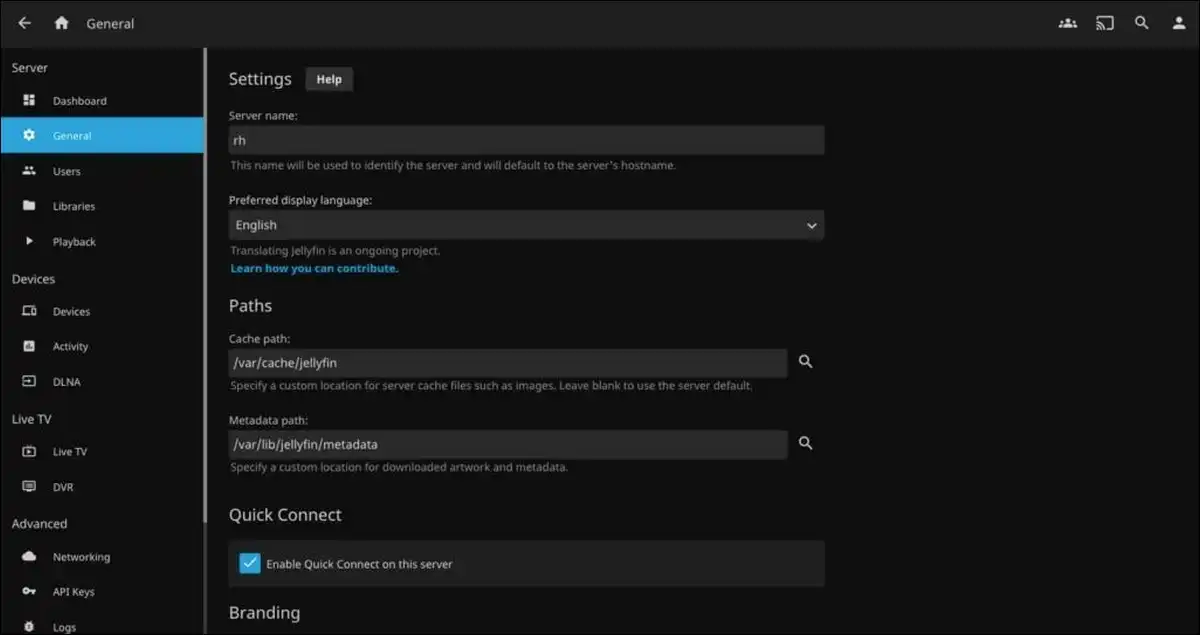
- Build a personal media server with Jellyfin and the *arr suite for automated downloads and organisation.
- Create an encrypted backup system using rsync and Timeshift or Btrfs snapshots.
- Run a personal cloud sync with Syncthing between your phone and computers.
- Script a daily system health check that notifies you of issues.
Document each project. Note what broke and how you fixed it. These notes become your personal reference manual over time.
How Do You Secure and Protect Privacy on a Linux Desktop?
Security starts with updates and least privilege. Here are some noteworthy things you could do:
- Enable automatic security updates in your distro’s settings.
- Use a firewall such as ufw and allow only the ports you actually need.
- Run applications through Flatpak when possible.
- The sandbox limits what each program can access.
- Enable full disk encryption during installation as it protects data if the device is lost or stolen.
- Review running services with systemctl.
- Disable anything you do not use.
- Keep browser extensions minimal and use a password manager with strong, unique passwords.
Privacy improves when you control your data. Self-hosting replaces some cloud services. Weigh the maintenance cost against the benefit before committing.
Good habits matter more than any single setting.
How Do You Troubleshoot Linux Problems Like a Pro?
Most issues leave traces in logs. Start with journalctl -xe after a failed boot or service. Add -b for the current boot only. Check hardware detection with lspci and lsusb. Run dmesg | tail after plugging in new devices.
These commands reveal driver or connection problems quickly. For storage issues, use df -h and du -sh * to find what fills disks. For permission problems, run ls -l on the affected files and adjust with chmod or chown.
Create a troubleshooting checklist. Update it after each fix. Over the time, you solve problems faster because patterns repeat across different issues.
How Do Performance, Power Management, and Gaming Work on Linux?
Gaming on Linux has moved from experiment to a practical option now.
Now, Proton handles thousands of Windows titles with improved compatibility. Steam Deck influence pushed many developers to test Linux builds.
Performance-focused distros such as CachyOS and Nobara include gaming tweaks out of the box.
To get more out of this operating system, tools like gamemode and MangoHud give on-screen metrics and CPU/GPU priority during play. So laptop users benefit from power management tools such as TLP or auto-cpufreq. These extend battery life without manual tweaks in most cases.
To add more, Linux excels on older machines where Windows support has ended. Many users revive laptops from five or more years ago with noticeable speed gains. Test your specific hardware, as results vary more than on desktops.

What Resources and Community Support Are Good For Continuous Learning?
Official distribution wikis (https://linux.wiki/) remain the most accurate for version-specific details. The Arch Wiki (https://wiki.archlinux.org/) covers concepts that apply across distros even if you run something else. Practice sites let you drill commands in a safe browser environment.
Community forums reward clear questions that include your distro version and exact error messages. Set a monthly review. Check what slowed you down and script or configure a fix.
Consistent small improvements beat the occasional deep adoptions.
What Comes Next After You Start Geeking Linux?
In 2026, Linux brings benefits to users who test before committing and document what they learn. Adoption data shows meaningful interest among gamers and technical users. Hands-on testing on real hardware reveals which distros feel fast and stable for your setup.
Terminal skills and reversible customisation deliver daily time savings. Small projects turn abstract knowledge into working systems you rely on. Security and troubleshooting improve through consistent habits rather than one-time setups.
Start today with one command you will use often or one small backup script. The system becomes yours through repeated use, not through reading alone.
Frequently Asked Questions
Is Linux hard to learn in 2026?
Basic daily use is straightforward on beginner-friendly distros. Terminal mastery takes deliberate practice over weeks or months. Most users reach comfortable competence faster when they follow structured projects rather than random tutorials.
Can I run Linux alongside Windows?
Yes. Dual-boot setups work reliably when you shrink the Windows partition first and use the Linux installer’s guided options. Full disk encryption and separate home partitions reduce risk during updates or experiments.
Which distro is best for gaming?
Performance-oriented options like CachyOS or Nobara include gaming tools by default. Steam with Proton works on most modern distros. Test your specific games on ProtonDB before switching permanently.
Do I need to use the terminal every day?
No. Graphical tools handle most tasks on modern desktops. Terminal use shines for automation, troubleshooting, and precise control. Many users combine both and gain speed on repetitive work.
Is Linux secure for everyday desktop use?
Yes, when you keep the system updated and avoid running unknown scripts as root. Flatpak sandboxes and firewall tools add extra layers. Full disk encryption protects data at rest. Good habits matter more than any single setting.
![How to Recover Deleted Files from the Recycle Bin on Windows 11? [Free Methods]](https://www.techdemis.com/wp-content/uploads/2026/06/How-to-Recover-Deleted-Files-from-the-Recycle-Bin-on-Windows-11-800x450.webp)
![Restart Bluetooth Service In Windows 11 & 10 [Full Guide]](https://www.techdemis.com/wp-content/uploads/2026/06/Restart-Bluetooth-Service-In-Windows-11-and-10-800x450.webp)

