
How to Reset Network Adapter in Windows 11 /10: Layered Fixes That Work
Wi-Fi shows connected, yet pages fail to load, or the adapter vanishes after an update. These issues frustrate millions of people using the Windows operating system around the world.
To fix such issues, we’ve tested every reliable method. So, this guide gives you a clear path from quickest fix to full reset. You choose the right level. You protect your settings whenever possible.
Here’s the thing. Quick checks often show you don’t need a reset at all.
Quick Checks Show If You Need a Network Adapter Reset
- Most adapter problems start small. Run these tests first.
- You often fix issues without any reset.
- Open Settings: go to Network & internet.
- Click the troubleshooter option.
- Follow the prompts.
- Test another device on the same network. Restart your router. These steps rule out ISP or router faults fast.
- Have you noticed the issue began right after a Windows update? Driver conflicts often appear then.
Key Takeaways Before You Start
Still, a few core principles guide every successful fix.
- Light methods solve most cases. Full resets work but carry side effects.
- We’ve found that command-line resets preserve saved Wi-Fi profiles in many situations. Full GUI resets do not.
- Always note your current settings before any heavy action. Export Wi-Fi profiles if you use many networks.
- Prevention beats repeated resets every time.
To put it simply, here’s how the options stack up.
All Methods Compared
Choose the Right Reset Method
Quick hardware restart. Zero data loss.
Time: Under 30 seconds
Clears TCP/IP & DNS. Keeps Wi-Fi profiles.
Time: 1–2 minutes
Fixes corrupted or outdated drivers.
Time: 5 minutes + restart
Deep clean. Removes saved networks & VPNs.
Time: 5–10 min + reconfig
Method 1: Disable and Enable the Adapter for Instant Relief
This method restarts the adapter hardware without touching settings. It fixes many sudden drops.
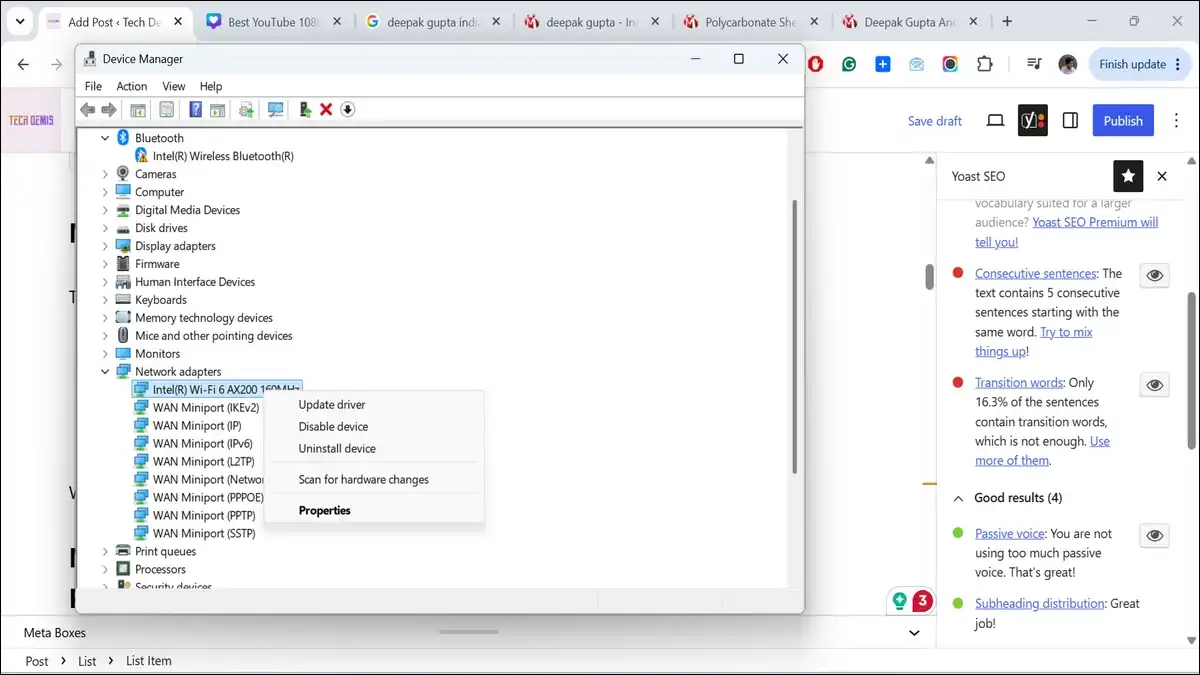
- Right-click the Start button. Select Device Manager. Expand Network adapters.
- Right-click your Wi-Fi or Ethernet adapter. Choose Disable device. Wait a few seconds.
- Right-click again and select Enable device. The adapter restarts and attempts reconnection.
- Test your connection immediately. This step often restores access in under a minute.
When that quick toggle isn’t enough, move to the command method available below.
Method 2: Reset the Network Stack with Commands When Profiles Matter
This method clears corrupted TCP/IP and DNS layers. It leaves your saved networks intact in most cases.
We’ve verified these steps align with official troubleshooting paths.
netsh int ip reset
ipconfig /release
ipconfig /renew
ipconfig /flushdns
- Open Command Prompt as administrator.
- Type each command and press Enter:
- netsh winsock reset
- netsh int ip reset
- ipconfig /release
- ipconfig /renew
- ipconfig /flushdns
- Restart your computer after the final command. Reconnect to Wi-Fi if prompted.
PowerShell offers the same results with extra scripting options for advanced users.
Driver issues call for a different approach.
Method 3: Reinstall the Driver When Corruption Runs Deep
Outdated or damaged drivers cause repeated failures. Reinstalling forces a clean load from Windows or your manufacturer.
- Open Device Manager again. Expand Network adapters. Right-click the problematic adapter.
- Select Uninstall device. Check the box to attempt driver removal if available. Confirm.
- Restart the PC. Windows reinstalls a basic driver automatically. Test the connection.
For best stability, download the latest driver from your laptop or adapter maker’s site on another device. Install it manually if Windows does not pick the optimal version.
If driver reinstall still doesn’t do the trick, the full reset steps are the stronger option.
Method 4: Perform a Full Network Reset as the Last Resort
A full reset removes and reinstalls every network component. It clears deep corruption that lighter steps miss.
Microsoft documentation confirms this process deletes installed adapters and resets them to defaults on restart.
- Go to Settings > Network & internet. On Windows 11 choose Advanced network settings. On Windows 10 choose Status.
- Click Network reset. Select Reset now. Confirm with Yes.
- Then, your PC restarts, and all adapters reinstall fresh.
You must reconnect to Wi-Fi networks and re-enter passwords.
What Gets Reset (Be Prepared)
What Happens After a Full Network Reset and How to Recover Fast
The reset forgets every saved Wi-Fi network and its password. It clears custom DNS, proxy, and static IP settings. VPN profiles and virtual switches often need reinstallation.
- Reconnect to your main network first. Set the profile to Private if you share files or printers on your local network.
- Reinstall VPN software and reconfigure any static settings you use. Test speeds and stability with multiple sites.
- Network profiles may default to Public after reset. Adjust this in the network properties for better local discovery.
To prepare for any future reset, run this quick checklist beforehand.
Pre-Reset Checklist to Protect Your Setup
Export current Wi-Fi profiles before any heavy reset. Use this command in admin Command Prompt:
netsh wlan export profile key=clear folder=
Save the XML files. You can re-import them later if needed.
Note any manual DNS servers or VPN credentials. Screenshot advanced adapter properties in Device Manager.
These steps take two minutes and prevent hours of reconfiguration.
What to Do When the Reset Fails to Fix the Problem
- Check Event Viewer for specific error codes under Applications and Services Logs > Microsoft > Windows > NetworkProfile or WLAN-AutoConfig
- Update the adapter driver directly from the manufacturer even after a reset. Some chips need specific versions.
- Test with a USB Wi-Fi adapter. This isolates whether the built-in hardware has failed.
- Contact your ISP if other devices on the same connection also struggle. Persistent issues sometimes sit outside your PC.
Still, the best defence is stopping issues before they start.
In Device Manager → Adapter Properties → Power Management tab → Uncheck the box.
Download directly from Intel, Realtek, or your laptop maker’s site.
Keep router central and update its firmware regularly.
Prevention Steps That Reduce Future Headaches
- Uncheck power saving for your adapter. In Device Manager, open adapter properties. Go to the Power Management tab. Clear the allow turn-off box.
- Keep drivers current through your device maker’s support site rather than relying solely on Windows Update.
- Place your router in a central spot. Update its firmware through the admin page. These habits cut interference and drop complaints.
We’ve found that users who combine power tweaks with regular driver checks reset far less often.
What if the same problems keep coming back despite these steps?
Quick Notes for Mac and Linux Users
macOS handles resets differently.
Use System Settings > Network to forget networks or renew the DHCP lease. Terminal commands like sudo ifconfig en0 down followed by up restart the interface.
Linux users run nmcli networking off && nmcli networking on or restart NetworkManager with systemctl. Commands vary by distribution.
Full network resets exist on both platforms and produce similar data loss.
People often wonder about the exact differences across systems.
Final Thoughts
In short, you now have a complete, layered approach. Start light. Protect your profiles. Recover smoothly when needed. Prevention keeps the fixes lasting.
Network adapter problems rarely require dramatic action. Systematic checks and the right method solve the vast majority of cases. Apply these steps and the headache fades.
Frequently Asked Questions
Does resetting the network adapter delete my personal files or photos?
No. The reset touches only network components and settings. Your documents, photos, and installed programs stay untouched.
How often is too often to reset the network adapter?
More than once or twice a week signals a deeper issue. Investigate drivers, power settings, or router problems instead of repeating resets.
Will a network reset break my VPN or corporate connection?
It often removes VPN profiles and settings. Reinstall the VPN client and reconfigure after the reset. Work devices may have policies that restore some settings automatically.
What is the real difference between disabling the adapter and a full reset?
Disabling and enabling restarts only that adapter with zero data loss. A full reset wipes every network setting and reinstalls all adapters from scratch.
Can I safely reset the network adapter on a company or school laptop?
Check with your IT team first. Managed devices often carry policies that block changes or reapply settings after reset. Some resets trigger extra authentication steps.
Do these steps work the same on Windows 10 and Windows 11?
Core methods stay identical. Menu paths differ slightly. Windows 11 routes Network reset through Advanced network settings. Windows 10 uses the Status page.
What should I try next if none of these resets restore my connection?
Check Event Viewer logs, test a USB adapter, update router firmware, or contact your ISP. Hardware failure or line issues sometimes sit outside the PC.
Are there simple alternatives on Mac or Linux?
Yes. macOS offers interface down/up commands and a full network reset in System Settings. Linux uses nmcli or NetworkManager restart commands depending on your setup.

![How to Recover Deleted Files from the Recycle Bin on Windows 11? [Free Methods]](https://www.techdemis.com/wp-content/uploads/2026/06/How-to-Recover-Deleted-Files-from-the-Recycle-Bin-on-Windows-11-800x450.webp)

![Restart Bluetooth Service In Windows 11 & 10 [Full Guide]](https://www.techdemis.com/wp-content/uploads/2026/06/Restart-Bluetooth-Service-In-Windows-11-and-10-800x450.webp)
