
How to Recover Deleted Files from the Recycle Bin on Windows 11? [Free Methods]
![How to Recover Deleted Files from the Recycle Bin on Windows 11? [Free Methods]](https://www.techdemis.com/wp-content/uploads/2026/06/How-to-Recover-Deleted-Files-from-the-Recycle-Bin-on-Windows-11.webp)
Accidentally deleting an important file from your Windows 11 PC can be a distressing experience. Whether it’s your photo, video, document, or any other file, losing important data can put you in trouble. Fortunately, Windows 11 offers several free methods to recover deleted files, especially if they were recently removed and sent to the Recycle Bin. Data recovery is often possible even if the Recycle Bin has been emptied.
This guide explores how to recover deleted files from Recycle Bin on Windows 11 using built-in tools and free recovery techniques.
Understanding the Recycle Bin on Windows 11
Windows provides a built-in Recycle Bin folder that serves as temporary storage for deleted files before they are permanently erased from the system. Every time you delete a file on your Windows PC using the Delete key or the right-click Delete option, it goes to the Recycle Bin. The deleted file remains in this folder until it is permanently deleted, either manually by you or automatically after a specified retention period, such as 30 days.
This feature acts as a safety net, allowing you to restore files quickly if they were deleted by mistake.
However, your files may bypass the Recycle Bin in the following situations:
- When you delete files using the Shift + Del keys
- Files removed from external storage devices
- Data removed after emptying the Recycle Bin
- Deleted files exceed the Recycle Bin size limits
The good news is that Windows 11 provides several free data recovery methods to restore such files.
How do I Recover Deleted Files From Recycle Bin?
As mentioned, your deleted file remains in the Recycle Bin folder until you permanently remove it. If your deleted file is present there, recovery is usually quick and hassle-free. This method is completely free and is often the first solution you should try while recovering lost data.
Here’s how to recover deleted files from the Recycle Bin:
- Firstly, double-click the Recycle Bin icon on your desktop.
- Browse through the deleted files and locate the ones you want to restore.
- Use the search box to search for required files using the file name (or any of its keywords).
- Right-click the file you want to restore.
- Select Restore to save the selected file to its original location.
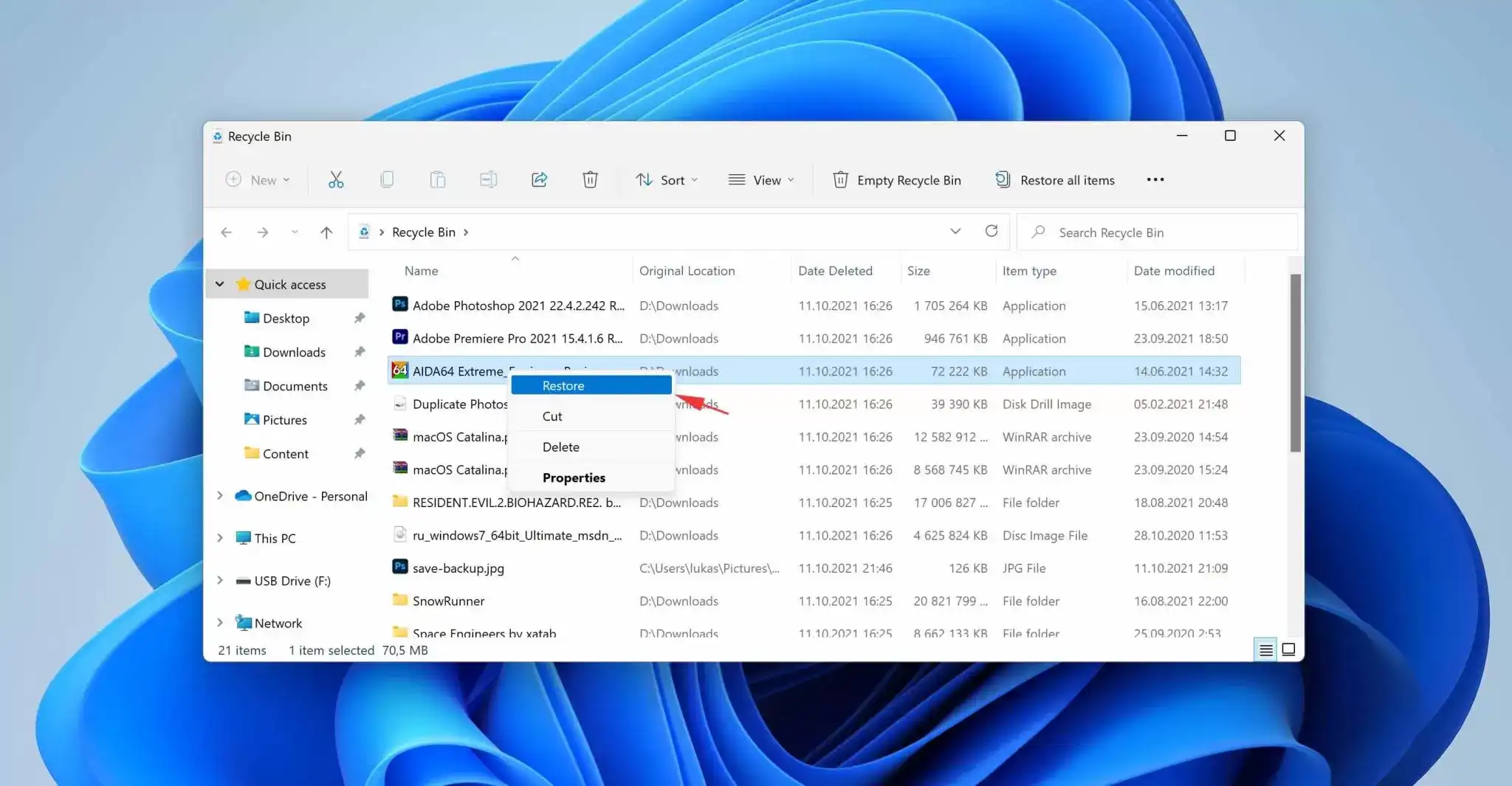
Advantages of Recycle Bin Recovery:
- Fast and simple: Restores deleted files quickly through an easy process.
- Completely free: No additional software, subscriptions, or payments are required whatsoever.
- Preserves original file locations: Recovered files return automatically to their original folder locations.
- No software installation required: Recovery works using built-in Windows tools without extra downloads.
What if Your Deleted File is Not in the Recycle Bin?
Instances may happen when your deleted file is not present in the Recycle Bin folder. In such cases, you can use previously created backups or third-party free data recovery software to restore your deleted files. Let’s explore these free data recovery methods in detail:
Method 01: Recover Files Using File History Backups
Windows provides an in-built File History backup utility, which, when enabled on your PC, creates an automatic backup of your stored files. You can follow the below steps to get your deleted files using File History backups:
- Launch the Control Panel on your PC.
- Go to File History, then click Restore personal files.
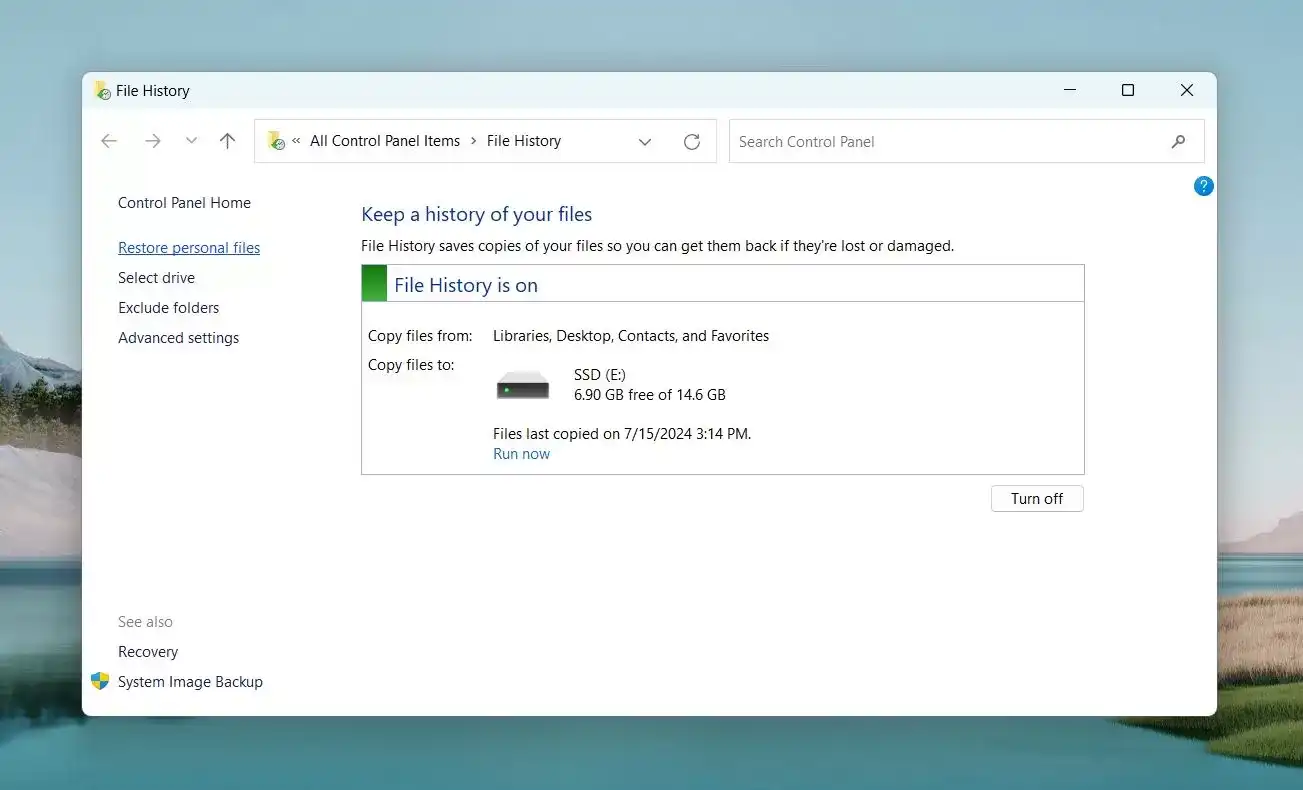
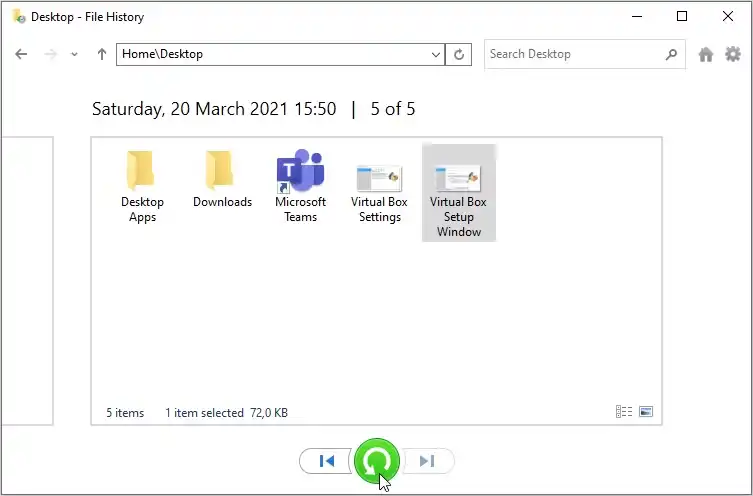
- Browse through available backups and select the files you want to restore.
- Click the green Restore button to save selected files to their original location.
Method 02: Restore Previous Versions of Files and Folders
Windows 11 includes a Previous Versions feature that can restore older copies of files and folders. This built-in feature allows you to restore the deleted file or folder to a previous state. All you have to do is:
- Firstly, go to the folder where the deleted files were earlier stored.
- Right-click on that file and select Properties.
- Go to the Previous Versions tab.
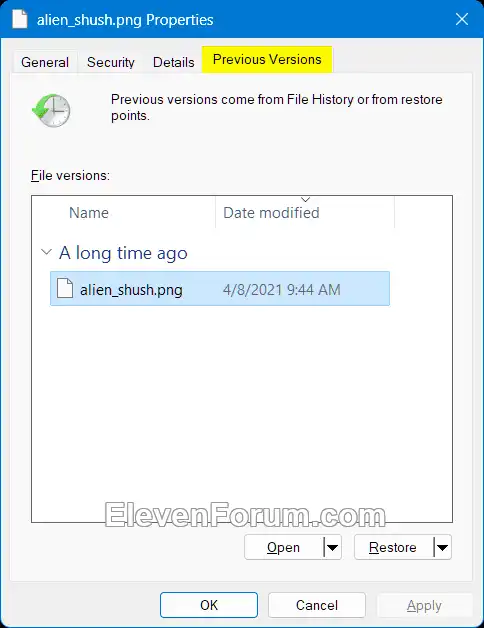
- Select the available version of the deleted file that you need to restore.
- Click Restore to save the selected version to your PC.
Method 03: Recover Files Using Cloud Backups
Along with Windows built-in utilities, you can use cloud backups such as Google Drive, iCloud, etc. to restore deleted files on your PC. If you’ve synced your device with cloud backup utilities, recovery is quite simple.
Follow the below steps to restore your files using OneDrive:
- Launch OneDrive app or visit its official web page.
- Sign in to your OneDrive account.
- Navigate to the Recycle Bin folder.
- Select the deleted file you want to restore.
- Click Restore.
Note: Microsoft typically retains deleted OneDrive files for a limited period before permanent removal.
Method 04: Recover Deleted Files Using Third-Party Software
If you don’t have any of the aforementioned backups of your deleted files, you can try third-party free data recovery software such as Stellar Data Recovery Free to get them back. This all-in-one recovery software can help you restore files deleted due to accidental deletion, formatting, system failure, and many other reasons. The tool offers a simple interface and powerful scanning capabilities, making it suitable for both beginners and advanced users.
The Stellar Data Recovery Free software allows you to restore deleted files, such as photos, videos, documents, etc., of various file formats. The free version allows you to recover a limited amount of data at no cost, making it a practical option for recovering recently deleted files. You can use this software to restore files deleted from SD cards, USB drives, and other internal or external storage devices.
Follow the below steps to recover your deleted files on Windows 11 PC using this free data recovery software:
Step 1: Download and install the Stellar Data Recovery Free software from its official website on your PC.
Step 2: Launch the software and from the homepage, choose the file type you want to restore and click Next to continue.
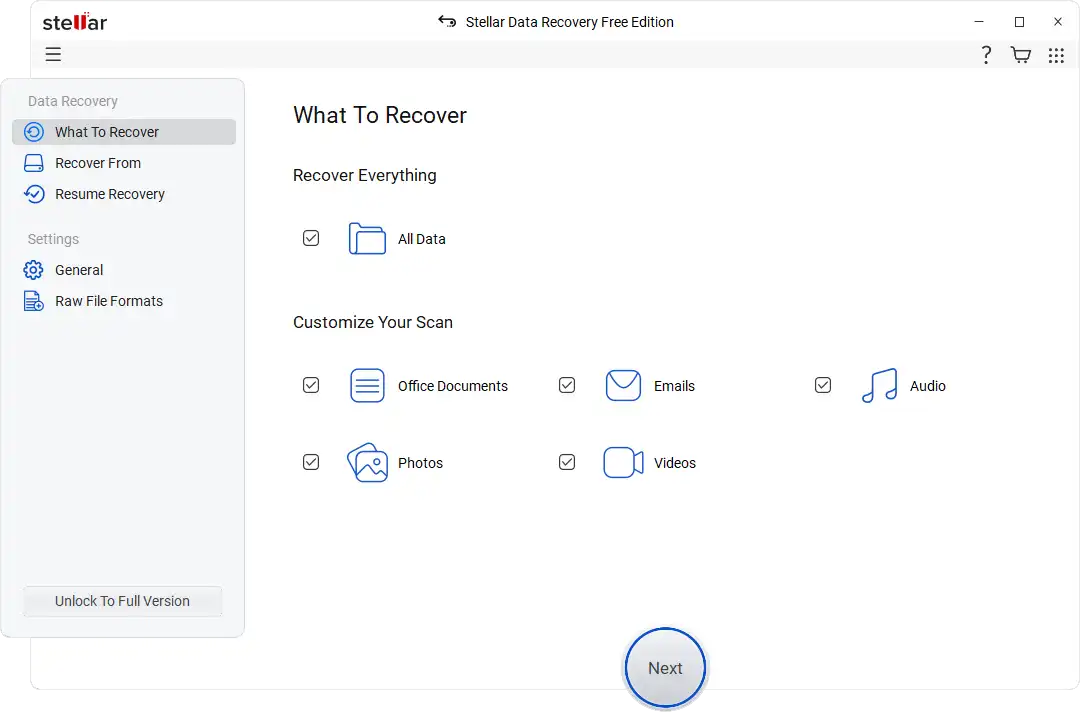
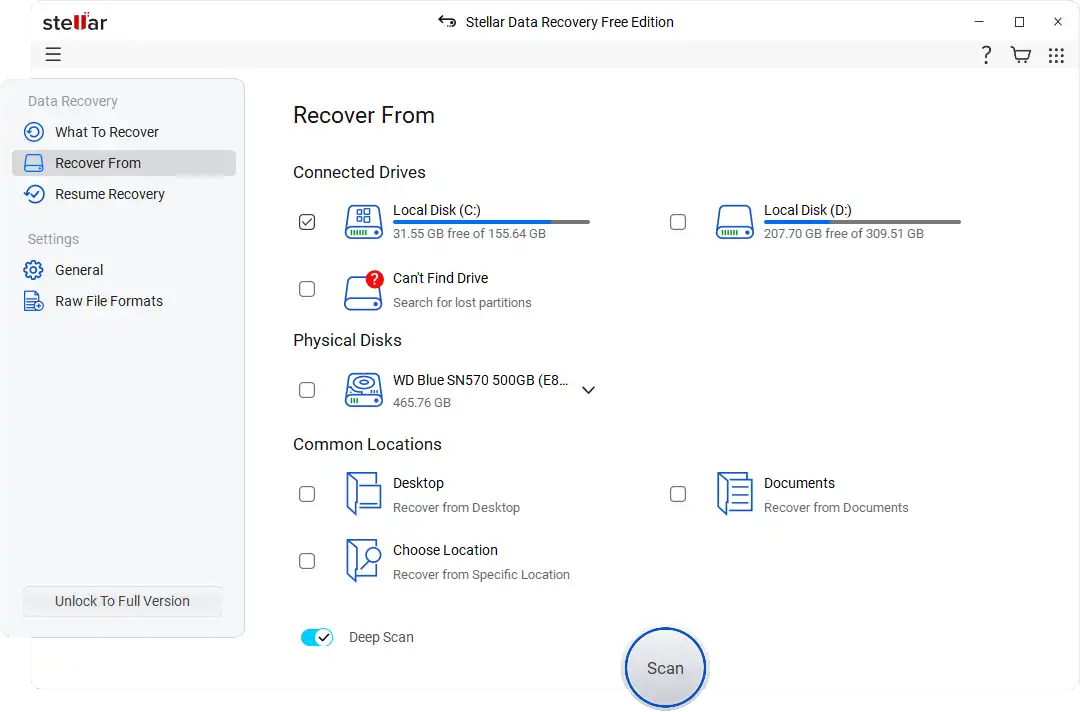
Step 3: Now, select the storage location where the files were stored before deletion. Click Scan to initiate the scanning process.
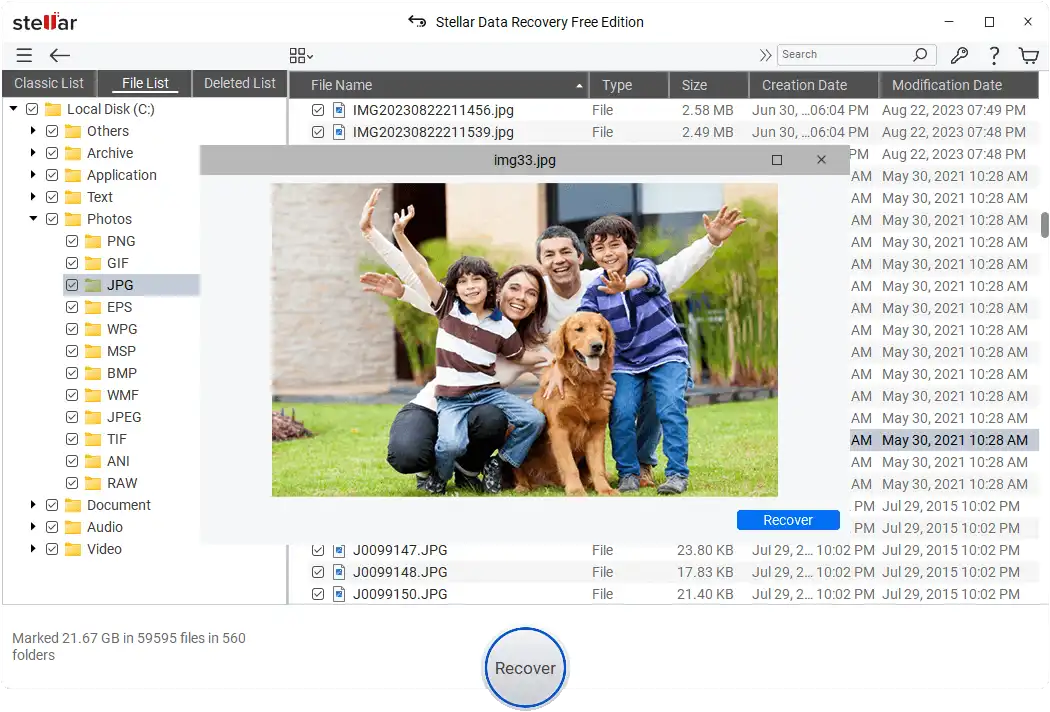
Step 4: Wait till the software completes the scan. Once the scan is done, preview the recoverable files and click Recover to save them to the desired location on your device.
Tips for Successful Data Recovery
To improve your chances of recovering deleted files:
- Stop Using the Affected Drive: After accidental deletion, avoid saving new files to the drive. New data may overwrite the deleted files and make recovery impossible.
- Start Recovery Quickly: The sooner you attempt recovery, the higher the likelihood of retrieving complete files.
- Use Deep Scan If Necessary: If the initial scan does not find your files, run a deeper scan to search for additional recoverable data.
- Recover Files to Another Drive: Always save recovered files to a separate storage location.
- Check File Previews: Preview files before recovery to ensure they are intact and usable.
Conclusion
Data loss on your Windows 11 PC can put you in trouble, but thanks to the aforementioned free data recovery methods, which can help you restore deleted files with ease. The simplest solution is restoring files directly from the Recycle Bin. However, if your file is not present there, you can try other free alternatives such as File History, Previous Versions, OneDrive recovery, and Windows Backup. If these DIY methods fail, try third-party free data recovery tools like Stellar Data Recovery Free.
The key to successful file recovery is acting promptly and avoiding actions that may overwrite deleted data. By enabling backups, cloud synchronisation, and recovery features in advance, you can greatly reduce the risk of permanent data loss and ensure important files remain protected.

![Restart Bluetooth Service In Windows 11 & 10 [Full Guide]](https://www.techdemis.com/wp-content/uploads/2026/06/Restart-Bluetooth-Service-In-Windows-11-and-10-800x450.webp)


![How to Remove a Password from a PDF: The Complete Guide [Every Method 2026]](https://www.techdemis.com/wp-content/uploads/2026/06/Remove-a-PDF-Password-800x450.webp)