
20 Most Essential iPhone 16 Settings [iOS 26 Easy Tweaks]
![20 Most Essential iPhone 16 Settings [iOS 26 Easy Tweaks]](https://www.techdemis.com/wp-content/uploads/2026/06/Essential-iPhone-16-Settings.webp)
You use your iPhone 16 every day, yet many useful options remain tucked away in Settings. They can improve privacy, battery life, and daily ease.
So, we tested them on iOS 26.5 and brought this list that covers 20+practical Settings that can apply on your iPhone, and get the most out of this phone. Each includes steps along with real benefits.
These tweaks work on all iPhone 16 models, and most of them need no extra apps. They stay useful even after future updates too.
Quick Overview
Here is a fast reference; this table lists each setting with its main benefit and location.
| Setting | Main Benefit | Quick Path |
|---|---|---|
| 1. Lock or Hide Apps | Protects sensitive apps with Face ID | Long press app icon |
| 2. Lock Screen Access | Limits what shows when locked | Settings > Face ID & Passcode |
| 3. Private Wi-Fi Address | Improves network privacy | Wi-Fi > network info (i) |
| 4. Developer Mode | Enables advanced sideloading | Settings > Privacy & Security |
| 5. Home Screen Customization | Cleans up icons and layout | Long press empty space > Edit |
| 6. Control Center Edit | Adds or resizes quick controls | Swipe down > tap + |
| 7. Hide Silent Mode Icon | Reduces status bar clutter | Settings > Sounds & Haptics |
| 8. Keyboard Feedback | Silences clicks without mute | Settings > Sounds & Haptics |
| 9. Back Tap | Turns back taps into shortcuts | Settings > Accessibility > Touch |
| 10. Spacebar Trackpad | Moves cursor precisely | Hold spacebar in text field |
| 11. Safari Distraction Control | Removes ads and clutter | Tap aA icon in Safari |
| 12. Send Later Messages | Schedules texts ahead | Messages > + > Send Later |
| 13. Photos App Reorder | Customizes layout | Photos > scroll > Customize |
| 14. Battery Charging Limits | Extends long-term battery life | Settings > Battery > Charging |
| 15. Background App Refresh | Saves power and data | Settings > General |
| 16. Reduce Motion | Makes interface smoother | Settings > Accessibility > Motion |
| 17. Camera Control | Customizes new button gestures | Settings > Camera or Accessibility |
| 18. Higher Resolution Photos | Captures more detail | Settings > Camera > Formats |
| 19. Mirror Front Camera | Fixes flipped selfies | Settings > Camera |
| 20. Field Test Mode | Checks real signal strength | Dial 3001#12345# in Phone |
Use this table to get started easily. You can pick two or three that match your needs first. At the same time, the details below show how each one works in practice.
Privacy and Security Settings
These days, privacy and security come first no matter if you’re using a laptop or phone.
These settings on your iPhone 16 give you more control over who sees your data. They work quietly in the background. And most users notice the difference right away once these setting applied.
Having said that, we can start with the ones that protect your apps and screen without much hassle.
1. Lock or Hide Apps
Here comes the most important one. You can lock or hide apps with Face ID from the home screen your iPhone 16. This keeps banking or private apps safer if someone borrows your phone. It works well on iOS 26.
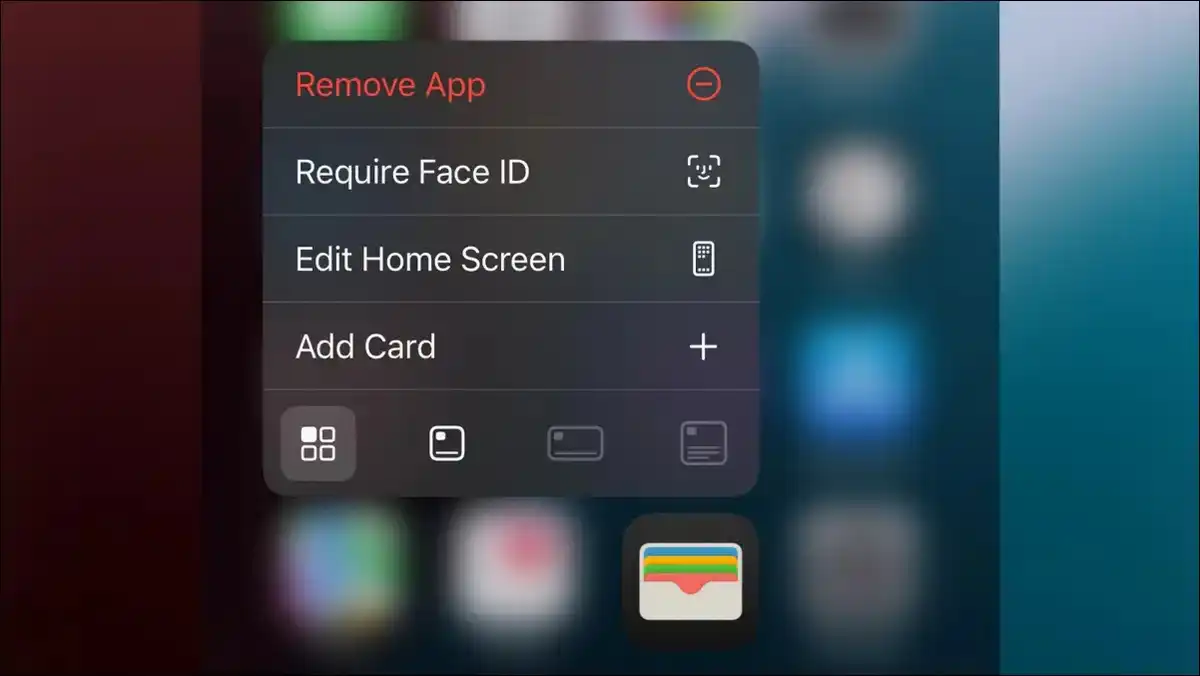
You can follow these steps to set it up.
- Long-press the app icon on your home screen.
- Tap Require Face ID from the menu that appears.
- Choose Require Face ID or Hide and Require Face ID.
Once applied, the hidden apps move to a locked folder in the App Library. You can unlock it with Face ID or your passcode when needed.
We have found this helpful for shared family devices. Spotlight search may still find hidden apps. So, you can test it with a non-critical app first.
[Image placement: Right after the steps. Alt text: “iPhone home screen showing long press menu for locking or hiding an app in iOS 26 on iPhone 16”]
2. Control Access on Lock Screen
You can decide what appears on the lock screen. So, this reduces accidental taps or unwanted glances. To put it simply, it adds a simple layer of privacy.
You can follow these steps to adjust it.
- Go to Settings and tap Face ID & Passcode.
- Enter your passcode when prompted.
- Scroll to Allow Access When Locked and toggle items off.
You can turn off Notifications or Control Center from there. This change takes effect immediately.
You still see the time and wallpaper. However, many people turn off Control Center access for extra safety in public.
3. Use Private Wi-Fi Address
Do you know that your iPhone can rotate its Wi-Fi address on each network? Yes, that’s right, it can do that. This makes tracking harder across locations. This helps on public or shared Wi-Fi.
You can follow these steps to turn it on.
- Open Settings and tap Wi-Fi.
- Tap the (i) next to your network name.
- Toggle Private Wi-Fi Address on.
You can do this per network if you want. Some captive portals may need the toggle off temporarily.
You can turn it back on after you connect, while the privacy gain stays worth the small effort.
4. Enable Developer Mode (Use with Care)
Just like the Developer Options on Android phones, iPhone users get similar too.
Developer Mode can open advanced options for testing apps. While most everyday users do not need it, truth be told, you can turn it on only if you sideload software.
You can follow these steps if you need it.
- Go to Settings and tap Privacy & Security.
- Scroll down to Developer Mode.
- Toggle the switch on after any prompt.
You may need Xcode or a configuration profile first. We recommend caution here as it can increase security risks if misused.
So, you should keep it off unless you have a clear reason, and you may turn it off anytime.
Home Screen and Interface Customizations
Now, here comes the visual part, and that matters the most to us.
Your iPhone 16 lets you shape the look and feel. These changes can reduce clutter and speed up common actions.
They feel very fresh on iOS 26. Simply put, they make the phone feel more like yours. So, let’s customize your iPhone your way!

5. Customize Home Screen Icons and Layout
You can change icon colors, sizes, and arrangement. Large icons may remove text labels to create a cleaner view.
You can follow these steps to customize.
- Long-press an empty spot on the home screen.
- Tap Edit at the top.
- Tap Customize and pick your options.
You can pick tints, themes, or sizes from there. You have the option to drag icons to rearrange. Also, you may hide whole pages if you want.
The Liquid Glass design in iOS 26 pairs nicely with these tweaks. So, you can start small and change one page first, and can undo any step easily.
6. Edit and Resize Control Center
Control Center is like a heart on iPhones, and keeping it clear and clutter-free keeps you loving it.
You can add, remove, or enlarge controls in the Control Center. This puts frequent tools one swipe away.
You can follow these steps to edit it.
- Swipe down from the top right corner.
- Tap the plus sign or long-press empty space.
- Drag controls into place and resize as needed.
You can resize some to larger tiles. We have seen users add their most used toggles here. It cuts down on digging through Settings.
You better experiment until it matches your routine and needs!
7. Hide Silent Mode Icon
The bell icon in the status bar can disappear when silent mode is on. If you like the top bar cleaner, this helps in that!
You can follow these steps to hide it.
- Go to Settings and tap Sounds & Haptics.
- Find the Silent Mode section.
- Toggle Show in Status Bar off.
The change applies right away, and your phone still vibrates or stays silent. Only the visual indicator goes away. Many prefer the minimal look, and this is what they usually do first!
8. Adjust Keyboard Clicks and Feedback
These days, we chat a lot. So, adjusting the keyboard feels like the very right thing on an iPhone.
You can silence keyboard clicks without muting the whole device. So, haptics can stay on for feel while you type!
Isn’t that good? I usually keep my phone that way all the time.
Here’s how you can do that on your iPhone too!
- Open Settings and tap Sounds & Haptics.
- Tap Keyboard Feedback.
- Turn Sound off while leaving Haptic on if you like.
This helps in quiet places like meetings or libraries. The keyboard still works normally. You can test both sound and haptic options.
Productivity Boosters
We no longer use our phones for just calling or chat purposes; now we do a lot of work related to our office, business, or college.
So, it is important to know how we can get better productivity out of iPhone 16.
Like, small gestures and shortcuts add up over a day. While these can save taps and time. They become second nature fast.
And on top of that, they make everyday tasks feel quicker. So, let’s see what best we can do!
9. Set Up Back Tap Gestures
You can turn taps on the back of your iPhone into shortcuts. Double or triple tap can trigger almost anything.
You can follow these steps to set it up.
- Go to Settings and tap Accessibility.
- Tap Touch and then Back Tap.
- Choose Double Tap or Triple Tap and pick an action.
You can choose Double Tap or Triple Tap. Or you may pick an action like screenshot or a Shortcut from the list.
In our experience, Back Tap works best for one-handed use. Also, you can assign reachability or flashlight. It works even with a case on most models.
10. Use Spacebar as Trackpad
Here comes the least-used feature. Most users don’t even know that they can turn the spacebar into a precise cursor mover.
Yes, you can turn the spacebar into a precise cursor mover. This beats fat-finger selection every time.
You can follow these steps when editing text.
- Open any text field in an app.
- Press and hold the spacebar.
- Slide your finger to move the cursor.
You can lift to place it where you want, and it feels like almost a built-in mouse. You can use it for quick edits in notes or messages, while no extra setup is needed.
11. Hide Distractions in Safari
Here discrations means agreivess ads and pop-ups that usualy we find while browsing the Internet. But with Safari, you can get rid of them easily.
And the clean view may work for most of the sites.
You can follow these steps in Safari.
- Open Safari and tap the aA icon near the address bar.
- Tap Hide Distracting Items.
- Drag over the element you want gone and tap Done.
You can tap Done when finished. Some dynamic ads may return later. You can tap Show Hidden Items to reverse it. The feature works across browsing sessions.
12. Schedule Messages with Send Later
You can write a message now and send it at a chosen time. This helps with time zones or reminders.
You can follow these steps in Messages.
- Open Messages and start a new iMessage.
- Tap the plus sign and choose Send Later.
- Set the date and time, then tap the send arrow.
You can still edit or delete before it goes out. You have the option to long-press the scheduled message to change it, and it stays in the thread visibly.
This feature is best when you need to send wishes like a birthday at the right time, like 12:00 AM, without even breaking your sleep!
13. Reorder Photos App Sections
You can decide what shows first in the Photos app. Memories or Albums can move up or down.
You can follow these steps in Photos.
- Open Photos and scroll down a bit.
- Tap Customize & Reorder.
- Check or uncheck sections and drag to reorder.
You can drag to change order, or tap the X to finish. So, this cuts the scroll time for what you use most. It stays consistent across devices signed into the same Apple ID.
Battery and Performance
Battery life and performance remain top things we need to keep it up all the time!
And these settings can surely help your iPhone 16 last longer between charges and across time. Essentially, small tweaks here pay off in the long run.
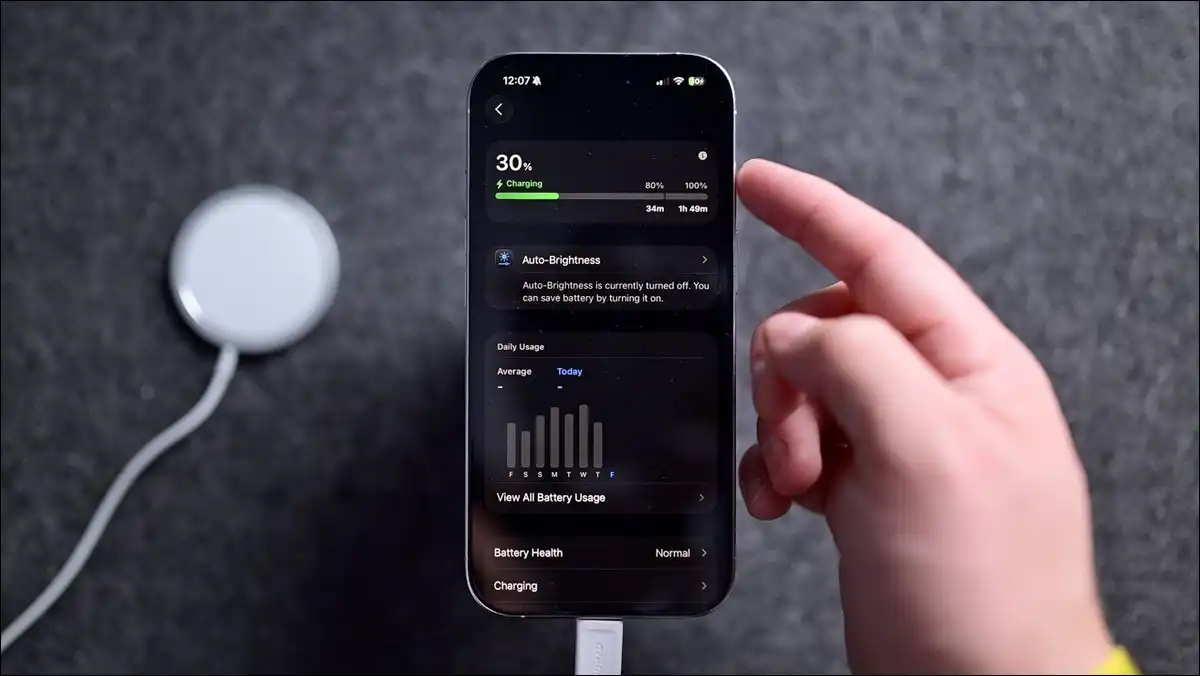
14. Set Battery Charging Limits
You can cap the charge at 80 or 90 percent most days; overall, doing this helps preserve the battery life for a longer duration.
Also, the optimized mode learns your habits and tops up before you wake.
You can follow these steps to set limits.
- Go to Settings and tap Battery.
- Tap Charging.
- Use the slider for a peak limit and toggle Optimized Battery Charging on.
We have found this extends battery capacity over time. Daily use feels almost the same, and you can check the Battery Health section for results after weeks.
15. Manage Background App Refresh
Do you know that a lot apps that keeps updating, using the Internet along with your phone’s battery in the background?
You can stop such apps from updating in the background. This helps in saving power and mobile data, both of them.
You can follow these steps to manage it.
- Go to Settings and tap General.
- Tap Background App Refresh.
- Choose Off or Wi-Fi only.
You can manage apps individually if the option appears. For non-essential apps like social media, can stay off, and for essential ones like mail, can stay on Wi-Fi.
You can check your Battery usage graph to see the difference.
16. Reduce Motion for Smoother Performance
If you want to speed up your iPhone 16 instantly, this trick works!
You can turn off some animations. The interface feels snappier on older or busy days.
Just apply the following settings on your iPhone for better performance:
- Go to Settings and tap Accessibility.
- Tap Motion.
- Toggle Reduce Motion on and try Reduce Transparency too.
Some people notice less eye strain too. The change affects system-wide transitions. You can turn it off if you miss the motion.
Camera Features on iPhone 16
This list of settings won’t be complete if we don’t pull up some tricks to make the camera better!
The Camera Control button and related options give you hardware shortcuts.
These settings can unlock more from the hardware you already own. Better yet, they work right out of the box on your iPhone 16.
17. Customize Camera Control Button
You can change what the new button does and how sensitive it feels. A light press or swipe can launch apps or adjust settings.
You can follow these steps to customize.
- Go to Settings and tap Camera.
- Look for Camera Control options or go to Accessibility, then Camera Control.
- Adjust Light Press Force and assign apps as needed.
You can test lighter or firmer pressure. Many users set it to open their favorite camera app or Visual Intelligence. Worth knowing that it works on all iPhone 16 models.
18. Enable Higher Resolution Photos
You can switch to 48-megapixel shots when you want more detail. But you should know that files get larger, so you should use it very selectively.
You can follow these steps to enable it.
- Go to Settings and tap Camera.
- Tap Formats.
- Turn on ProRAW & Resolution Control and choose HEIF Max or ProRAW.
In the Camera app, you can also tap the resolution icon to switch. This works great for cropping or printing later. Normal 12MP shots stay default for everyday use.
Storage fills faster with the high-res option, so use this setting according to your needs.
19. Mirror Front Camera
You can stop selfies from flipping text or orientation. What you see is what you get, and that’s what we want on your iPhone 16.
Here’s how you can turn this feature on:
- Go to Settings and tap Camera.
- Toggle Mirror Front Camera on.
It helps with vlogs or text in shots. The change applies in the Camera app right away, and you can reverse it in the same menu.
20. Access Visual Intelligence Quickly
You can point your camera at objects or text for instant information about that object or text. This feature uses Apple Intelligence on supported devices.
You can follow these steps to use it.
- Press or configure the Camera Control button.
- Or swipe down to Control Center and tap the Visual Intelligence button.
- Point at something and tap to get info.
It works for translations, search, or adding events. You can keep it handy for travel or shopping. Results stay private on the device where possible.
21. Check New Camera Settings in iOS 26
Recently, Apple added small maintenance hints in the Camera menu in iOS 16. Lens Cleaning Hints can remind you when needed.
You can follow these steps to check.
- Go to Settings and tap Camera.
- Look for Lens Cleaning Hints or similar toggles.
- Turn on what helps you.
These are quiet aids and do not change photo quality directly. You can check back after updates for more options.
Advanced Tools and Diagnostics
There are a couple of hidden modes that give deeper insight.
You can use them when you need to troubleshoot or test. Speaking of which, one classic tool still works great on iOS 26.
22. Use Field Test Mode for Signal Checks
You can see exact cellular signal numbers instead of bars. This helps diagnose weak spots.
You can follow these steps to open it.
- Open the Phone app.
- Dial 3001#12345# exactly.
- Tap the call button to view the metrics.
You can exit by ending the call or pressing the side button. Lower dBm numbers mean weaker signal. You can use it on trips or in new areas.
It works on current iOS 26 without extra setup.
Extra Tips for These Settings
You can combine a few for bigger results.
- Back Tap plus a Shortcut can create custom workflows.
- Camera Control plus Visual Intelligence speeds up research tasks.
You can always back up before big changes. Most settings reverse easily. You can test on a weekend if you worry about daily flow.
Which of these matches a frustration you have right now?
How These Changes Affect Daily Life
Privacy settings can reduce worry when you share your phone. Battery tweaks keep the device healthier for longer. Camera options turn hardware into a faster tool.
Most people see benefits within a day or two. The changes stay stable through iOS updates. They work alongside Apple Intelligence features too.
You can track your Battery Health percentage over a month. You may note how often you reach for Control Center after customizing it. Small wins add up over time.
Wrapping Up!
You can start with the settings that solve your biggest daily pain point. Battery limits and app locking often give the quickest wins. Camera Control customization follows close behind for iPhone 16 owners.
These options sit in your device already. They just need a few taps to activate. You can try one today. See how it fits your routine. Your iPhone 16 can feel more personal and efficient with these small adjustments.
You can keep an eye on Settings after each iOS update. Apple sometimes moves or expands these menus. The core ideas stay useful for years.
Thanks for reading. Which hidden setting will you try first? You can share your experience in the comments if you like. Stay curious about what else your phone can do.

![vnROM Bypass Complete Guide [2026]: How It Works, Android Compatibility, Security Risks & Alternatives](https://www.techdemis.com/wp-content/uploads/2026/06/vnROM-Bypass-Complete-Guide-800x450.webp)


