
How to Fix Error 0x80004005 on Windows 11 (All Scenarios Covered)
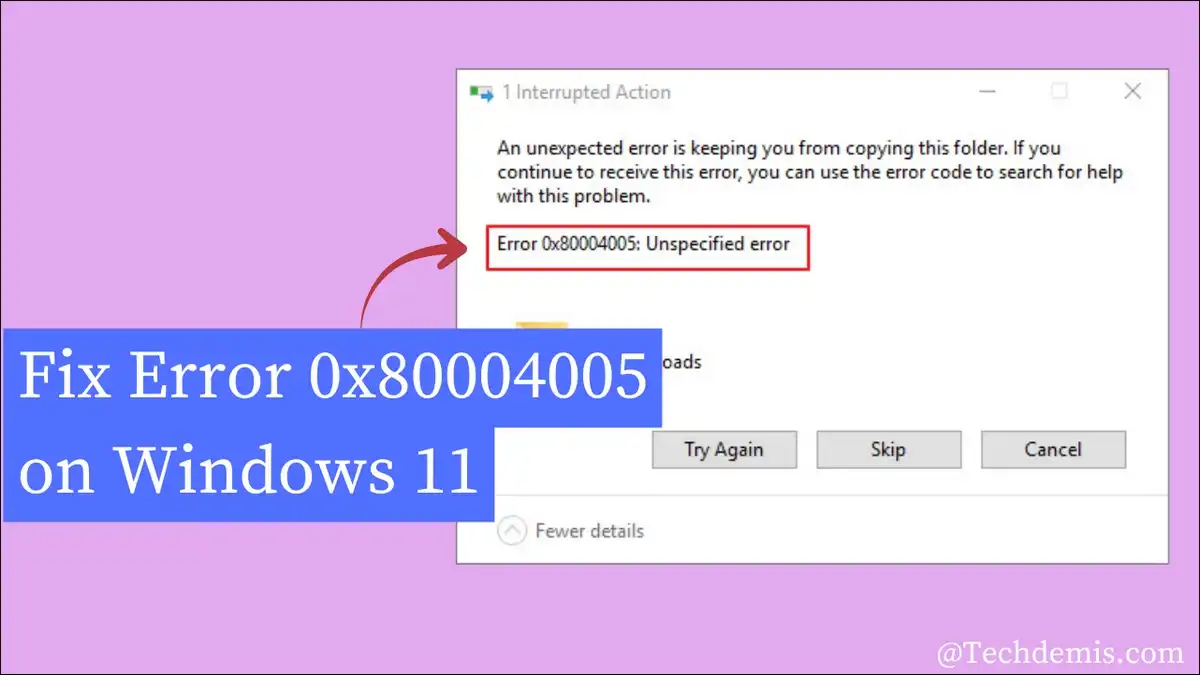
Fix Windows 11 error 0x80004005 fast: match your scenario, update, network, ZIP, VM, file, or Outlook, then apply the exact fix.
Error 0x80004005 means Windows hit a problem but won’t say what. It’s labelled an “unspecified error.” So the fix depends entirely on where the error appeared.
That’s why this guide is built around scenarios. Find yours below. Then apply only the fixes that match it.
What is error 0x80004005 and why does it keep appearing?
Error 0x80004005 is a generic Windows code meaning “Unspecified Error.” Put simply, Windows detected a failure but cannot identify it for you.
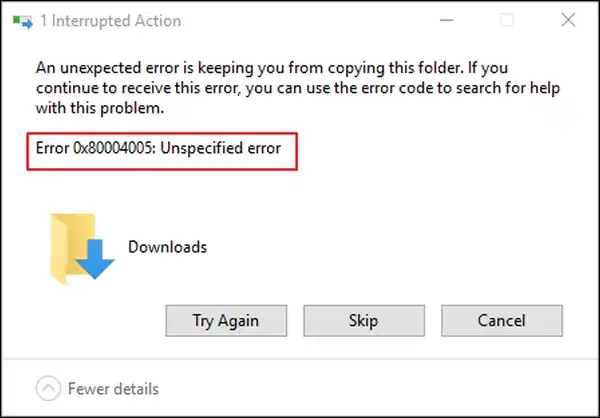
The code maps to the COM error class E_FAIL. In short, it signals a general failure with no specific reason attached.
And that vagueness is the whole problem. One error code, many unrelated causes. So a fix that works for one person often fails for another.
Here’s the upside: the error shows up in six main situations. Each one has its own root cause and its own solution.
| Scenario | How common | Typical root cause |
|---|---|---|
| Windows Update fails | Very common | Corrupted update cache or EFI partition |
| Shared folder access denied | Common | Missing registry policy or SMB settings |
| ZIP/RAR extraction fails | Common | Encrypted archive or unsupported format |
| VirtualBox/Hyper-V won’t start | Specific | Hyper-V conflict or saved VM state |
| Local file access denied | Common | Permissions or antivirus blocking |
| Outlook/email errors | Less common | Antivirus or notification conflict |
Use this table to jump to your fix. Don’t run every step. Match the scenario first.
Also read: Enable Ultimate Performance Power Plan in Windows 10 and 11
How do I quickly diagnose which 0x80004005 problem I have?
Ask one question: where did the error appear? Your answer points straight to the right section.
- The error showed during a Windows update. Go to Fix 1. Update cache or boot files are usually to blame.
- The error appeared when opening a network folder. Go to Fix 2. Here, registry policy or sharing settings are the cause.
- The error blocked a ZIP extraction. Go to Fix 3. The archive is likely encrypted or corrupt.
- A virtual machine refused to start. Go to Fix 4. Hyper-V conflict is the prime suspect.
- A local file or folder denied access. Go to Fix 5. Check ownership and permissions first.
- Outlook threw the error. Go to Fix 6. Antivirus or notifications usually cause it.
A simple flowchart diagram showing “Where did the error appear?” branching into six fix paths:
Before you start, check Event Viewer too. In our experience, it often reveals the real failing component behind the vague code.
Fix 1: Error 0x80004005 during Windows Update (including the 24H2 loop)
The most reliable cause is a corrupted update cache inside the SoftwareDistribution folder. Resetting update components clears it.
That said, Windows 11 24H2 adds a second, sneakier cause. A damaged EFI System Partition blocks the upgrade and triggers a reboot loop.
So work through these steps in order. Stop the moment the error disappears.
Run the Windows Update troubleshooter first
This is the fastest, safest starting point. It fixes common update problems automatically.
Open Settings. Go to System > Troubleshoot > Other troubleshooters. Run the Windows Update troubleshooter.
Follow the prompts. Restart your PC. Then check for updates again.
Reset Windows Update components manually
Didn’t work? This clears the corrupted cache the troubleshooter sometimes misses. You’ll use an elevated Command Prompt.
Press Win + S, type cmd, right-click Command Prompt, and select Run as administrator.
First, stop the update services:
net stop wuauserv
net stop cryptSvc
net stop bits
net stop msiserver
Next, delete the cached update folders:
rd /s /q C:\Windows\SoftwareDistribution
rd /s /q C:\Windows\System32\catroot2
Then restart the services:
net start wuauserv
net start cryptSvc
net start bits
net start msiserver
Close the window. Run Windows Update again.
Run SFC and DISM to repair system files
Still stuck? Corrupted system files can block updates from installing. These two scans repair them.
Open an elevated Command Prompt. Run the system file checker:
sfc /scannowWhen it finishes, repair the Windows image:
DISM /Online /Cleanup-Image /RestoreHealthRestart. Then retry the update.
Install the failed update manually from Microsoft Update Catalog
When one specific update keeps failing, install it directly. This bypasses the broken update pipeline entirely.
Go to Settings > Windows Update > Update history. Find the failed update’s KB number under “Failed.”
Open the Microsoft Update Catalog. Search for that KB number. Download the version matching your edition and architecture.
Run the downloaded .msu file as administrator. In our experience, this often succeeds where automatic updates fail.
Fix a corrupt EFI System Partition (the 24H2 culprit)
Now for the part most guides miss. The Windows 11 24H2 upgrade fails, then re-queues itself in a loop.
The hidden cause is often a damaged EFI System Partition. During the upgrade, Setup must copy fresh boot files to that partition.
So what fixes it? A field-tested repair documented by IT Trip found the partition present but missing essential boot files. Rewriting them ends the loop.
Open an elevated Command Prompt. First, mount the EFI partition:
mountvol S: /SThen rewrite the boot files:
bcdboot C:\Windows /s S: /f UEFIRestart. Then run the 24H2 installer again. The upgrade should now pass the first reboot.
When low EFI partition space is the problem
Sometimes the partition is fine but simply too full. A related May 2026 update bug exposed this issue.
According to Microsoft Learn, some devices failed to install when the EFI System Partition had 10 MB or less of free space.
For context, Microsoft’s own guidance lists 200 MB as the minimum ESP size. Yet Gadget Hacks reports that many older OEM systems shipped with just 100 MB partitions.
So if your ESP is cramped, clear old boot fonts and stale entries. Then retry the update.
Fix 2: Error 0x80004005 when accessing shared folders or network drives
The most common cause is a missing LocalAccountTokenFilterPolicy registry value. Without it, Windows blocks remote admin shares by default.
Try these network fixes in order. And back up your registry before editing it.
Set the LocalAccountTokenFilterPolicy registry key
This single key resolves most “Windows cannot access” sharing errors. Basically, it tells Windows to allow remote access.
Warning: Back up the registry first. Open regedit, go to File > Export, and save a copy.
Press Win + R, type regedit, and press Enter.
Navigate to:
HKEY_LOCAL_MACHINE\SOFTWARE\Microsoft\Windows\CurrentVersion\Policies\SystemLook for LocalAccountTokenFilterPolicy on the right. If it exists, set its value to 1.
Missing? Right-click the empty space. Choose New. Then pick QWORD (64-bit) Value on a 64-bit system.
Name it LocalAccountTokenFilterPolicy. Set the value to 1. Restart your PC.
Enable network discovery and file sharing
If the registry fix alone fails, sharing may simply be turned off. So turn it on.
Press Win + R, type control.exe /name Microsoft.NetworkAndSharingCenter, and press Enter.
Click Change advanced sharing settings. Under Private, enable network discovery and file sharing.
Save the changes. Then test the shared folder again.
Grant full permissions to the shared folder
Reach the machine, but one folder still fails? Then NTFS permissions are blocking you.
Right-click the folder. Select Properties. Go to the Sharing tab. Click Advanced Sharing.
Check Share this folder. Click Permissions. Select Everyone and grant Full Control.
Apply and confirm. Access should now work.
Uninstall stale Microsoft 6to4 adapters
Leftover IPv6 tunnel adapters can break file sharing too. This fix is rarely documented.
Press Win + R, type devmgmt.msc, and press Enter.
Click View, then Show hidden devices. Expand Network adapters.
Right-click each Microsoft 6to4 Adapter. Select Uninstall device. Restart your PC.
Disable IPv6 as a last resort
On some setups, IPv6 conflicts with SMB file sharing. So disabling it can clear the error.
Press Win + R, type ncpa.cpl, and press Enter.
Right-click your active connection. Select Properties. Uncheck Internet Protocol Version 6 (TCP/IPv6).
Click OK. Restart your PC.
Fix 3: Error 0x80004005 when extracting ZIP, RAR, or 7z files
The built-in Windows extractor can’t handle certain encrypted archives. So use a stronger tool instead.
The good news? This scenario has a small, focused set of fixes. Most users solve it in minutes.
Use 7-Zip instead of the Windows extractor
Windows fails on AES-256-encrypted ZIP files. 7-Zip, on the other hand, handles them natively.
Download and install 7-Zip from its official site. Right-click your archive. Choose 7-Zip > Extract here.
Enter the password if prompted. The extraction should now complete.
Take ownership before extracting
Sometimes the destination folder blocks the write. Taking ownership fixes that.
Right-click the target folder. Select Properties. Go to the Security tab, then Advanced.
Change the owner to your account. Grant yourself Full Control. Then extract again.
Check the destination path length
Here’s another easy miss: Windows still enforces a path-length limit by default. Long paths can trigger the error.
So move the archive closer to the drive root. Try C:\Temp instead of a deeply nested folder.
| Quick check | Action |
|---|---|
| Archive is password-protected | Use 7-Zip with the password |
| Extraction folder denies write | Take ownership of the folder |
| Path is very long | Extract to a short root path |
| Archive itself is corrupt | Re-download the file |
Fix 4: Error 0x80004005 (E_FAIL) in VirtualBox and Hyper-V
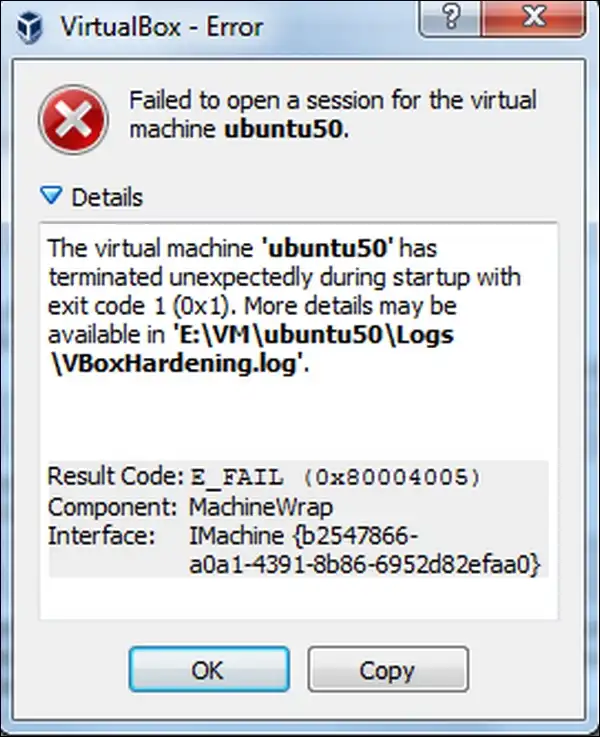
The usual cause is a conflict between Hyper-V and VirtualBox. Resolve that conflict, and your VM starts again.
This error often appears after a Windows build update. So work through these fixes in order.
Discard the saved VM state first
This is the most overlooked quick fix. A corrupted saved state blocks startup.
Open VirtualBox. Right-click the virtual machine. Select Discard Saved State. Then restart the session.
Why does this happen? Force-quitting VirtualBox without closing a VM causes the error. Discarding the state clears it.
Understand the Hyper-V conflict before disabling anything
Here’s what most guides get wrong. VirtualBox and Hyper-V can sometimes coexist.
Since version 6.0, VirtualBox can use the Hyper-V API to run alongside Hyper-V. An outdated VirtualBox cannot.
So update VirtualBox first. Open the app, click File, then Check for Updates. Install the latest version.
If that works, you never needed to disable Hyper-V at all.
Disable Hyper-V via bcdedit, not Windows Features
Now, disabling Hyper-V in Windows Features often fails to stick. A reliable method uses Command Prompt.
Open Command Prompt as administrator. Run:
bcdedit /set hypervisorlaunchtype offRestart your PC. Start the VM again. This fully disables the Hyper-V launch that blocks VirtualBox.
Need Hyper-V back later? Run the same command with auto instead of off.
Update Hyper-V Integration Services
Using Hyper-V itself, not VirtualBox? Then the fix is different. Update the integration services.
Open Hyper-V Manager. Select the problem VM. Apply available integration service updates. Then restart the VM.
Install optional driver updates
Outdated drivers can trigger VM hardware conflicts. Optional updates often resolve them.
Open Settings > Windows Update > Advanced options > Optional updates. Expand Driver updates. Install all listed driver updates.
Fix 5: Error 0x80004005 when accessing local files and folders
When the error blocks a local file, the cause is almost always permissions. Your account simply lacks ownership.
These fixes restore your access. And each one takes only a few minutes.
Take ownership of the file or folder
Even admin accounts can lack ownership of certain files. Claiming it fixes the access denial.
Right-click the file. Select Properties. Go to the Security tab, then Advanced.
Click Change next to the owner. Enter your username. Check Replace owner on subcontainers and objects. Apply.
Adjust the file permissions
Once you own the file, set your permissions correctly. This grants full read and write access.
In the Security tab, select your user group. Check Full Control. Apply the change.
Disable antivirus temporarily
Third-party antivirus can block file operations. So disabling it briefly tells you if it’s the cause.
Turn off your antivirus. Try the file again. If it works, your antivirus was the culprit.
Then add an exception for the file or folder. Re-enable protection afterwards.
Clear temporary files
Locked temporary files can trigger the error too. Clearing them helps.
Press Win + R, type %temp%, and press Enter. Select all files. Delete them. Then retry.
Also read: What is Personal vDisks? Full Details
Fix 6: Error 0x80004005 in Microsoft Outlook or email clients
In Outlook, the error usually comes from antivirus interference or notification settings. Both are easy to address.
This scenario is less common, but still frustrating. So these steps target it directly.
Disable email notifications
Outlook notifications sometimes conflict with security settings. Turning them off can stop the error.
Open Outlook. Go to File > Options > Mail. Uncheck the notification options. Restart Outlook.
Repair the Office installation
Still there? A damaged Office install can produce the error. The built-in repair tool fixes it.
Open Settings > Apps > Installed apps. Find Microsoft Office. Click Modify, then Repair.
Exclude Outlook data files from antivirus scans
Antivirus scanning .pst and .ost files can block access. Excluding them resolves the conflict.
Open your antivirus settings. Add the Outlook data folder to the exclusion list. Then restart Outlook.
Universal fixes that work across all scenarios most of the time
Some fixes apply no matter where the error appeared. Try these if your scenario-specific steps failed.
In short, these general repairs catch causes that don’t fit one category. Run them in order.
| Fix | What it targets | Time |
|---|---|---|
| Install pending updates | Missing patches | 10–20 min |
| Run Chkdsk | File system errors | 15–60 min |
| Clear temp files | Locked residuals | 2 min |
| Full malware scan | Malicious interference | 20–60 min |
| Network reset | Connectivity issues | 5 min |
| System Restore | Recent bad changes | 15–30 min |
Run a malware scan if nothing else works. After all, malware can corrupt system files and lock folders, triggering this error.
And use System Restore as a last resort. It rolls back recent changes before you ever consider reinstalling Windows.
How do I stop error 0x80004005 from coming back?
Prevention beats repair. A few habits keep this error from returning, and no competitor guide covers this well.
We’ve found that these steps reduce the conditions that cause 0x80004005. So build them into your routine.
- Run SFC monthly. Schedule
sfc /scannowthrough Task Scheduler. It catches file corruption early. - Keep your EFI partition clear. Remove old boot fonts and stale entries before major updates. Cramped partitions break upgrades.
- Update VirtualBox regularly. Newer versions stay compatible with the latest Hyper-V API. Outdated ones conflict.
- Fix permissions after big transfers. Large file moves can scramble NTFS ownership. So verify access afterward.
- Back up the registry before updates. A saved copy lets you undo any harmful change instantly.
- Maintain antivirus exclusions. Keep shared and working folders on your exclusion list. This prevents repeated blocks.
Summary: quick-reference fix table
Match your scenario to its fastest fix below. And always diagnose the context before applying any solution.
| Scenario | Most likely cause | Fastest fix | Est. time |
|---|---|---|---|
| Windows Update fails | Corrupted cache | Reset update components | 10 min |
| 24H2 update loops | Corrupt EFI partition | Rewrite boot files with bcdboot | 15 min |
| Shared folder denied | Missing registry key | Set LocalAccountTokenFilterPolicy | 5 min |
| ZIP extraction fails | Encrypted archive | Use 7-Zip | 3 min |
| VM won’t start | Hyper-V conflict | bcdedit hypervisorlaunchtype off | 5 min |
| Local file denied | Permissions | Take ownership | 5 min |
| Outlook error | Antivirus conflict | Exclude .pst/.ost files | 5 min |
Contact Microsoft Support if the error survives every fix. Sometimes deep system corruption needs professional help.
What’s the key takeaway? It’s simple. Identify where the error appeared. Then apply only the matching fix.

![How to Recover Deleted Files from the Recycle Bin on Windows 11? [Free Methods]](https://www.techdemis.com/wp-content/uploads/2026/06/How-to-Recover-Deleted-Files-from-the-Recycle-Bin-on-Windows-11-800x450.webp)

![Restart Bluetooth Service In Windows 11 & 10 [Full Guide]](https://www.techdemis.com/wp-content/uploads/2026/06/Restart-Bluetooth-Service-In-Windows-11-and-10-800x450.webp)

