
Enable Ultimate Performance Power Plan in Windows 10 and 11 (HowToGeek Hasn’t Fixed It Yet)

The HowToGeek.com Ultimate Performance guide, refreshed: enable it in Windows 11 or 10, with benchmarks and the Modern Standby fix.
Most guides on this topic still say “Windows 10” in the title. The popular HowToGeek tutorial was last updated in August 2023, and Windows has changed a lot since then.
So this guide fixes that gap. It covers Windows 11 24H2, real benchmark numbers, and the Modern Standby bug that hides the plan entirely.
Quick answer: Open Terminal as admin. Run
powercfg -duplicatescheme e9a42b02-d5df-448d-aa00-03f14749eb61. The plan appears in Control Panel under Power Options.
What is the Ultimate Performance power plan?
It’s a high-performance power scheme that removes power-saving delays. Put simply, it keeps your hardware fully awake at all times.
Microsoft introduced this power scheme in 2018. It is built upon the High-Performance power scheme but tries to eke out every bit of performance possible.
The plan targets a specific problem, and that problem is called micro-latency.
So what’s micro-latency, exactly? It is the slight delay between when your OS recognises that a piece of hardware needs more power and when it delivers that power. This delay is tiny. But it adds up in some workloads.
Also read: Fix High CPU, Disk, and Memory Usage In Windows 10 and 11
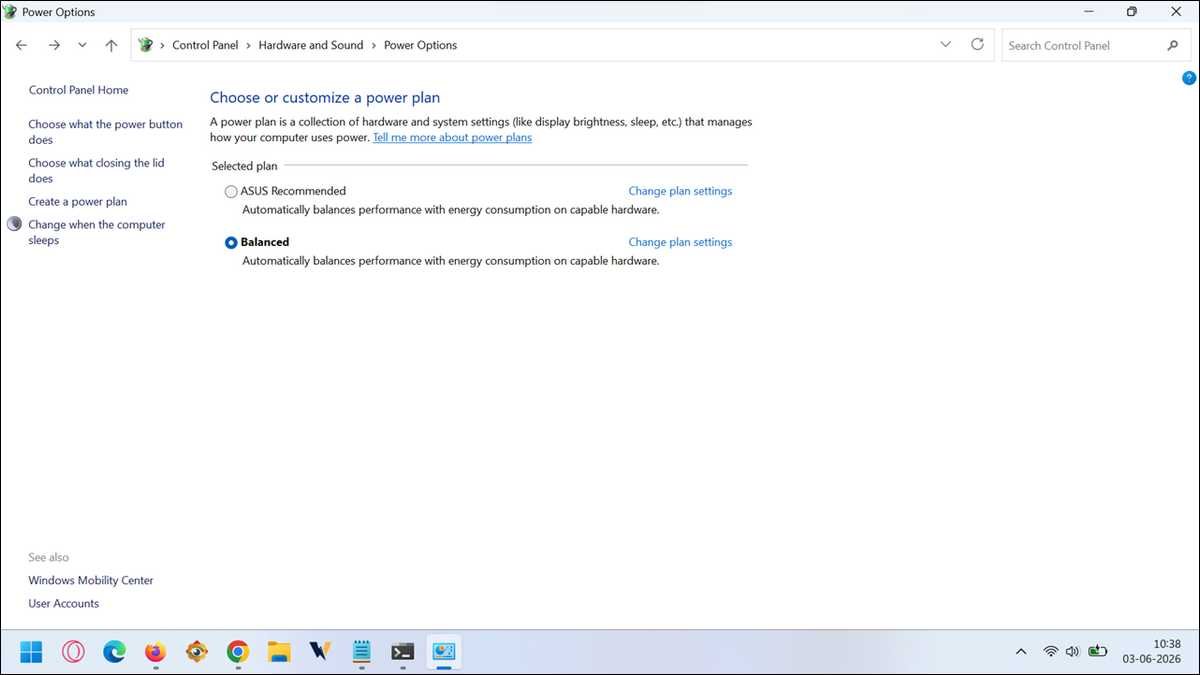
Here’s the bigger picture. Microsoft introduced the plan for high-end systems. It goes a step further than the standard High Performance plan, removing many power-saving limits to let your hardware run at full throttle.
Still, the name oversells it. In practice, Ultimate Performance is just High Performance with its restrictions removed. It disables core parking, minimises CPU idle states, and keeps clocks aggressively primed so the system never hesitates to boost.
What it actually changes under the hood
It locks several power settings to their maximum. Each change removes one source of latency.
So here’s what flips when you enable it.
| Setting | What Ultimate Performance does | Effect |
|---|---|---|
| Minimum processor state | Locked to 100% | The processor never downclocks |
| PCIe Link State Power | Set to Off | GPU and NVMe SSDs stay fully powered. |
| Core parking | Disabled | All CPU cores stay active |
| Hard disk idle timer | Disabled | Drives keep spinning, no folder-open freeze. |
| Hibernation | Blocked | System stops hibernating. |
| Wireless adapter | Max performance | Avoids random Wi-Fi disconnects |
To be sure, we cross-checked these settings across different top sources.
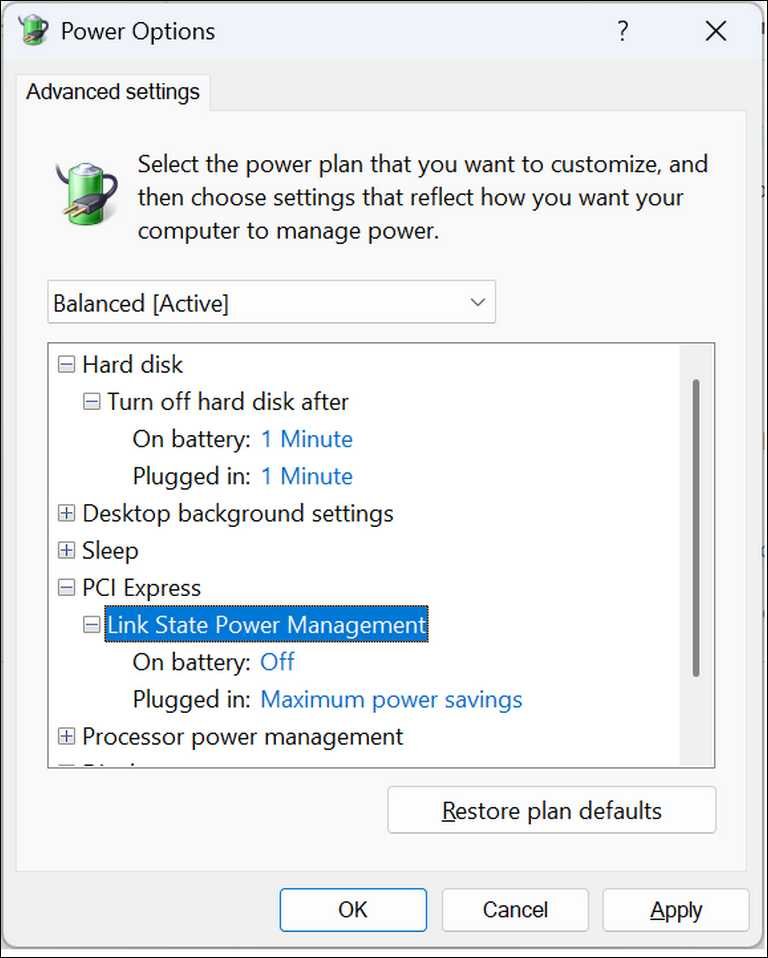
Under PCI Express, Link State Power Management should be set to Off in Ultimate Performance.
This prevents the PCIe bus from entering low-power states that add micro-latency during device wake events.
[IMAGE PLACEMENT: Screenshot of advanced power settings showing PCIe Link State set to Off. Alt text: “Advanced power settings window showing PCI Express Link State Power Management set to Off”]
Ultimate Performance vs the other power plans
It sits at the top of the performance ladder. That said, the gap from High Performance is smaller than you think.
This table compares all four plans side by side.
| Plan | CPU min state | Core parking | Battery friendly | Best for |
|---|---|---|---|---|
| Power Saver | Low | Active | Yes | Battery life |
| Balanced | Dynamic | Active | Yes | Most users |
| High Performance | Base clock+ | Disabled | No | Gaming, desktops |
| Ultimate Performance | 100% locked | Disabled | No | Workstations, rendering |
And on a desktop, the two top plans behave almost identically. Ultimate Performance performs the same as High Performance in games.
Both disable core parking and set the minimum processor state to 100%. Ultimate Performance additionally prevents hard drives and USB devices from sleeping, which does not affect FPS.
Also read: How to fix Black Line on Monitor
How to enable Ultimate Performance on Windows 11
Open Terminal as admin and run one command. The plan then appears in Control Panel.
But there’s a catch. Windows 11 hides this plan on most systems. Microsoft shows it out of the box only on the Pro for Workstations edition of Windows 10 and 11. On regular Home or Pro systems, you have to go looking for it.
So here’s the fastest method that works on every edition.
Method A, command line (recommended)
- Press
Windows + X. Choose Terminal (Admin). - Paste this command and press Enter:
powercfg -duplicatescheme e9a42b02-d5df-448d-aa00-03f14749eb61PS C:\Windows\system32> powercfg -duplicatescheme e9a42b02-d5df-448d-aa00-03f14749eb61
Power Scheme GUID: 8c5e7fda-e8bf-4a96-9a85-a6e23a8c635c (Ultimate Performance)
PS C:\Windows\system32>
- Open Control Panel. Go to Hardware and Sound, then Power Options.
- Expand “Show additional plans.” Select Ultimate Performance.
And yes, it still works on the newest builds. This command has been tested on Windows 11 25H2. After running it, you should clearly see two options: High performance and Ultimate performance. MakeUseOf
Method B, Settings app path
Some workstation systems show the plan already, so check Settings first.
Go to System, then Power & battery. Click Additional power settings. The plan may appear if your edition supports it.
Fix: the plan won’t appear on Modern Standby devices
This is the bug HowToGeek never covers. Modern laptops and many desktops use Modern Standby, and they hide all extra power plans.
In our experience, this single issue frustrates more users than any other. The fix is a registry edit, not a setting.
Why does this happen? Windows 11 devices that support Modern Standby will usually only have the Balanced power plan scheme available by default, and can only add custom power plans.
So run this command in an admin Terminal first. Then restart and re-run the duplicate command.
reg add HKLM\System\CurrentControlSet\Control\Power /v PlatformAoAcOverride /t REG_DWORD /d 0What this does matters. It modifies the Modern sleep registry. After restarting, you can add the missing power plans. When speed step is enabled, Windows hides all the power plans and leaves only Balanced available.
How to enable it on Windows 10
The steps are nearly identical. Only the Settings UI differs slightly.
Windows 10 originally limited this plan. Since the Windows 10 Spring Creators Update you can choose from Balanced, High Performance, Power Saver, and the hidden Ultimate Performance plan.
For reliability, use the same command method.
- Open Command Prompt or PowerShell as admin.
- Run the same
powercfg -duplicateschemecommand above. - Open Power Options in Control Panel.
- Select Ultimate Performance under additional plans.
One heads-up for laptop users. This option may not appear under this section, so use the command line instead.
Does Ultimate Performance actually improve performance?
It depends entirely on your workload. CPU-bound and professional tasks benefit, while GPU-bound games barely change.
This is where most guides stay vague, so we pulled real test numbers from Tier 1 sources.
Gaming: CPU-bound titles see real gains
CPU-heavy games show measurable improvement. The gains live in frame consistency, not raw averages.
In a 2026 test by XDA Developers, Fortnite average FPS jumped from 101 to 108, a 7% increase, with 1% lows improving remarkably.
Here’s a bar chart comparing FPS across Balanced, High Performance, and Ultimate Performance for CPU-bound vs GPU-bound games:
Average FPS: High Performance vs Ultimate Performance
Fortnite (CPU-bound)
+7% gain, with noticeably better 1% lows
Cyberpunk 2077 (GPU-bound)
No change, within margin of error
Source: XDA Developers, 2026 test
Why Fortnite specifically? It is heavily CPU-bound owing to hundreds of real-time player actions, building physics, and network updates every minute. The 1% lows getting better noticeably improved dropped frames in crowded areas.
Gaming: GPU-bound titles see almost nothing
Single-player blockbusters show no real change, because your GPU is already the bottleneck.
In the same XDA test, Cyberpunk 2077, Black Myth: Wukong, and Forza Horizon 5 all showed differences within the margin of error regardless of power plan.
Esports titles stay flat too. According to ExpertBeacon, CS:GO, Valorant, and Rainbow Six Siege saw only a 2-5% boost to max FPS over the High Performance plan.
Professional work: where it earns its name
Rendering and editing show the biggest wins. This is the plan’s true home.
The same ExpertBeacon testing recorded up to an 18% reduction in render times in Premiere Pro and Blender with the Ultimate power policy.
HelpDeskGeek confirms the use case. You may see noticeable improvements during intensive activities like video editing and encoding.
The result nobody warns you about
Here’s the part that surprises people. Sometimes Ultimate Performance scores lower than Balanced, because modern CPUs manage their own boosting.
On some Intel and AMD systems, the plan backfires. For AMD systems starting with Zen 3, the recommendation is to set the Control Panel power plan to Balanced, because the CPU’s own algorithms work best that way.
And this isn’t just theory. A user on the AnandTech forums found their Intel 13900K scored lower on Ultimate Performance than Balanced. The CPU’s native boosting fought the Windows power hints.
Who should (and shouldn’t) enable Ultimate Performance?
Enable it on desktops doing heavy professional work. Skip it on laptops and modern gaming rigs.
So the decision comes down to three factors: device type, workload, and CPU generation.
Here’s a flowchart guiding users to choose between Ultimate Performance, High Performance, and Balanced based on device and workload:
Which power plan should you use?
For the best use cases, the pattern is clear. Workloads that benefit include real-time data capture, scientific or engineering simulations, heavy virtualisation host tasks, and professional rendering or CAD pipelines.
Now, when should you avoid it? Laptops are the clearest no. Constant full-frequency operation increases energy consumption and heat output, which can quickly drain a laptop’s battery and place additional strain on internal components.
Gaming-only desktops gain little, too. For gaming, Ultimate Performance performs identically to High Performance but keeps hard drives spinning and USB polling active, which wastes power with no FPS benefit.
In short, this table sums up the decision quickly.
| Your setup | Recommendation |
|---|---|
| Desktop workstation, rendering | Enable it |
| Desktop, gaming only | High Performance is enough |
| Laptop, any use | Stay on Balanced |
| Intel 12th/13th gen | Test Balanced first |
| AMD Zen 3 or newer | Stay on Balanced |
| Modern Standby device | Apply registry fix first |
Troubleshooting: why the plan disappears or resets
Most problems trace back to updates or OEM software. The plan rarely breaks on its own.
So here are the common failures and their fixes.
First, the plan disappears after sleep or an update. Some users report Windows resetting the active plan after sleep, or OEM power-management software overriding choices. Running powercfg /list shows which GUIDs are present.
Sometimes OEM software overrides your choice. Vendor utilities can force their own settings. If a vendor utility forces power changes, you may need to adjust or remove that utility.
Then there’s the worst case: plans went missing after an update. A 2025 Windows update wiped power plans for many users, and the fix combines a registry edit with the duplicate commands.
According to a Microsoft Q&A thread, this happened after a forced Windows update that changed BIOS speedstep settings and registry entries, causing the OS to hide all power plans but Balanced.
Lastly, Wi-Fi sometimes gets worse after enabling. Community reports show aggressive power profiles can cause inconsistent Wi-Fi throughput on some radios. Check the wireless adapter’s advanced settings if networking degrades.
How to remove or revert Ultimate Performance
Switch to another plan first. Then delete it safely.
Why the order matters: you can’t delete an active plan. If you try to delete a plan you’re currently using, you can run into errors.
So follow these steps to remove it cleanly.
- Switch to Balanced or High Performance in Power Options.
- Click “Change plan settings” next to Ultimate Performance.
- Click “Delete this plan.”
You can also remove it by command. Use powercfg with the plan’s GUID: powercfg -delete followed by the GUID.
Honestly, a smarter pattern beats permanent activation. A practical approach is to switch to Ultimate Performance only for specific tasks like rendering or heavy builds, then revert afterwards.
You can automate this by scripting powercfg /setactive before the task and re-enabling Balanced after completion.
That way, you avoid the heat and power costs during normal use.
Trade-offs and risks: separating fact from myth
It raises heat and power draw. It does not instantly destroy your hardware.
The trade-offs are real but often exaggerated, so here’s the honest breakdown.
Start with heat and noise. Continuous higher performance states raise component temperatures, causing fans to run louder and more often. On systems with marginal cooling, sustained use can trigger thermal throttling that counteracts the intended benefit.
And power draw rises even at idle.
The reason? The plan isn’t workload-aware. These changes are deliberate and permanent while the plan is active. They are not workload-aware optimisations, which is why power consumption and thermals increase even during idle periods.
So does it damage your PC? The honest answer is nuanced. Claims that Ultimate Performance dramatically shortens component lifespan are hard to quantify and depend on usage patterns. There is no sweeping proof it will wreck hardware.
Worth stressing: the plan does not overclock. The plan itself does not alter voltages or forcibly overclock components, but increased duty cycles can raise average thermal stress.
The smarter alternative: build a custom power plan
Clone Balanced and change only what you need. You get the gains without the blanket costs.
We’ve found that this is the move most guides miss. A surgical custom plan beats Ultimate Performance for most people.
Here’s how it works. Clone Balanced, adjust specific advanced settings like disk idle, PCIe Link State, processor minimum state, and wireless adapter, then export the .pow file and reuse it. This provides tight control without the blanket costs associated with Ultimate Performance.
The point is, you target your real bottleneck. Everything else keeps its power savings.
People Also Ask For
Is the Ultimate Performance power plan safe to use?
Yes, it is safe for well-cooled desktops. It does not overclock or change voltages. It only keeps hardware fully powered, which raises heat and energy use. Risk is higher on laptops with limited cooling.
Does Ultimate Performance damage your CPU or GPU?
There is no proof it damages hardware quickly. It increases average thermal stress through higher duty cycles. On well-cooled desktops the risk is small. On laptops it can accelerate battery wear.
Should I use Ultimate Performance for gaming?
Only for CPU-bound games. GPU-bound titles see no measurable change. CPU-heavy games like Fortnite show better 1% lows. For most gaming, High Performance delivers the same result.
Why does Ultimate Performance not appear in Windows 11?
Microsoft hides it on most editions. Modern Standby devices hide all extra plans. Run the powercfg duplicatescheme command. If it still hides, apply the PlatformAoAcOverride registry fix and restart.
Is Ultimate Performance the same as High Performance?
Almost. Ultimate Performance is built on High Performance. It adds disabled disk idle and PCIe power saving. On desktops, gaming performance between the two is nearly identical.
Does Ultimate Performance increase FPS?
Slightly, and only in CPU-bound games. One test showed Fortnite rising from 101 to 108 FPS. GPU-bound games stayed within the margin of error.
Will Ultimate Performance drain my laptop battery faster?
Yes, significantly. The plan disables all power saving. It is not available on battery by default. Use it only while plugged in, if at all.
How do I remove the Ultimate Performance plan?
Switch to another plan first. Then open Power Options, click Change plan settings, and choose Delete this plan. You can also run powercfg -delete with the plan GUID.
Wrapping Up This Guide
Ultimate Performance is a precision tool, not a universal upgrade. It rewards the right setup and wastes power on the wrong one.
So enable it if you run a well-cooled desktop for rendering, simulation, or virtualisation. Skip it on laptops and modern gaming rigs.
And test Balanced first on Intel 12th-gen and newer or AMD Zen 3 and newer. Your CPU may already manage power better than this plan does.
For most people, a custom plan or High Performance is the smarter choice. One last thing: recheck after major Windows updates, since they can hide or reset your plans without warning.

![How to Recover Deleted Files from the Recycle Bin on Windows 11? [Free Methods]](https://www.techdemis.com/wp-content/uploads/2026/06/How-to-Recover-Deleted-Files-from-the-Recycle-Bin-on-Windows-11-800x450.webp)

![Restart Bluetooth Service In Windows 11 & 10 [Full Guide]](https://www.techdemis.com/wp-content/uploads/2026/06/Restart-Bluetooth-Service-In-Windows-11-and-10-800x450.webp)

