
What Is WSAPPX in Windows 10 and 11? Causes of High CPU, Disk, and Memory Usage with Troubleshooting and Prevention (2026)
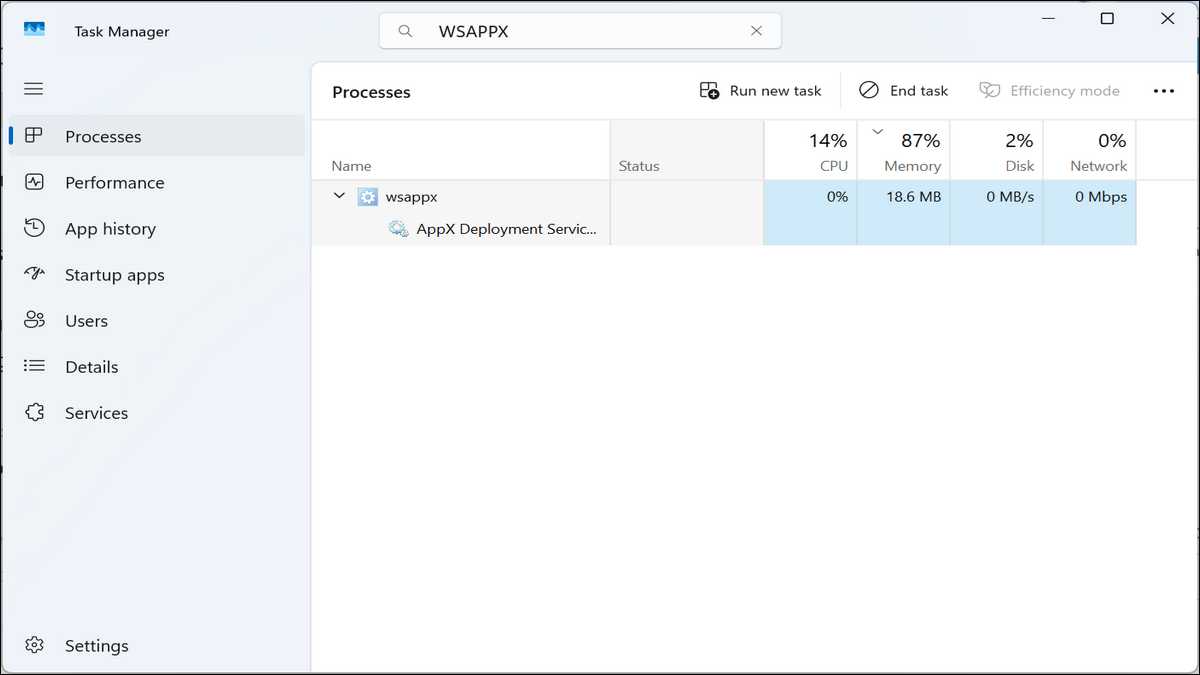
WSAPPX runs as a core Windows background process. It manages Microsoft Store apps and their updates. You see it in Task Manager when the system installs, updates, or licenses these apps. Persistent high resource use frustrates many users.
So, in this guide, we explain the process clearly. It covers the exact causes, provides tested fixes in priority order, and includes the needed prevention steps and diagnostics that most resources skip.
What is WSAPPX and Its Role in Windows?
WSAPPX serves as the central process for Microsoft Store and Universal Windows Platform apps. It activates on demand for app deployment and licensing tasks.
Windows introduced this process with Windows 8. It supports AppX package management. The same structure continues in Windows 10 and Windows 11.
Two main services operate under WSAPPX. AppX Deployment Service handles installation and updates. Client License Service manages licensing checks and DRM.
Also read: How to fix Black Line on Monitor
AppXSVC starts when the system deploys or removes Store apps. It interacts directly with the AppX packaging framework. Disabling it stops Store app deployment entirely.
ClipSVC validates licenses for paid or protected apps. It enforces usage rights. Microsoft states that Store apps will not behave correctly without this service.
On Windows 8, the Windows Store Service performed similar licensing tasks. Windows 10 and later folded those functions into ClipSVC. The core purpose stayed consistent across versions.
WSAPPX stays legitimate in all cases. Its executable sits in the System32 folder. No widespread malware impersonates it, according to technical analyses.
Most basic guides list the services without noting how AppXSVC often drives disk spikes during large package operations, while ClipSVC triggers CPU during frequent license validations on media-heavy folders.
Why WSAPPX Consumes High Resources: Causes and Behaviour
WSAPPX uses high CPU, disk, or memory mainly during active app management or when tasks stall. Short spikes happen normally. Persistent high usage signals a problem.
Normal behaviour includes background updates for pre-installed apps. These run even if you never open the apps. The process consumes resources only while working.
Problematic spikes occur with stuck installations. They also appear after incomplete Windows updates. Corrupted deployment components create loops that keep the process active.
In practice, user reports on community forums show wsappx reaching 30 percent CPU or higher across multiple cores in problematic episodes. Some cases pushed system temperatures notably higher until resolved.
Specific triggers include opening folders with many image files. ClipSVC performs extra checks in those moments. Large app updates or failed package deployments also prolong activity.
At the same time, corrupted system files or the servicing stack often sustain high usage. Driver conflicts contribute indirectly by interfering with background operations.
Windows applies updates to built-in apps automatically by default. This setting keeps WSAPPX active more often than necessary for many users.
The process closes when tasks finish. It does not run constantly at high load without reason. Monitoring duration helps distinguish normal from excessive use.
Diagnosing WSAPPX Issues: Tools and Techniques
Effective diagnosis starts with Task Manager and Resource Monitor. These tools reveal exact resource patterns and the duration of spikes.
Open Task Manager with Ctrl + Shift + Esc. Expand the wsappx entry. Note which sub-service drives the load. Check CPU, disk, and memory columns over several minutes.
Resource Monitor provides deeper views. It shows disk activity tied to specific processes. Filter for wsappx to spot sustained reads or writes.
Event Viewer uncovers root causes in many stubborn cases. Search for AppX or deployment-related errors. Look under Windows Logs > Application or System. Common Event IDs point to package failures or state repair issues.
PowerShell offers precise package inspection. Run Get-AppxPackage to list installed apps. Identify recently updated or problematic packages. Repair commands target specific items without broad changes.
Check file location for legitimacy. Right-click wsappx in Task Manager. Select Open file location. It must point to C:\Windows\System32. Different paths warrant an immediate antivirus scan.
These steps identify whether spikes are tied to a single app, a system corruption, or background update loops. Most users skip Event Viewer. Yet it frequently reveals the exact package causing repeated deployment attempts.
Proven Fixes for High CPU, Disk, or Memory Usage
Start with the least invasive steps. Move to repairs and advanced options only if needed. Test after each change.
Run the built-in troubleshooter first. Go to Settings > System > Troubleshoot > Other troubleshooters. Select Windows Store Apps and run it. This automated scan fixes common cache and permission problems quickly.
Next, repair or reset the Microsoft Store. Navigate to Settings > Apps > Installed apps. Find Microsoft Store. Click Advanced options. Choose Repair first. Restart and test. Use Reset only if Repair fails. Reset clears cached data but keeps your installed apps.
Then, clear the Store cache manually when the troubleshooter misses issues. Type wsreset.exe in the Run dialogue and press Enter. A command window flashes briefly. Restart afterwards. Note that newer Windows versions sometimes handle cache differently through Settings alone.
After that, install all pending Windows updates. Open Settings > Windows Update. Check for updates and install them. Restart the PC. Many WSAPPX issues trace back to incomplete component updates.
Run system file repairs next. Open Command Prompt as administrator. Type sfc /scannow and press Enter. Follow with DISM /Online /Cleanup-Image /RestoreHealth. These commands repair corrupted files that WSAPPX relies on for deployments.
Update device drivers through Device Manager or your manufacturer’s support site. Outdated drivers sometimes interfere with background services. Restart after updates and monitor Task Manager.
To reduce background triggers, disable automatic app updates. Open the Microsoft Store. Click your profile icon. Go to App settings. Turn off the toggle for automatic updates. Update apps manually when convenient.
For persistent cases, limit Store activity through Group Policy on Pro or Enterprise editions. Press Windows + R. Type gpedit.msc.
Then, navigate to Computer Configuration > Administrative Templates > Windows Components > Store. Enable Turn off Automatic Download and Install of updates. Apply the change and restart.
Fixes At Glance
| Method | Difficulty | Risk Level | Best For | Notes |
|---|---|---|---|---|
| Store Troubleshooter | Low | None | Quick cache issues | First step for most users |
| Repair/Reset Store | Low | Low | Stuck updates | Safe and reversible |
| wsreset.exe | Low | Low | Cache problems | Quick command-line option |
| Windows Updates | Low | None | Component corruption | Always recommended |
| SFC + DISM | Medium | Low | System file issues | Run in sequence |
| Disable Auto Updates | Low | Low | Frequent background spikes | Manual control gained |
| Group Policy Limit | Medium | Medium | Advanced control | Pro editions only; test carefully |
Beyond these basics, advanced users can target specific packages with PowerShell. Use Get-AppxPackage | Where-Object {$_.Name -like “problem“} to identify items. Then apply targeted repair commands. This approach avoids broad system changes.
Verify results after each fix. Monitor Task Manager during idle periods. Expect CPU under a few percent and minimal disk activity outside active updates. Persistent spikes require the next method in sequence.
Disabling the entire Store carries clear trade-offs. You lose access to UWP apps and automatic security updates for built-in tools. Most users regain performance without this step. Apply it only after other methods fail and you accept the limitations.
Prevention Strategies and Long-Term Best Practices
Prevention focuses on reducing unnecessary background activity. Set app updates to manual. Review installed Store apps periodically and remove unused ones.
Schedule regular system maintenance. Run SFC and DISM scans monthly. Keep Windows updated through the automatic channel. These habits prevent corruption that sustains WSAPPX activity.
Monitor with Task Manager or Resource Monitor on a weekly basis. Note any new spikes after app installations or Windows updates. Early detection stops small issues from growing.
Use Event Viewer alerts for AppX errors. Create a custom view filtered for deployment events. Review it after noticeable slowdowns. This practice surfaces package problems before they dominate resources.
Consider alternatives for common tasks. Many users replace Store versions of apps with browser-based or traditional desktop versions. This reduces reliance on the deployment service.
Maintain clean driver installations. Avoid third-party driver updaters that introduce conflicts. Stick to manufacturer sources or Windows Update for stability.
Analysis of support threads shows that users who combine manual app updates with monthly SFC scans report fewer recurring WSAPPX spikes compared with those who rely solely on automatic settings.
Document your changes. Note which fix resolved spikes and any side effects observed. This record helps if issues return after future updates.
Addressing Common Questions and Misconceptions
WSAPPX is not a virus. It forms a required part of Windows Store functionality. Microsoft designed it to run in the background for legitimate app management.
Also read: How to Remove LimeTorrents Virus from Your Computer
That said, you cannot fully disable WSAPPX without breaking Store apps. Attempts to stop the process usually restart it automatically. Focus on reducing its workload instead.
High usage does not always indicate malware. Verify the file path first. Then apply the repair sequence above. Most cases resolve through standard maintenance.
Windows 11 handles the process similarly to Windows 10. User interface paths differ slightly in Settings. The underlying services and fixes remain consistent.
Still, spikes after major updates often stem from pending app or component repairs. Allow time for completion or trigger manual updates and repairs.
Group Policy changes affect only certain editions. Home users rely more on Settings toggles and repair commands. Both approaches achieve similar workload reduction.
Persistent issues after all steps warrant checking specific apps. Remove or reinstall problematic Store apps through Settings. Test system performance afterwards.
This guide compiles verified steps from Microsoft platforms and established technical sources. It adds diagnostic depth and impact analysis, often missing elsewhere. Apply changes methodically. Most users restore smooth performance without extreme measures.
Monitor your system after implementation. Adjust settings based on observed behaviour. Balanced management keeps WSAPPX efficient while preserving full Windows functionality.

![How to Recover Deleted Files from the Recycle Bin on Windows 11? [Free Methods]](https://www.techdemis.com/wp-content/uploads/2026/06/How-to-Recover-Deleted-Files-from-the-Recycle-Bin-on-Windows-11-800x450.webp)

![Restart Bluetooth Service In Windows 11 & 10 [Full Guide]](https://www.techdemis.com/wp-content/uploads/2026/06/Restart-Bluetooth-Service-In-Windows-11-and-10-800x450.webp)

