
How to Remove a Password from a PDF: The Complete Guide [Every Method 2026]
![How to Remove a Password from a PDF: The Complete Guide [Every Method 2026]](https://www.techdemis.com/wp-content/uploads/2026/06/Remove-a-PDF-Password.webp)
Did you lock yourself out of your own PDF file? You’ll be happy to know that you’re not alone.
Password-protected PDFs are everywhere now. Bank statements, contracts, payslips, and medical records all come protected with passwords.
So, in this guide, we solve two problems: either you know the password and want to remove it, or you’ve forgotten it completely.
Either way, we cover every method that works. Browser tricks, desktop apps, mobile, command line, and batch tools are all explained in this guide.
Quick Answer: How Do You Remove a PDF Password?
- You can remove a PDF password by opening the file, entering the password, then re-saving it without protection.
- The fastest free method? Your browser. Open the PDF, print it, and choose “Save as PDF” as the destination.
- The official method uses Adobe Acrobat Pro. Go to Tools, then Encrypt, then Remove Security.
But every method here shares one rule. You must know the password, or have the legal right to access the file.
Here’s the catch most people miss. There are two kinds of PDF passwords, and they behave very differently.
What Most Others Don’t Tell You (Read This First)
Four facts change how you should approach this task. And most articles skip all of them.
- Fact one. A “permissions password” isn’t real encryption. It only sets restriction flags that polite software obeys.
- Fact two. Adobe Acrobat on mobile can’t remove passwords. Only the desktop version can do it.
- Fact three. Removing a password doesn’t remove metadata. Author names and edit history stay inside the file.
- Fact four. This task sits in a legal grey zone. Ownership and permission decide whether removal is allowed.
Keep these in mind as you read. They shape which method is right for you.
Four key facts about PDF password removal: encryption, mobile limits, metadata, and legality:
Let’s Understand PDF Passwords Before You Remove Them
Basically, PDFs use two separate password types, and they protect completely different things. Knowing which one you’ve got saves time.
The first locks the door. The second only limits what you do once inside.
And here’s the thing. Most failed removal attempts happen because people confuse the two. So let’s make the difference obvious.
The Two Types of PDF Passwords
A PDF can carry a user password, an owner password, or both at once.
- The user password is also called the open password. It blocks the document from opening at all.
- The owner password is also called the permissions password. It controls printing, copying, and editing after the file opens.
Think of it simply: the user password is the front door key. The owner password is the admin control panel.
A document can use only one type. Or it can use both for layered protection.
| Feature | User / Open Password | Owner / Permissions Password |
|---|---|---|
| Also known as | Document open password | Master or permissions password |
| What it does | Blocks opening the file | Restricts print, copy, edit |
| Real encryption? | Yes, encrypts content | No, only sets flags |
| Removable without it? | Rarely | Often yes |
| Security level | Strong | Weak |
What “Encryption” Actually Means in a PDF
Encryption scrambles your content into unreadable data. Only the correct key can reconstruct the original document.
So when a user password is set, the entire file gets encrypted. Modern PDFs use AES-256 for this job.
Read the raw bytes of an encrypted PDF, and you get gibberish. The password unlocks the key that reverses it.
The owner password works differently. It usually leaves content fully readable and unencrypted.
That gap matters enormously. We explain why next.
Why Permissions-Only PDFs Aren’t Really Locked
A permissions-only PDF is open to anyone with the right tool. The restrictions rely on viewer cooperation.
Adobe Reader sees the “no printing” flag and greys out the button. But the content itself stays fully accessible underneath.
Security researchers call this a “gentleman’s agreement.” The lock works only because most software chooses to respect it.
Any non-compliant tool can ignore those flags instantly. That’s why permission passwords get removed in seconds.
So if your PDF opens fine but blocks editing, good news. Removal will be quick and easy.
How to Check Which Password You Have
Try opening the file first. This single test tells you most of what you need.
Does a password prompt appear immediately? Then you’ve got a user password. The content is encrypted and locked.
If the file opens but print or copy is grayed out, you’ve got a permissions password. Removal will be simple.
Still not sure? Upload it to an unlock tool that auto-detects the type. Many free tools report this for you.
Here’s a comparison of PDF user password versus owner password and what each one restricts:
PDF Encryption Standards Explained (RC4 vs AES)
PDF encryption has evolved a lot over the years. And the standard on your file decides how secure it truly is.
- Older files use weak encryption that breaks fast.
- Whereas newer files use AES, which is far stronger.
So knowing your file’s standard sets your expectations. It tells you whether recovery is even possible.
RC4: The Old, Broken Standard
RC4 was the original PDF encryption method. It’s now considered insecure.
In fact, the PDF 2.0 specification officially deprecated it. Modern tools avoid it entirely.
A 40-bit RC4 password can be cracked in under a second on a modern laptop. Even 128-bit RC4 falls quickly to today’s hardware.
So if your file uses RC4, treat it as barely protected. Recovery tools handle it with ease.
AES-128: A Solid Middle Ground
AES-128 arrived with later Acrobat versions. It replaced RC4 as the default.
And it remains secure for most everyday purposes. Cracking it by brute force is impractical.
That said, you’ll still need the correct password to remove it. No quick trick bypasses real AES encryption.
AES-256: Military-Grade Protection
AES-256 is the strongest standard available for PDFs. It was formally incorporated into PDF 2.0.
This level of encryption protects highly sensitive documents. Governments use AES-256 for top-secret material.
A long AES-256 password? Effectively unbreakable. Brute force would take longer than the age of the universe.
So for AES-256 files, removal requires the real password. There’s no shortcut around it.
Encryption Standards at a Glance
This table summarises how each standard holds up today.
| Standard | Security Level | Crackable? | Status |
|---|---|---|---|
| RC4 40-bit | Very weak | In under 1 second | Deprecated |
| RC4 128-bit | Weak | Quickly with GPUs | Deprecated |
| AES-128 | Strong | Impractical | Secure |
| AES-256 | Military-grade | Effectively never | Recommended |
The takeaway is simple. Weak encryption means easy recovery, while AES means you need the password.
Here’s a bar chart comparing the security strength of RC4, AES-128, and AES-256 PDF encryption:
Is It Legal to Remove a PDF Password?
It depends entirely on ownership and permission. Removing a password from your own file is legal.
Removing protection from someone else’s confidential file isn’t. Context decides everything here.
So this section gives you a clear framework. No competitor offers one this direct.
The Legal Decision Matrix
Use this table to check your own situation before you start.
| Scenario | Generally Legal? |
|---|---|
| You created the PDF yourself | Yes |
| You own the document and forgot the password | Yes |
| You have written permission from the owner | Yes |
| You are an authorized admin of a company file | Yes |
| The file is public and no longer sensitive | Yes |
| Bypassing DRM on purchased content | No |
| Accessing someone’s private file without consent | No |
| Removing protection to redistribute copyrighted work | No |
The pattern is clear. The rightful access makes removal fine, but unauthorised access doesn’t.
Copyright and DRM Considerations
Copyright law protects creative works inside many PDFs. Ebooks, courses, and reports often carry licensing terms.
So removing protection to copy or share such work can infringe copyright. The lock being easy to break changes nothing legally.
DRM-protected files add another layer. Bypassing DRM is restricted under laws like the DMCA in the United States.
When in doubt, ask the creator. A new copy or shared password solves most problems cleanly.
Does Removal Affect GDPR or HIPAA Compliance?
Yes, it can. Removing encryption from regulated documents may create a compliance risk.
Here’s why. Healthcare and finance documents often must stay encrypted at rest. Stripping that protection could breach internal data policies.
The European Data Protection Board recommends PDF/A plus digital signatures for compliant retention, according to data summarized by PDF Reader Pro.
So before unlocking work files, check your organization’s rules. An unprotected file in the wrong place can trigger audits.
Here’s a simple decision-flow graphic showing “legal” versus “not legal” paths:
- You created the PDF
- You forgot your own password
- You have written permission
- You’re an authorized company admin
- The file is public, no longer sensitive
- Bypassing DRM on purchased content
- Opening someone’s private file
- Removing protection to redistribute
- Anything without consent or rights
Method 1: The Free Browser Trick (No Downloads Needed)
Your browser can strip a PDF password in under a minute. This method costs nothing and installs nothing.
How? It re-prints the open file to a fresh PDF. The new copy carries no password.
One limit applies, though. The trick needs printing to be allowed on the document.
Remove a PDF Password Using Google Chrome
Chrome handles this on Windows, Mac, Linux, and ChromeOS. And the steps are identical everywhere.
First, drag your locked PDF into a Chrome tab. Enter the password when Chrome prompts you.
Next, press Ctrl+P on Windows or Cmd+P on Mac. The print dialog opens instantly.
Then change the destination to “Save as PDF.” Click Save and pick a location.
Your new file opens without any password. And the original stays untouched for safety.
Microsoft Edge “Save as PDF” Method
Edge mirrors the Chrome process on Windows 11. It needs no extra software either.
Open the PDF in Edge and type the password. Press Ctrl+P to reach the print menu.
Then select “Save as PDF” as the printer. Save the file, and the password disappears.
macOS Preview: The Fastest Mac Method
Preview is the quickest option for Mac users. It comes built into every Mac.
Open the protected PDF in Preview and enter the password. Then press Cmd+P to print.
Next, click the “PDF” dropdown at the bottom left. Choose “Save as PDF” and confirm.
The exported copy is fully unlocked. No third-party app touches your file.
The One Big Limitation
This trick fails when printing is blocked. Some PDFs restrict printing through their permissions settings.
So if the print option is grayed out, switch methods. Adobe Acrobat Pro or a desktop editor handles those cases.
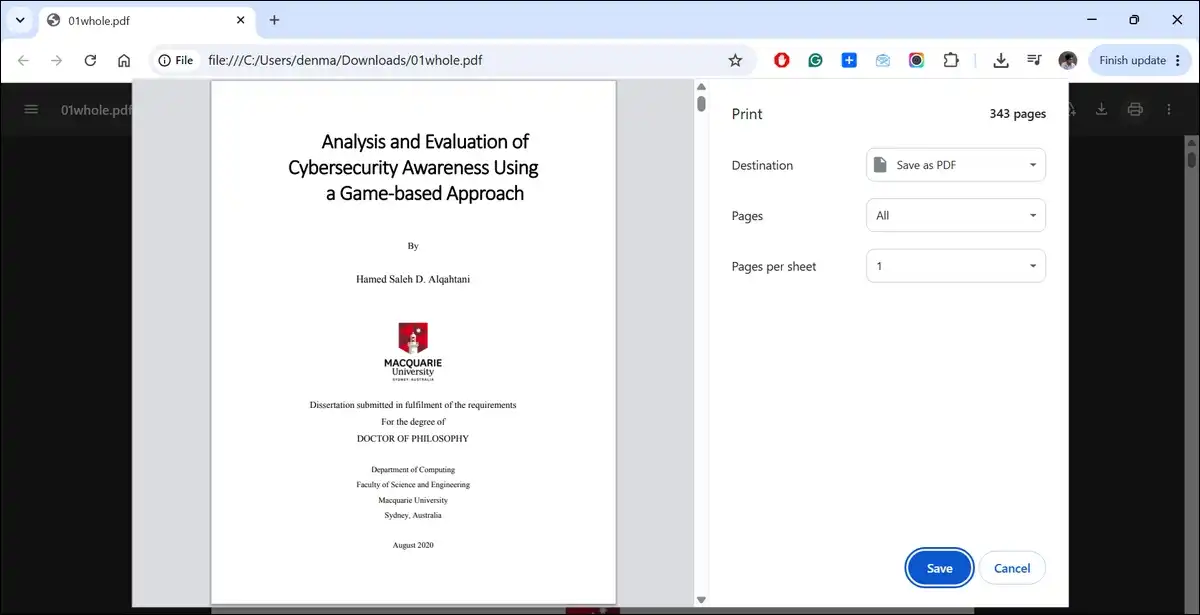
Suggested visual: Screenshot of the Chrome print dialog with “Save as PDF” highlighted. Alt text: “Google Chrome print window showing the Save as PDF destination option for unlocking a PDF.”
Method 2: Adobe Acrobat Pro (The Official Way)
Adobe Acrobat Pro removes passwords cleanly and preserves file quality. It’s the official tool from the format’s creator.
The catch? Cost. Acrobat Pro is a paid subscription, though a free trial exists.
Still, because it’s native to PDF, it keeps your formatting and structure intact. That makes it ideal for important documents.
Step-by-Step on Windows and Mac
Open your password-protected PDF in Acrobat Pro. Enter the password to view the content.
Click the menu, then find the Protect or Encrypt option. Select “Remove Security” from the list.
Acrobat asks you to confirm the action. Approve it, then save the file.
That’s it. Your PDF now opens freely, and the removal is permanent for that saved copy.
The Alternative Path via Document Properties
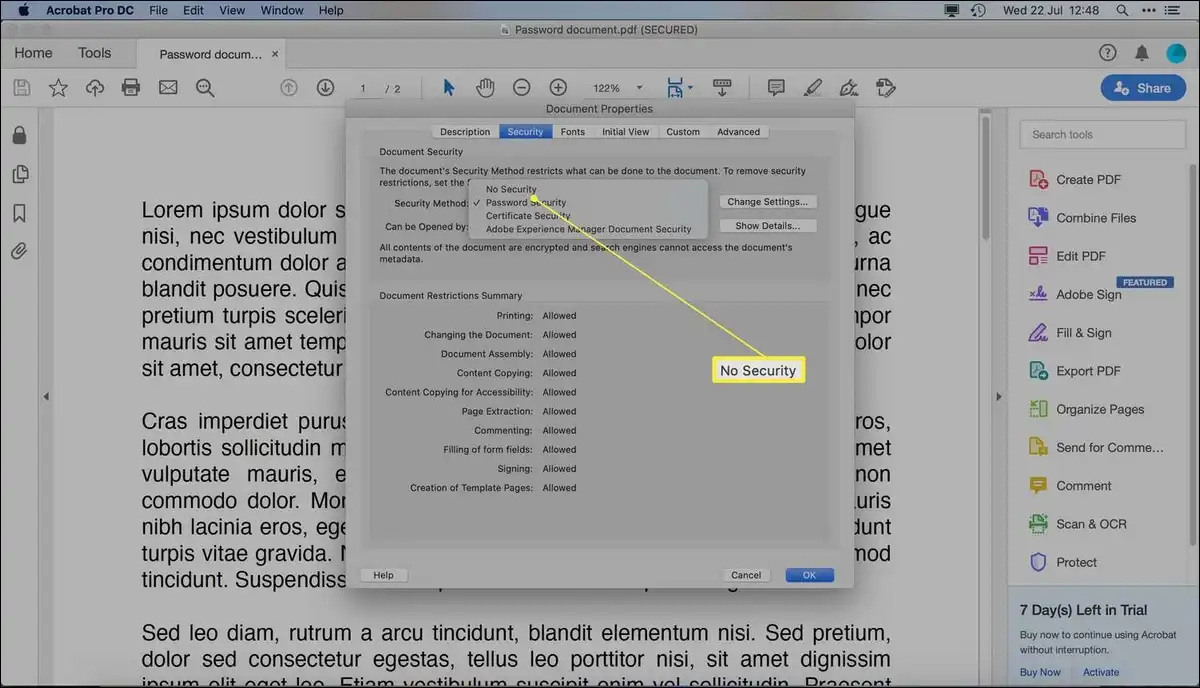
You can also reach the setting through Document Properties. Open the menu and pick Properties, then the Security tab.
From there, find the Security Method dropdown. Change it from password security to “No Security.”
Confirm and save. This route achieves the same result as the Remove Security button.
Handling Both Password Types in Acrobat
Acrobat treats the two password types differently during removal. Knowing this prevents confusion.
For an open password, you simply click OK to clear it. The file decrypts on save.
For a permissions password, type the correct owner password first. Then Acrobat allows the change.
Using the Free Trial
Adobe offers a seven-day Acrobat Pro trial. And it includes full password removal.
So this works well for one-off jobs. Just cancel before the trial ends to avoid charges.
Method 3: Free Online Tools (iLovePDF, Smallpdf, PDF24)
Online unlock tools remove passwords through your web browser. You upload, enter the password, and download the unlocked file.
They’re fast and need no installation. So they suit everyday, non-sensitive documents well.
The trade-off? Privacy. Your file travels to a remote server, so choose carefully.
How to Unlock a PDF with iLovePDF
iLovePDF is among the most popular unlock tools. It also supports batch processing.
Visit the iLovePDF unlock page and upload your file. Enter the password if the tool requests it.
Then click “Unlock PDF” and wait a moment. Download your password-free copy.
It removes both open passwords and owner restrictions. And batch mode handles several files at once.
Smallpdf Unlock PDF
Smallpdf offers a clean, beginner-friendly unlock tool. Security is a strong point here.
Drag your PDF into the toolbox and enter the password. Click unlock, then download the result.
Better yet, Smallpdf is ISO/IEC 27001 certified and deletes files after one hour. That reduces your exposure window significantly.
PDF24: Client-Side Processing
PDF24 stands out for privacy-conscious users. It can process files directly in your browser.
What this means is your file may never leave your device. That removes the biggest online risk entirely.
Upload, unlock, and download as usual. PDF24 also deletes server files quickly when uploads do occur.
Online Tool Security Scorecard
Not all online tools handle your data the same way. So this scorecard helps you choose safely.
| Tool | TLS Encryption | Auto-Deletes Files | Certification | Best For |
|---|---|---|---|---|
| Smallpdf | Yes | After 1 hour | ISO 27001, GDPR | Everyday files |
| iLovePDF | Yes | After a short period | GDPR aligned | Batch jobs |
| PDF24 | Yes | Client-side option | Privacy-first | Sensitive files |
| Sejda | Yes | After a few hours | GDPR aligned | Quick edits |
| Random free site | Unknown | Unknown | None | Avoid |
The rule is simple. Verify certification and deletion policy before uploading anything important.
When You Should Never Use Online Tools
Skip online tools for truly sensitive files. Some documents carry too much risk.
In our experience, that means no personal medical records or financial data. Legal contracts and confidential business files also stay offline.
Why so cautious? Uploading sensitive files risks exposure if the site is breached. For these, use an offline desktop tool instead.
Here’s a comparison table graphic of online unlock tools and their security features:
| Tool | TLS | Auto-Delete | Certification | Best For |
|---|---|---|---|---|
| Smallpdf | ✔ Yes | After 1 hour | ISO 27001, GDPR | Everyday files |
| iLovePDF | ✔ Yes | Short period | GDPR aligned | Batch jobs |
| PDF24 | ✔ Yes | Client-side | Privacy-first | Sensitive files |
| Sejda | ✔ Yes | A few hours | GDPR aligned | Quick edits |
| Random free site | ✖ Unknown | Unknown | None | Avoid |
Method 4: Third-Party Desktop Software (No Adobe Needed)
Desktop editors remove passwords offline, keeping your file on your own machine. And they cost less than Acrobat Pro.
That makes them ideal for sensitive documents. Nothing uploads anywhere during the process.
So which ones work best? Here are the most reliable across Windows and Mac.
PDFelement (Windows and Mac)
PDFelement handles password removal in a few clicks. It works across Windows, Mac, iOS, and Android.
Open your locked file and enter the password if needed. Go to the Protect tab.
Then click “Set Password” and uncheck the open password box. Save the file to finish.
UPDF: Free and Paid Tiers
UPDF offers password removal with a generous free tier. The interface stays clean and simple.
Open the PDF, then choose Protect, then Remove Password. Confirm the action and save.
And it runs on Windows, Mac, iOS, and Android. That cross-platform reach is a real advantage.
Icecream PDF Editor
Icecream PDF Editor covers basic removal for free. It suits casual users well.
Open the file, head to security settings, and clear the password protection. Then save your unlocked copy.
Quick Comparison of Desktop Tools
This table summarises your offline software options at a glance.
| Tool | Price | Platforms | Best For |
|---|---|---|---|
| Adobe Acrobat Pro | Paid (trial available) | Windows, Mac | Professional use |
| PDFelement | Free tier + paid | Win, Mac, iOS, Android | All-rounder |
| UPDF | Free tier + paid | Win, Mac, iOS, Android | Cross-platform |
| Icecream PDF Editor | Free for basics | Windows | Casual users |
| Foxit PDF Editor | Paid | Windows, Mac | Business teams |
Method 5: Remove a PDF Password on Mobile (iPhone and Android)
Yes, you can remove a PDF password on your phone. You just can’t use Adobe Acrobat to do it.
Mobile removal needs the right app. The built-in viewers usually fall short.
So here’s exactly what works on each platform. We’ll start with the most important warning.
The Adobe Acrobat Mobile Warning
Adobe Acrobat on mobile can’t remove passwords. And this surprises a lot of users.
Adobe’s own community confirms the limit. Password removal exists only in the desktop version.
So skip Acrobat on your phone for this task. Use the dedicated apps below instead.
Remove a PDF Password on iPhone or iPad
Several iOS apps handle removal smoothly. UPDF for iOS is a solid choice.
Open the file in UPDF and enter the password. Tap the menu, choose Password, then tap Remove.
Confirm, and the app saves an unlocked copy. Xodo Mobile and KDAN PDF Reader work similarly.
For Xodo, tap the Toolbox icon, then Secure PDF, then Remove Password. The flow is quick and clear.
Remove a PDF Password on Android
Android needs a third-party app or a clever browser trick. Both work well.
The iLovePDF mobile app removes passwords directly. Install it, tap Unlock, and follow the prompts.
The browser trick also works. Open the PDF, tap Share, then choose “Print to PDF” to save an unlocked copy.
Online Tools via Mobile Browser
Mobile browsers can reach unlock tools too. Smallpdf and PDF24 are mobile-friendly.
Just open the tool in your phone’s browser. Upload, enter the password, and download the result.
But remember the privacy rule. Keep sensitive files off online tools, even on mobile.
Method 6: Command Line Tools (qpdf, Python, Ghostscript)
Command line tools remove PDF passwords fast and free. They suit developers and power users best.
And here’s the bonus. These tools run offline, so files stay private. They also enable automation across many documents.
One condition, though. You need the password to decrypt the file. These tools respect that rule.
Using qpdf to Remove a Password
qpdf is a free, open-source command-line tool. It works on Windows, Mac, and Linux.
Install it through your package manager first. On Ubuntu, run sudo apt-get install qpdf.
Then decrypt the file with one command:
bash
qpdf --password=YOURPASSWORD --decrypt input.pdf output.pdfThe output file opens without a password. And the command works whether the file uses a user or owner password.
The Ghostscript Alternative
Ghostscript offers another free route. It’s widely available on Linux and Mac.
Run this command to strip the password:
bash
gs -q -dNOPAUSE -dBATCH -sDEVICE=pdfwrite \
   -sOutputFile=unlocked.pdf -c .setpdfwrite -f encrypted.pdf
Ghostscript rewrites the file as a clean, unprotected PDF. It’s reliable for known passwords.
Python pikepdf: A 10-Line Script
Python developers can automate removal with pikepdf. The library builds on qpdf internally.
Here’s a minimal working script:
python
import pikepdf

with pikepdf.open("input.pdf", password="YOURPASSWORD") as pdf:
    pdf.save("output.pdf")
That’s all it takes. The saved file carries no password.
So this approach shines inside larger workflows. You can fold it into any document pipeline.
Method 7: Batch Remove Passwords from Multiple Files
You can unlock dozens of PDFs at once using batch tools. Manual one-by-one removal wastes hours.
So batch processing suits enterprises and heavy users. And several routes exist, from Adobe to scripts.
Here are the four most effective.
The Adobe Action Wizard Batch Trick
Adobe Acrobat Pro can batch-remove passwords, but the setup is hidden. This workaround unlocks the feature.
Go to Preferences, find Action Wizard, and select “Password Security.” This step is the key that most people miss.
Then create an action where the first command is Encryption set to None. Uncheck the option that opens a prompt.
Add a save command to the action. Now run it across many files, entering the shared password once.
In fact, this trick lives in a single Adobe community thread. Almost no published guide documents it.
Batch Processing with qpdf
qpdf shines for bulk jobs on Mac and Linux. A short loop handles an entire folder.
Run this command inside your target directory:
bash
find . -name "*.pdf" -exec qpdf --password=YOURPASS --decrypt {} {}_unlocked.pdf \;It processes every PDF it finds. Just note this assumes the files share one password.
iLovePDF Batch Unlock
iLovePDF removes passwords from several files online. The free tier handles a small batch at once.
Upload your files, enter the password, and unlock them together. Then download the whole set.
Python Loop for Programmatic Batch Removal
A Python loop scales removal infinitely. It builds on the pikepdf script shown earlier.
python
import pikepdf, glob

for file in glob.glob("*.pdf"):
    with pikepdf.open(file, password="YOURPASS") as pdf:
        pdf.save(f"unlocked_{file}")
This processes every PDF in the folder. And it’s perfect for recurring document workflows.
What If You’ve Forgotten the PDF Password?
You’ve got real options even without the password. Your path depends on which password type you face.
Owner-password-only files are often easy. True open passwords are much harder.
So work through these steps in order. Start with the easiest wins.
First, Check Which Password Blocks You
This single check decides your difficulty level. It matters more than any tool choice.
If the file opens but blocks editing, you face an owner password. You can remove it without cracking anything.
But if the file refuses to open at all, you face an open password. That requires recovery, not simple removal.
Owner Password Only: Remove It Without Cracking
Owner-only restrictions need no password recovery. There’s no real encryption to defeat.
So tools like LostMyPass remove these flags instantly. Many free unlock tools do the same.
In short, if your file opens fine, relax. The fix takes seconds.
Check Saved Passwords First
Your password may already be stored somewhere. So check before reaching for recovery tools.
Look in your browser’s saved passwords and your password manager. macOS Keychain and Windows Credential Manager also store entries.
Old emails sometimes contain the password too. A quick search often ends the hunt.
Password Recovery Tools
Dedicated recovery tools attempt to crack open passwords. Success depends on password strength.
For example, LostMyPass recovers weak passwords free, with around a 22% success rate, per its published tool data. Stronger passwords cost money and take longer.
Other tools include Passper for PDF and Elcomsoft Advanced PDF Password Recovery. They use brute-force, dictionary, and mask attacks.
Still, they work best on short or simple passwords. Long, random passwords resist them strongly.
When Recovery Is Impossible
Sometimes recovery simply can’t work. Strong encryption makes brute-force impractical.
To put it simply, a long AES-256 open password could take longer than the universe’s age to crack. No tool overcomes that math.
So in that case, stop trying to crack it. Contact the document’s creator instead.
The Fastest Fix: Ask the Creator
The original creator can solve this instantly. They hold the password or can send a new file.
This route beats hours of failed cracking. And it’s also the only legal path for files you don’t own.
What Most Guides Don’t Tell You: After Password Removal
Removing the password isn’t the end of the story. Hidden risks remain inside your unlocked file.
These issues affect privacy, compliance, and document integrity. And almost no guide mentions them.
So read this before you share that unlocked file. It could save you serious trouble.
Your File Still Contains Metadata
Removing a password doesn’t remove metadata. That hidden data stays inside the file.
What kind of data? Author names, file paths, and edit timestamps. It can even reveal internal network details.
So sharing an unlocked file can leak this data. For sensitive documents, that’s a real privacy concern.
How to Strip Metadata After Removal
You can clean metadata with a few tools. This step protects your privacy.
Adobe Acrobat removes hidden information through its “Sanitize Document” feature. PDF24 offers a metadata removal option too.
Developers? Use ExifTool from the command line. It strips metadata in a single command.
Does the File Size Change?
File size usually changes after removal. The direction depends on the method.
Re-saving through a browser print can shrink or grow the file. That’s because some methods re-compress images during export.
So if size matters, compare the output to the original. A separate compression tool can rebalance it.
Removal Can Break Digital Signatures
Removing a password may invalidate a digital signature. This trips up legal and financial users often.
Here’s why. Signed PDFs lock their content to prove integrity. Stripping security can break that signature chain.
So if your file is signed, verify the signature afterwards. A broken signature can void a contract’s validity.
Re-Applying a Simpler Password
You don’t have to leave the file fully open. A simpler password balances access and security.
Many tools let you set a new, easier password after removal. A password manager then handles it for you.
The result? Protection without the daily typing hassle. It’s often the smartest middle ground.
PDF/A and Compliance Status
Removal can affect a document’s archival status. PDF/A files follow strict rules for long-term storage.
So changing security may alter that compliance state. For regulated records, confirm the format stays valid.
Common Problems and How to Fix Them
Password removal sometimes hits a snag. But most problems have a quick fix.
These are the issues users report most often. And each one has a clear solution below.
So work through them in order if removal fails.
“The Print Option Is Grayed Out”
This means printing is restricted on your file. So the browser trick won’t work here.
Instead, switch to a tool that handles permissions directly. Adobe Acrobat Pro or a desktop editor removes the restriction.
Online tools like iLovePDF also clear owner restrictions. Any of these bypasses the print block.
“The Tool Says the Password Is Wrong”
Double-check for typos and caps lock first. Passwords are case-sensitive.
Then confirm you’re entering the right password type. The open password and owner password can differ.
If both fail, the password may simply be lost. Move to the forgotten-password methods above.
“The Unlocked File Won’t Open Elsewhere”
Some methods produce a slightly altered file. Re-saving can occasionally cause this.
So try a different removal method for a cleaner output. We’ve found that qpdf and Acrobat preserve structure reliably.
And always keep your original file as backup. That way you never lose the source.
“Removal Worked, but the File Looks Different”
A print-based method can re-render the document. This sometimes shifts fine details.
For pixel-perfect output, use qpdf or Acrobat instead. They decrypt without re-rendering content.
How to Verify the PDF Is Truly Unlocked
Confirm success before you rely on the file. A quick test settles it.
First, close the file completely, then reopen it. No password prompt should appear.
Next, try printing and copying text. Both should work without restriction.
Both checks pass? Then your file is fully unlocked. It’s ready to share or edit.
A chart showing PDF usage in agreements, breach causes, and market size.
Why This Matters: PDF Security by the Numbers
PDFs dominate modern document workflows, which raises the stakes for security. And the data shows just how central they’ve become.
- Roughly 78% of business agreements now use PDF format, according to Smallpdf’s industry statistics. That shift moves sensitive data into locked files daily.
- Security gaps follow that volume. About 40% of enterprise PDF breaches trace back to improper permissions, per the IBM X-Force Threat Intelligence Index as reported by PDF Reader Pro.
- The market reflects this demand too. It reached roughly $2.15 billion in 2024 and keeps growing, based on market analysis cited by the PDF Association.
So the lesson is clear. Handle password removal thoughtfully, because PDFs carry more sensitive data than ever.
Final Thoughts: Which Method Should You Use?
The right method depends on your file and your goal. So here’s a simple framework to decide fast.
- Need it quick and free? Use the browser print trick with Chrome, Edge, or Preview.
- Handling a sensitive file? Use an offline desktop tool like PDFelement or UPDF. Nothing uploads anywhere.
- Processing many files? Use the Adobe Action Wizard trick or a qpdf batch loop.
- On your phone? Use UPDF or Xodo on iOS, and iLovePDF or the print trick on Android.
- Forgot the password? Remove owner restrictions instantly, or try recovery tools for open passwords.
One final reminder stays important. Clean your metadata before sharing, and only unlock files you’ve got the right to access.
So removing a PDF password is easy once you match the method to the situation. And now you’ve got every option in one place.
Frequently Asked Questions
Quick answers to the most common PDF password questions.


![How to Recover Deleted Files from the Recycle Bin on Windows 11? [Free Methods]](https://www.techdemis.com/wp-content/uploads/2026/06/How-to-Recover-Deleted-Files-from-the-Recycle-Bin-on-Windows-11-800x450.webp)

![Restart Bluetooth Service In Windows 11 & 10 [Full Guide]](https://www.techdemis.com/wp-content/uploads/2026/06/Restart-Bluetooth-Service-In-Windows-11-and-10-800x450.webp)
