How to Fix Slow DNS Lookup: The Complete 2026 Guide (With Benchmarks, Security Fixes & Advanced Techniques)

Do you feel that your internet is slow? And you blame your connection. But the real culprit could hide somewhere else entirely.
That culprit is the DNS lookup. It fires before a single byte of your page loads. And when it stalls, everything waits behind it.
Here’s what it can do: a slow lookup adds 100 to 500 milliseconds to every website you open. According to DNS Robot’s testing, switching from your ISP’s resolver to Cloudflare can cut that to under 15 milliseconds.
We have prepared this guide that fixes that problem at almost every level. Home users get 30-second fixes, while website owners get server-side wins, and IT admins get advanced techniques nobody else explains.
So let’s make your browsing fast again.

What Is a DNS Lookup and Why Does It Slow Everything Down?
A DNS lookup translates a domain name into an IP address. Your browser can’t connect to anything until that translation finishes.
Think of DNS as the internet’s phonebook. You type example.com. The system finds the matching server address. Only then does loading begin.
Here’s the problem. DNS resolution is a blocking process. Nothing else starts until it completes.
To put it simply, images and scripts can download at the same time. DNS can’t. It happens first, alone, before parallelisation begins.
So a slow lookup delays the entire chain. No server handshake, no HTTP requests, and thus no rendering happens. Just a blank screen.
Each step is a round trip. The farther the servers sit, the longer you wait.
The DNS resolution chain explained
So where does the delay actually come from? Every lookup travels through several servers, and each hop adds time. Understanding the path helps you find the slowdown.
First, your device asks a recursive resolver. This is usually your ISP’s server or a public one. It does the legwork for you.
Next, the resolver queries the root server. The root points to the correct TLD server, like the one handling .com domains.
Finally, the TLD server points to the authoritative server. That server holds the real IP address and returns it.
In short, each step is a round trip. The farther these servers sit, the longer you wait.
How DNS lookup time shows up in your browser
Browsers measure DNS timing precisely. You can see it in Chrome DevTools. Two markers matter most.
The domainLookupStart marker records when resolution begins. The domainLookupEnd marker records when it finishes. The gap between them is your lookup time.
That gap is invisible to most users. Still, it shapes how fast your sites feel every single day.
How to Diagnose Your DNS Problem Before Fixing It
Always benchmark before you change anything. You can’t prove an improvement without a baseline. And most guides skip this step entirely.
The method is simple. Measure your current lookup time first. Then apply a fix. Then measure again. Real numbers beat guesswork every time.
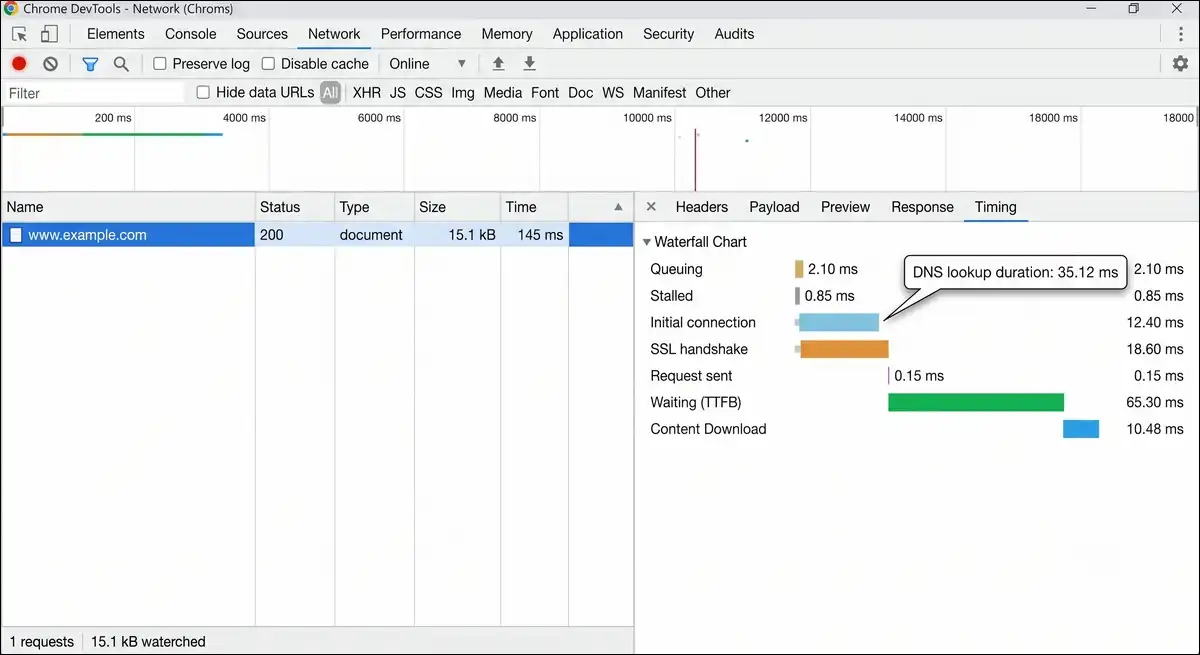
Method 1: Chrome DevTools network timing
Start here, because DevTools gives you per-request DNS timing. It reflects real user experience, not lab estimates. That makes it the most reliable browser-level check.
Open any website in Chrome. Press F12 to open DevTools. Click the Network tab.
Now hard-reload the page with Ctrl+Shift+R. Click any request. Find the Timing section.
The DNS Lookup row shows the exact resolution time. Watch for anything consistently above 100 milliseconds.
Method 2: The dig command (Mac and Linux)
Prefer the command line? The dig command shows exact query time in milliseconds. It’s the fastest way to test a specific resolver.
Run this to query your current DNS:
dig google.comLook at the bottom for the “Query time” line. It reads something like ;; Query time: 24 msec.
Want to compare resolvers? Test each one directly:
dig @1.1.1.1 google.com
dig @8.8.8.8 google.com
dig @9.9.9.9 google.com
One tip here. Run each command three to five times, then average the results. The first query is slower because nothing is cached yet.
Method 3: PowerShell for Windows users
Windows nslookup doesn’t show query time by default. PowerShell solves this neatly. It measures the full resolution duration.
Run this command:
Measure-Command { Resolve-DnsName google.com } | Select-Object TotalMillisecondsTest a specific server like this:
Measure-Command { Resolve-DnsName google.com -Server 1.1.1.1 } | Select-Object TotalMillisecondsNow compare your ISP result against a public resolver. The difference is usually obvious.
Method 4: Online benchmarking tools
Want a view from outside your machine? Several tools test DNS speed externally. They help confirm whether the problem is local or network-wide.
Each one has a sweet spot. Use WebPageTest for a full loading waterfall with DNS breakdown. Use DNSPerf to compare provider speeds globally. And use GRC’s DNS Benchmark to test local versus remote resolvers on Windows.
What good and bad lookup times look like
So what counts as slow? The numbers below come from Chrome DevTools standards and production data. Use them to rate your own results.
| Response Time | Rating | User Impact | Action Required |
|---|---|---|---|
| Under 50ms | Excellent | Imperceptible to users | None |
| 50–100ms | Acceptable | Minimal perceived delay | Monitor only |
| 100–200ms | Warning | Noticeable slowdown | Investigate and optimize |
| 200–300ms | Critical | Visible lag, hurts UX | Fix immediately |
| 300ms+ | Severe | Major disruption | Escalate as urgent |
One last thing before you start. Log your baseline now. Note the time, the resolver, and the test method. You’ll thank yourself later.
The 9 Real Causes of Slow DNS Lookup
Slow DNS rarely has one single cause. It usually stacks several small problems together. Here are the nine that matter most.
Good news, though. Each cause below has a matching fix later in this guide. Identify yours first. Then jump to the solution.
Here’s visual of nine causes of slow DNS lookup grouped into network, configuration, and security categories:
- 1 Slow or overloaded ISP DNS servers
- 2 Geographic distance to the resolver
- 8 Too many third-party domains
- 3 Stale or corrupted DNS cache
- 4 The IPv6 fallback trap
- 5 Ghost network adapters
- 6 CNAME chains multiplying lookups
- 7 Low TTL values forcing re-queries
- 9 Malware or DNS hijacking
1. Slow or overloaded ISP DNS servers
Your ISP’s resolver is the most common bottleneck. Many run overloaded servers. They often take 80 to 200 milliseconds per query.
The reason is simple. ISPs treat DNS as an afterthought, and speed isn’t their priority. That neglect lands directly on you.
2. Geographic distance to the resolver
Distance adds latency to every lookup. A server on another continent means a longer round trip. Each query travels thousands of miles and back.
That distance alone can add 50 to 200 milliseconds. Closer servers always respond faster.
3. Stale or corrupted DNS cache
Your device stores recent lookups to save time. But cached entries go stale. A site moves servers, and your cache points to the wrong place.
The result? Failed lookups and retries. Your browser spins while chasing a dead address.
4. The IPv6 fallback trap
Here’s the sneaky one. This hidden cause stalls lookups for five full seconds, and almost no guide mentions it. And it affects nearly every modern system.
It works like this. Modern operating systems send IPv4 and IPv6 queries together. If the IPv6 query gets no answer, the resolver waits for a timeout. That timeout is usually five seconds.
So a 20-millisecond lookup becomes a 5,000-millisecond one. The browser shows “Resolving host.” Everyone assumes the internet is broken.
5. Ghost network adapters
Old VPNs and virtual machines leave behind ghost adapters. These confuse your system’s lookup priority. Your device sends queries down the wrong path.
In our experience, these leftover drivers cause massive, unpredictable stalls. They hide quietly in your network settings.
6. CNAME chains multiplying lookups
Each CNAME redirect triggers another DNS lookup. So a chain of three CNAMEs means three sequential lookups. Every hop adds delay before reaching the final IP.
Long chains quietly compound your resolution time. They’re common with third-party services.
7. Low TTL values forcing constant re-queries
TTL tells resolvers how long to cache a record. A very short TTL, like 60 seconds, forces constant refreshing. Your device re-queries instead of using the cache.
This increases lookups and slows repeat visits. Balance matters more than people think.
8. Too many third-party domains
Modern pages load assets from many external domains. Fonts, analytics, ads, CDNs, and widgets all need lookups. Each new domain multiplies your DNS overhead.
The math gets ugly fast. A page pulling 50 external resources can add 1 to 5 seconds of DNS time.
9. Malware or DNS hijacking
Malware can quietly change your DNS settings. It reroutes your queries through hostile servers. Browsing slows down, and you never suspect the cause.
Attackers also hijack routers to redirect traffic. We cover this threat in detail later, since it’s more common than most realise.
How to Fix Slow DNS Lookup: 10 Proven Solutions
Start with the fastest, lowest-risk fixes first. Then go deeper only if needed. The solutions below are ordered by impact.
And one stands out. Switching your DNS provider delivers the biggest single win, so we start there.
Fix 1: Switch to a faster public DNS server
This is the highest-ROI fix available. Public resolvers crush most ISP servers on speed. Cloudflare responds in roughly 11 milliseconds globally.
The table below compares the top public resolvers. The speed figures come from DNSPerf benchmarks reported by SpeedTestHQ across 2025 and 2026.
| Provider | Primary IP | Secondary IP | Global Avg Speed | Best For |
|---|---|---|---|---|
| Cloudflare | 1.1.1.1 | 1.0.0.1 | ~11ms | Speed and privacy |
| 8.8.8.8 | 8.8.4.4 | ~20ms | Reliability and scale | |
| Quad9 | 9.9.9.9 | 149.112.112.112 | ~25ms | Security filtering |
| OpenDNS | 208.67.222.222 | 208.67.220.220 | ~30ms | Content filtering |
A quick rule before you set it. Pick one provider and use both its IPs. Mixing providers across primary and secondary can break failover.

On Windows 10 and 11:
Open Settings, then Network & Internet. Click your active connection’s hardware properties. Find DNS server assignment and click Edit.
Switch from Automatic to Manual. Enable IPv4. Set your preferred DNS to 1.1.1.1 and alternate to 1.0.0.1. Save and test.
On macOS:
Open System Settings, then Network. Click Details next to your active connection. Select DNS in the sidebar.
Remove existing entries. Add 1.1.1.1 and 1.0.0.1. Click OK, then Apply.
On Linux (systemd-resolved):
Edit the resolver config:
sudo nano /etc/systemd/resolved.confAdd these lines:
[Resolve]
DNS=1.1.1.1 1.0.0.1
FallbackDNS=8.8.8.8 8.8.4.4
Restart the service with sudo systemctl restart systemd-resolved. Then verify with resolvectl status.
Fix 2: Flush your DNS cache
Flushing clears outdated and corrupted entries. It forces fresh, accurate lookups. Do this after any DNS or CDN change.
Run the command for your system:
Windows:  ipconfig /flushdns
macOS:    sudo dscacheutil -flushcache; sudo killall -HUP mDNSResponder
Linux:    sudo resolvectl flush-caches
One thing to expect. Your first visit afterward will be slightly slower, and that’s normal. Subsequent visits get faster because the cache now holds correct entries.
Don’t forget the browser. Chrome keeps its own DNS cache too. Clear it at chrome://net-internals/#dns, since browser-level caching causes inconsistent loading sometimes.
Fix 3: Enable encrypted DNS (DoH and DoT)
Encrypted DNS protects your queries and can stabilize resolution. Almost no guide covers this as a fix. Yet it belongs in every modern setup.
Two acronyms matter. DoH stands for DNS over HTTPS. DoT stands for DNS over TLS. Both encrypt your lookups so nobody can spy on or redirect them.
There’s a speed angle too. According to Whois Freaks’ protocol breakdown, DoH can use HTTP/2 multiplexing. That handles many queries over one connection, reducing latency under load.
Enable DoH in your browser:
Chrome, Firefox, and Edge all support DoH natively. Open your browser’s privacy settings. Look for “Secure DNS” or “DNS over HTTPS.” Select a provider like Cloudflare.
Cloudflare’s DoH endpoint is https://1.1.1.1/dns-query. Paste it into the custom field if asked.
Enable DoT on Android:
Android offers built-in encrypted DNS. Open Settings, then Network and Internet. Find Private DNS.
Choose “Private DNS provider hostname.” Enter 1dot1dot1dot1.cloudflare-dns.com. Save it.
One caveat, though. Encryption adds slight overhead on the first connection. Still, the privacy and stability gains usually outweigh it.
Fix 4: Fix the IPv6 fallback stall
This fix targets the hidden five-second timeout. It’s one of the most overlooked causes. And the relief is often dramatic.
First, confirm IPv6 is the problem. If lookups hang for exactly five seconds, suspect the AAAA timeout. The pattern is distinctive.
On Windows:
Open your network adapter’s properties. Uncheck “Internet Protocol Version 6 (TCP/IPv6).” Click OK.
This eliminates the fallback penalty instantly. It’s not ideal long-term, but it works.
On Linux:
Edit /etc/resolv.conf and add options single-request-reopen. This sends IPv4 and IPv6 queries sequentially. It’s slower overall, yet it removes the five-second stall.
What’s the better long-term move? The cleaner fix is proper IPv6 configuration. Either make IPv6 fully work or fully disable it. Half-configured IPv6 causes the worst delays.
Fix 5: Remove ghost network adapters (Windows)
Ghost adapters from old software hijack your lookup priority. Removing them clears the path. This fix is Windows-specific.
Open Device Manager. Click View, then “Show hidden devices.” Expand Network adapters.
Now look for greyed-out adapters. Common culprits include old VPN drivers and Hyper-V virtual switches. Right-click each unused one and uninstall it.
Then restart. Your system rebuilds a clean adapter list, and lookups now follow the correct path.
Fix 6: Configure DNS at the router level
Router-level DNS fixes every device at once. It’s a single change with network-wide benefit. New devices inherit it automatically.
Here’s how. Enter your router’s IP in a browser. It’s commonly 192.168.1.1. Log into the admin panel.
Find the DNS or Internet settings section. Replace the primary and secondary DNS with Cloudflare or Google. Save and restart the router.
That’s it. Every connected device now uses the faster resolver, with no per-device setup required. This is the most efficient approach for households.
Fix 7: Set up Android Private DNS
Mobile networks expose slow DNS the most. Private DNS fixes it system-wide on Android. Most guides ignore mobile entirely.
The steps are quick. Open Settings, then Connections. Tap More connection settings. Find Private DNS.
Select “Private DNS provider hostname.” Enter one of these:
Cloudflare:  1dot1dot1dot1.cloudflare-dns.com
Google:      dns.google
Save it. Your phone now uses that resolver across Wi-Fi and mobile data. Resolution becomes faster and more consistent.
On an iPhone? DNS is set per Wi-Fi network. Open Settings, tap Wi-Fi, then the info icon. Scroll to Configure DNS and switch to Manual.
Fix 8: Restart your router and modem
A hardware restart clears DNS forwarding glitches. It’s simple but effective. So try it before deeper changes.
The method matters. Unplug your router for 30 seconds. Plug it back in. Wait for the connection to stabilize.
This refreshes the router’s DNS cache and forwarding table. Minor issues often vanish completely. Restart your device too if problems persist.
Still struggling? Ageing routers struggle with DNS forwarding. If restarts only help briefly, check for firmware updates, because outdated firmware causes recurring instability.
Fix 9: Check for malware changing your DNS
Malware-driven DNS changes slow browsing and pose real danger. Auditing your settings catches it. And this step protects both speed and security.
Watch for telltale signs. DNS settings that keep reverting are suspicious. So is slow browsing across every single site.
Then check manually. On Windows, run ipconfig /all and inspect the DNS servers. On Mac, review Network settings. Unfamiliar addresses are red flags.
Don’t forget the router. Attackers love hijacking it. Compare the configured servers against what you expect.
Found something wrong? Act fast. Run a malware scan. Remove suspicious browser extensions. Reset your router to factory settings and reconfigure it.
Fix 10: Disable unnecessary VPNs or proxies
VPNs route DNS through their own servers. Those servers may sit far away or run slow. So every query pays the price.
Test the impact directly. Disable your VPN. Retest your DNS lookup time. A big improvement points to VPN interference.
There’s a middle ground, too. You don’t always need to abandon the VPN, since many support split tunneling. That lets you route DNS outside the tunnel while keeping other traffic protected.
Fix Slow DNS for Website Owners (Server-Side Optimisation)
Website owners control DNS at the source. Server-side fixes help every visitor worldwide. This is where real scale lives.
Here’s the catch. Your hosting can be fast. Your code can be clean. But slow DNS still makes the site feel broken.
Here’s a website loading waterfall comparison showing reduced DNS lookup time after server-side optimisation:
Switching to a fast resolver shrinks the first, blocking step. Everything downstream starts sooner.
Choose a fast DNS hosting provider
Your registrar’s default DNS is often the slowest option. Premium DNS providers respond far faster. The switch costs little and pays off broadly.
We’ve found that registrar defaults from GoDaddy or Namecheap tend to lag. They’re built for convenience, not speed. So move your DNS hosting elsewhere.
Where to? Strong options include Cloudflare DNS, AWS Route 53, NS1, and ClouDNS. Each runs a global Anycast network, which means queries hit the nearest node automatically.
Optimize your DNS TTL settings
TTL controls how long resolvers cache your records. Smart values reduce lookups without breaking updates. The right setting depends on the record.
There’s a trade-off. According to Gcore’s TTL guidance, longer TTLs improve response times but slow propagation. Shorter ones do the reverse. Balance is the goal.
| Record Type | Recommended TTL | Reasoning |
|---|---|---|
| Dynamic A records | 300s (5 min) | Allows quick IP changes |
| Standard A records | 3,600s (1 hour) | Balances speed and flexibility |
| MX records | 3,600s (1 hour) | Email rarely changes fast |
| Stable CNAME | 86,400s (24 hours) | Reduces query load |
One pro habit. Plan before migrations. Lower your TTL 24 to 48 hours before a change, then raise it again once the change propagates.
Reduce the number of DNS lookups
Fewer external domains mean fewer lookups. Each third-party resource adds resolution time. So audit your page and trim ruthlessly.
Start by taking inventory. List every external script, font, and analytics tool. Question each one. Remove what you don’t truly need.
Then consolidate. Self-host fonts and scripts where possible. Combine resources onto fewer domains. Every domain you cut removes a lookup.
Implement DNS prefetch and preconnect
Resource hints resolve domains before the browser needs them. They mask DNS latency for third-party assets. And the setup takes minutes.
The two hints differ slightly. According to MDN Web Docs, dns-prefetch performs only the DNS lookup. The preconnect hint goes further, adding the TCP connection and TLS handshake.
Add hints in your page’s <head>:
html
<link rel="dns-prefetch" href="https://fonts.googleapis.com">
<link rel="preconnect" href="https://fonts.googleapis.com" crossorigin>
So which goes where? Use dns-prefetch for domains you might need. Use preconnect for domains you’ll definitely need soon. Each domain prefetch saves 20 to 200 milliseconds.
But don’t overdo it. Limit yourself to four to six critical domains, because overusing hints wastes browser resources. Focus on your highest-impact external connections.
Enable CNAME flattening
CNAME flattening removes extra lookups from chained records. It resolves the chain at the DNS level. So your visitors skip the round trips.
Support is widespread. Providers like Cloudflare and ClouDNS offer it. The feature is especially useful for apex domain records, turning a multi-hop chain into a single A record.
Turning it on is easy. Enable it in your DNS provider’s dashboard, and the benefit is automatic from there. Fewer hops mean faster resolution.
Use a CDN with Anycast routing
Anycast routing sends queries to the nearest server. A global CDN puts nodes close to every user. Latency drops sharply as a result.
This matters most for international audiences. A single-server DNS forces distant users to wait. Anycast answers them locally instead.
The numbers back it up. Cloudflare runs nodes in over 300 cities, which is why it consistently leads speed benchmarks. Global reach equals low latency.
Advanced Fixes for IT Admins and Developers
Enterprise DNS behaves differently from home networks. The usual advice often fails here. These fixes target professional environments.
And there’s a common trap. The frequent mistake is reaching for public DNS. In corporate settings, that often makes things worse.
Corporate DNS: why public resolvers are the wrong fix
Domain-joined machines must use internal AD DNS. Switching them to 1.1.1.1 breaks things. The latency problem usually isn’t resolver speed at all.
Here’s what’s actually happening. The corporate stalls come from timeouts, not slow resolvers. Windows waits 5 to 10 seconds for an unreachable DNS server before trying the next.
So “faster” public DNS does nothing. The real issue is an unreachable resolver in the queue. Often that resolver only works over VPN.
Audit your DNS server order with PowerShell:
Get-DnsClientServerAddress -AddressFamily IPv4,IPv6 | Format-TableTest each configured server’s reachability:
Test-NetConnection 10.10.10.10 -Port 53Then clean it up. Fix the order and remove dead resolvers, and the stalls usually disappear. Domain-joined servers should point to AD DNS zones.
The ndots problem on Linux and Kubernetes
The ndots setting causes failed lookups before success. It’s rarely discussed outside Kubernetes circles. Yet it affects any multi-search-domain Linux setup.
Let’s break it down. The ndots option lives in /etc/resolv.conf. It controls how many dots a name needs before being treated as fully qualified. The default is five.
So here’s the catch. A query for api.example.com has only two dots. With ndots:5, the resolver appends every search domain first. Three search domains means three failed lookups before the right answer.
That’s expensive. Each failed internal lookup can take 500 milliseconds to 2 seconds. The fix is simple: set ndots:1 or ndots:2 instead.
This matters enormously for containerised microservices. Pods make constant internal calls, so a bad ndots value multiplies that latency everywhere.
Set up a local DNS resolver
A local resolver caches answers on your own machine. Repeat lookups become near-instant. It’s ideal for power users and developers.
The options are mature. Tools like Unbound and dnsmasq run locally. They cache responses and serve them in sub-milliseconds, so your machine stops asking upstream for repeat queries.
Setup is straightforward on most systems. Install the package. Point your system DNS to localhost. Configure upstream forwarders.
Small offices benefit too. One local resolver serves the whole network, and cache hits skip the upstream round trip entirely.
Use Real User Monitoring for DNS
Real User Monitoring tracks DNS timing in production. It captures actual user experience, not synthetic tests. And no competitor explains this properly.
The browser already exposes the data. The Navigation Timing API records domainLookupStart and domainLookupEnd for every page. The difference is your real-world DNS time.
Now connect the dots. Correlate that timing with bounce rate and conversions. You’ll see exactly how DNS affects your bottom line, since slow lookups and lost users often line up.
Tools make this easier. WebPageTest and Webeyez surface the data. Or write a small JavaScript snippet to log it yourself. Production data beats lab guesses.
The Security Side of Slow DNS
Slow DNS can signal an active attack. Few people make this connection. And it’s one of the most important angles in this guide.
Think about what a sluggish lookup might mean. It could be malware rerouting your queries. Speed and security are deeply linked, so ignore one and you risk the other.

How DNS hijacking slows your browsing
Malware can change your DNS settings silently. It redirects queries through attacker-controlled servers. Those servers are slow and hostile.
The effect is obvious in hindsight. Your browsing crawls. Pages load wrong or not at all. The slowdown is a symptom of compromise, not just bad luck.
A real 2025 threat: router DNS hijacking
A major campaign hijacked routers throughout 2025. According to Microsoft Security, the actor Forest Blizzard exploited vulnerable home and office devices.
The method was direct. The attackers modified DNS settings on compromised routers. This let them hijack and collect network traffic. Microsoft identified over 200 organizations and 5,000 consumer devices affected.
The scale shows why DNS hijacking matters. Edge devices are soft targets. And a compromised router poisons every device behind it.
DNS cache poisoning
Cache poisoning injects fake records into a resolver. Your device then trusts a malicious IP. So you get redirected without any warning.
The fallout is twofold. You see slow loading and dangerous redirects. You might land on a convincing fake site. DNSSEC helps prevent this.
How to verify your DNS hasn’t been hijacked
Check your configured DNS servers regularly. Unfamiliar addresses are the clearest warning. This habit catches hijacks early.
Be thorough about it. Inspect both device and router settings. Compare them against your intended resolver. Cross-check unknown IPs against trusted lookup tools.
If you find tampering, reset everything. Reflash router firmware. Reset device DNS to a trusted resolver. Then scan for malware thoroughly.
DNSSEC as a protection layer
DNSSEC verifies that DNS responses are authentic. It prevents cache poisoning and spoofing. Many providers offer it for free.
Adoption is easy. Quad9, Google, and Cloudflare all support DNSSEC. Enabling it adds a trust layer, so your resolver can reject forged answers.
DNS Performance by Platform: Quick-Reference Fixes
Each platform handles DNS slightly differently. This section gives you a fast checklist. Just find your device and act.
Keep this as a bookmark. It compresses the whole guide into platform steps, with no scrolling required.
| Platform | Top Fix | How |
|---|---|---|
| Windows 10/11 | Change DNS + flush cache | Settings → Network → DNS = 1.1.1.1; run ipconfig /flushdns |
| macOS | Change DNS + flush cache | System Settings → Network → DNS; sudo dscacheutil -flushcache |
| Linux | Edit resolved.conf | Set DNS in /etc/systemd/resolved.conf; restart service |
| Android | Private DNS | Settings → Private DNS → 1dot1dot1dot1.cloudflare-dns.com |
| iOS/iPadOS | Per-Wi-Fi DNS | Wi-Fi → info icon → Configure DNS → Manual |
| Chrome browser | Enable Secure DNS + flush | Privacy settings → Secure DNS; chrome://net-internals/#dns |
The workflow stays the same. Pick your platform. Apply the top fix. Then benchmark to confirm the improvement.
Recommended Tools: Measure and Monitor DNS Latency
The right tool depends on your goal. Some test resolvers. Others monitor production. This table maps each one.
So use these to diagnose, compare, and track DNS performance over time. Pick based on your platform and need.
| Tool | Platform | Best Use Case |
|---|---|---|
| Chrome DevTools | Browser | Per-request DNS timing |
| dig / nslookup | Command line | Direct query benchmarking |
| DNSPerf | Web | Provider speed comparison |
| WebPageTest | Web | Full waterfall with DNS breakdown |
| GRC DNS Benchmark | Windows | Local vs. remote resolver testing |
| PowerShell Measure-Command | Windows | Scripted DNS timing |
| Webeyez | Web | Real user DNS monitoring |
And remember the golden rule. Benchmark before and after every change. These tools turn guesses into proof, because data drives better decisions.
DNS Trends In 2026 You Should Know About
DNS is evolving fast. Staying current keeps your setup competitive. These trends shape the near future.
Why care now? Each one signals where DNS is heading. Adopt early, and you stay ahead. Ignore them, and you fall behind.
Encrypted DNS becoming the default
DoH and DoT are moving from optional to standard. Browsers increasingly enable them by default. Privacy and security expectations are rising.
Governments are joining in. The European Union even launched DNS4EU in 2025, a privacy-focused public resolver. Encrypted DNS is now mainstream infrastructure.
AI-powered DNS optimization
AI tools now tune DNS settings automatically. They learn traffic patterns and adjust in real time. Static DNS configurations are fading.
The shift is practical. These systems watch how visitors access your site, then optimize routing on the fly. Performance stays smooth without manual tuning.
Edge computing and DNS at the network edge
Edge DNS answers queries closer to users. It pushes resolution to local nodes. Latency drops sharply as a result.
Picture it this way. It’s like asking a neighbor for directions instead of someone across the country. That proximity is the whole point, and the edge brings DNS nearer.
Zero Trust DNS for enterprises
Microsoft introduced Zero Trust DNS, or ZTDNS. It ensures devices only resolve through trusted servers. It’s a direct response to hijacking threats.
The model is strict by design. ZTDNS enforces domain-based access controls on endpoints, and untrusted resolvers get blocked. Security and control improve together.
ICANN’s crackdown on DNS abuse
Regulators are fighting malicious domains harder. According to Markmonitor, ICANN mitigated nearly 20,000 malicious domain names between April 2024 and August 2025.
And that’s just the start. Registrar process changes mitigated hundreds of thousands more. The DNS layer is now a security battleground, where clean infrastructure matters more than ever.
Wrapping Up
DNS is a blocking process. Every millisecond multiplies across every resource on your page. That’s why small fixes deliver outsized results.
Your path depends on who you are. Home users should change resolvers and flush the cache. Website owners should optimise TTL and add resource hints. IT admins should audit server order and ndots.
So follow this priority order for fast wins. Switch your DNS provider first. Flush the cache. Enable encrypted DNS. Fix the IPv6 stall. Then benchmark to confirm.
Here’s the bottom line. Moving from a slow ISP resolver to Cloudflare can deliver a tenfold speed improvement on every DNS query. That’s the difference between a sluggish web and an instant one.
Now it’s your turn. Test your DNS today. Apply the fix that matches your situation. Then measure the result and lock in the gain.
People Also Ask For
What is a good DNS lookup time?
Under 50 milliseconds is excellent. Between 50 and 100 milliseconds is acceptable. Anything above 200 milliseconds is a critical issue that needs fixing. Times over 100 milliseconds start to feel noticeably slow.
Does changing DNS improve download speed?
No. DNS only handles the lookup that translates names to IP addresses. Your bandwidth determines download speed. But faster DNS reduces the delay before a page starts loading, so browsing feels quicker.
Is Cloudflare DNS faster than Google DNS?
Usually, yes. Independent DNSPerf benchmarks place Cloudflare around 11 milliseconds globally and Google around 20 milliseconds. The gap is small for casual users but adds up on pages with many lookups. Your local network can change the result.
Can a VPN make DNS slow?
Yes. VPNs route DNS queries through their own servers, which may be slower or farther away. Test by disabling the VPN and rechecking your lookup time. Split tunneling can keep DNS outside the tunnel if needed.
How often should I flush my DNS cache?
Flush it after changing DNS providers, activating a CDN, or migrating IP addresses. Also flush it if browsing feels inconsistent or sites load incorrectly. Once a month is a reasonable routine for most users.
Will fixing DNS improve my SEO?
Yes, indirectly. Faster DNS lowers Time to First Byte and improves Largest Contentful Paint. Both are Core Web Vitals that influence rankings. Quicker loading also reduces bounce rate, which supports better search visibility.
Why does my browser get stuck on “Resolving host”?
This often signals an IPv6 fallback stall. Your system waits for an unanswered IPv6 query to time out, usually five seconds, before switching to IPv4. Fixing or disabling IPv6 typically removes the delay.