
How to Migrate WhatsApp Messages from Android to iPhone: A Clean, Low-Risk Approach
A lot of people shift from Android to iPhone and face trouble moving WhatsApp. Usually, migrating chats and even voice notes becomes stressful when switching devices. Many users lose old conversations because they skip simple steps or use random tools. The safest way is to follow one trusted method that keeps everything intact.
That’s where Dr.Fone – WhatsApp Transfer helps by offering a clear and easy process. It guides users through each step, so their history moves without hassle. Thus, this guide will help you discover the safest ways to move your WhatsApp to your iPhone.
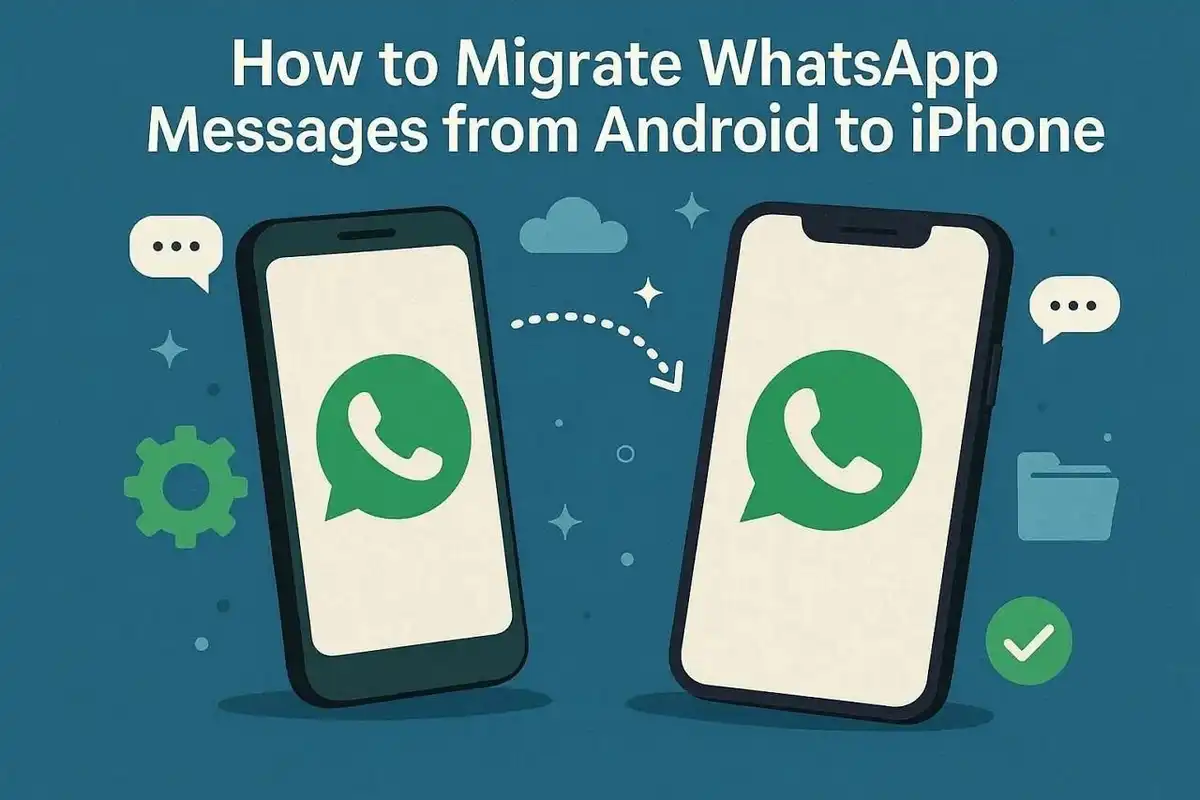
Part 1: What Challenges Exist in Android to iPhone WhatsApp Transfer?
Transferring WhatsApp from Android to iPhone is not a simple one-step process. This migration is a special scenario because each platform has strict OS constraints. Android stores WhatsApp data on Google Drive or local storage, while iPhone rely on iCloud. This division makes data portability challenging and limits how chats can move. Yet, WhatsApp allows migration through specific routes, like via the Move to iOS setup.
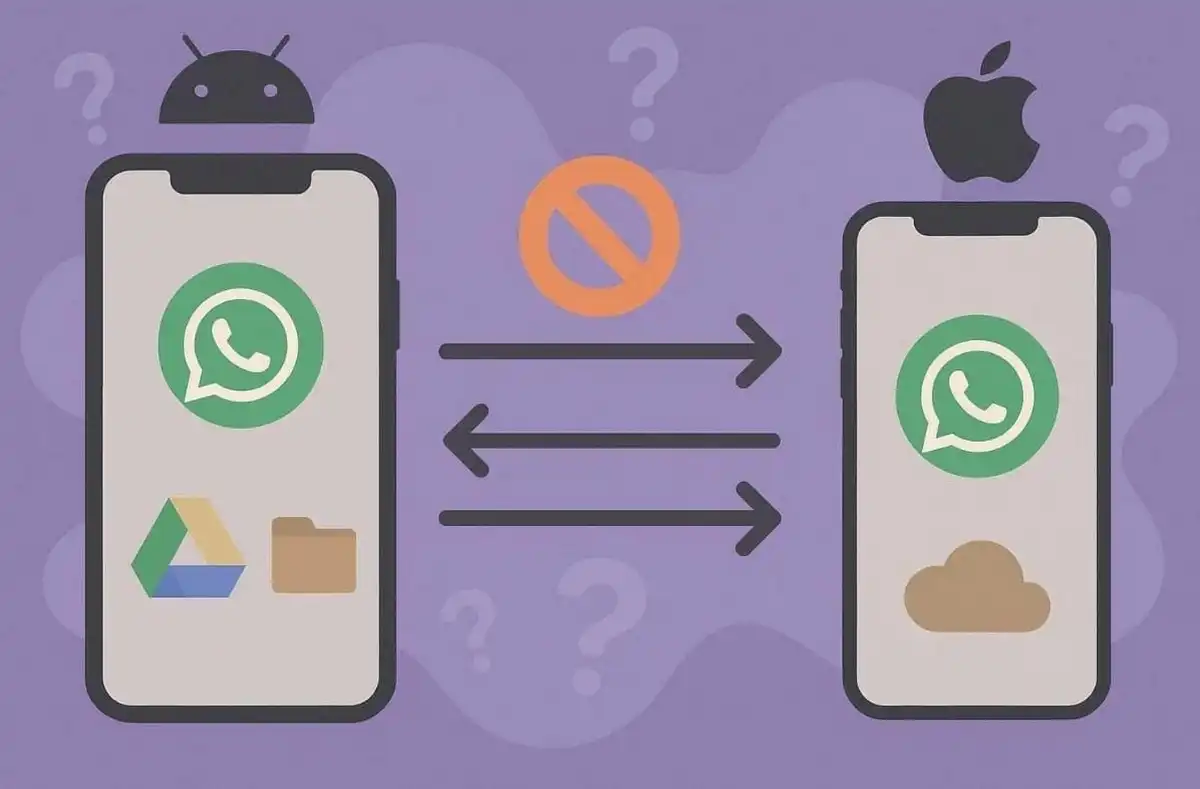
However, this official path works on new or factory‑reset iPhones with strict requirements. Users must ensure exact OS compatibility and stable connections. Even minor disruptions can break message links and cause chat or media loss. Some users also search for how to transfer from one WhatsApp stickers to anotherwithout errors. So, understanding these platform limits first helps ensure complete WhatsApp migration success.
Part 2: What Happens If You Skip Project Prerequisites?
Skipping essential prerequisites increases the risk of incomplete transfers and errors. Many users face failed transfers or missing chats when they ignore essential checks. Even small oversights can create repeated errors and wasted time during migration. To understand the real effects of skipping checks, explore the points listed below:
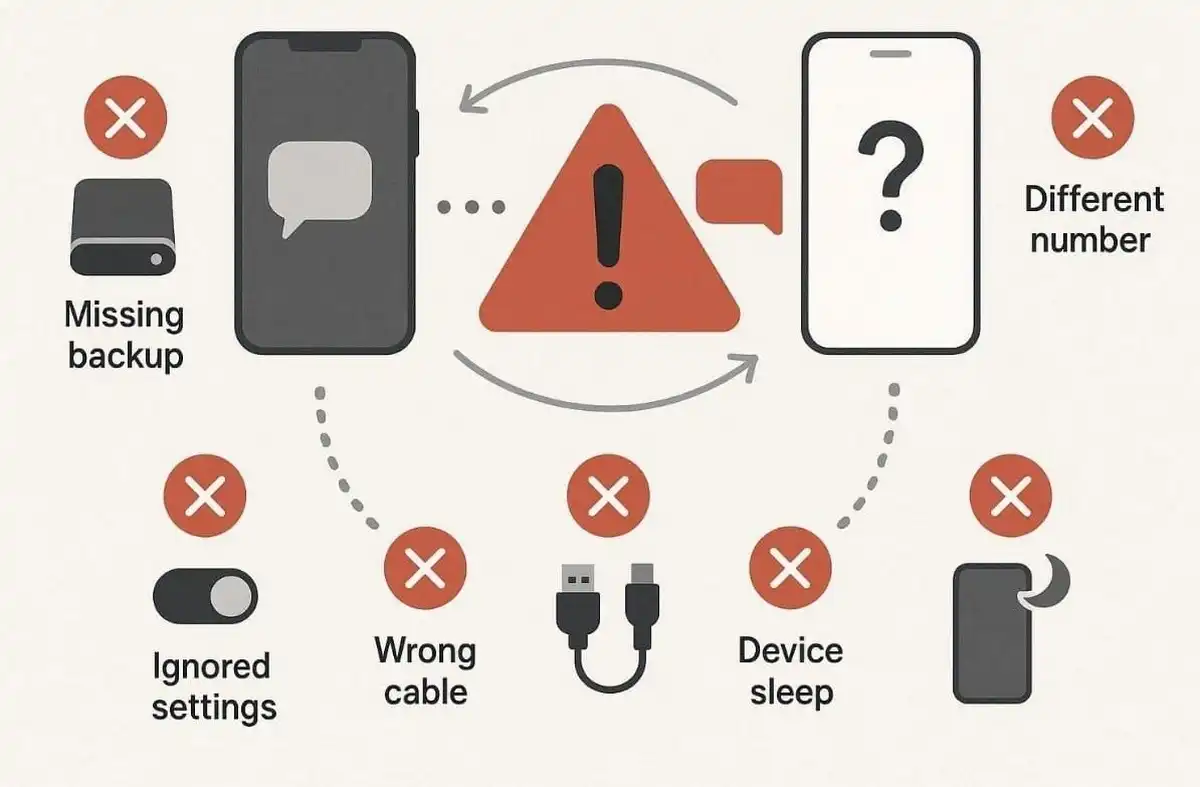
- Missing Backup: Without a recent backup, there’s no fallback to recover interrupted transfer data. Skipping this step results in permanent message loss if errors occur.
- Different Numbers: Using another number stops the verification needed for secure session setup. This conflict blocks authentication and halts official transfer processes.
- Ignored Settings: Disabled permissions also block access to chat and media content. It also disrupts secondary functions, like how to save view once on WhatsApp.
- Wrong Cable: Using poor-quality or incompatible cables disrupts the data flow between devices. Thus, interrupted or broken connections can halt the migration and damage files.
- Device Sleep: Phones entering sleep mode mid-transfer cancel ongoing WhatsApp migration tasks. Thus, sleep interruptions also prevent messages and media from transferring.
Hence, readiness checks are the most reliable predictor of a complete WhatsApp transfer. When both devices meet version and stability requirements, data security improves. So, performing these checks before migration reduces the risk of failed or partial transfers.
Part 3: Top Essential Preparations Before You Start
Many users rush into WhatsApp migration and overlook essential pre-transfer preparations. These basic steps ensure that data stays safe. Moreover, things like storage and strong connectivity matter more than expected. Some even focus onhow to transfer contacts to new phone while skipping chat checks. So, this section summarizes the top essential preparations in a simple, easy table:
| Preparation | Why It Matters | Recommended Action |
| Check Device Storage | Prevents data loss and incomplete migration | Leave at least 5GB free on both phones |
| Update WhatsApp | Ensures app compatibility and smooth transfer process | Install the latest version on Android and iPhone |
| Match Numbers | Allows verification and a link between accounts | Use the identical phone number during transfer |
| Stable Network | Keeps session active and uninterrupted | Connect to reliable Wi-Fi before migration |
| Fully Charge Devices | Avoids shutdown during chat transfer | Keep both phones at 80% or more battery |
| Prepare Backup | Creates a recovery option in case of failure | Backup WhatsApp chats manually before moving |
Part 4: 8 Common Failure Points and How to Avoid Them
Even after completing all steps, WhatsApp transfers can still fail for many reasons. Small oversights like unstable Wi-Fi or outdated backups stop progress midway. Many times, mismatched settings may even corrupt chat history. Some users also notice issues related to how to save view once on WhatsApp during migration. So, below is a table showing major failure points and their solutions:
| Failure Point | Cause | How to Avoid It |
| Interrupted Transfer | Devices disconnect or power off mid-process | Keep both phones charged and on stable Wi-Fi |
| Version Conflict | Old app versions block data exchange | Update WhatsApp and system software before starting |
| Insufficient Space | Full storage causes file skipping and data loss | Free up enough internal memory on both devices |
| Wrong or Damaged Cable | Faulty connections break the transfer link | Use original USB cables and avoid loose ports |
| iPhone Already Set Up | Official migration fails on configured phones | Reset iPhone before starting the transfer process |
| Background App Activity | Other apps consume needed system resources | Close unused apps to prevent slowing migration |
| Corrupted Backup | Damaged files from previous sessions block import | Always generate a fresh backup before transfer |
| Unstable Verification | Number mismatch interrupts the authentication phase | Use the same verified phone number during both device setups |
Part 5: Dr.Fone – WhatsApp Transfer: Your Ultimate Solution for WhatsApp Migration
When users still face incomplete WhatsApp transfers, they need a dependable solution. In such a case, Dr.Fone – WhatsApp Transfer offers a complete, guided tool built for performance. It supports direct chat migration between Android and iPhone, guaranteeing full compatibility. This WhatsApp transfer toolbox enables you to migrate all types of WhatsApp data, including chats and stickers.
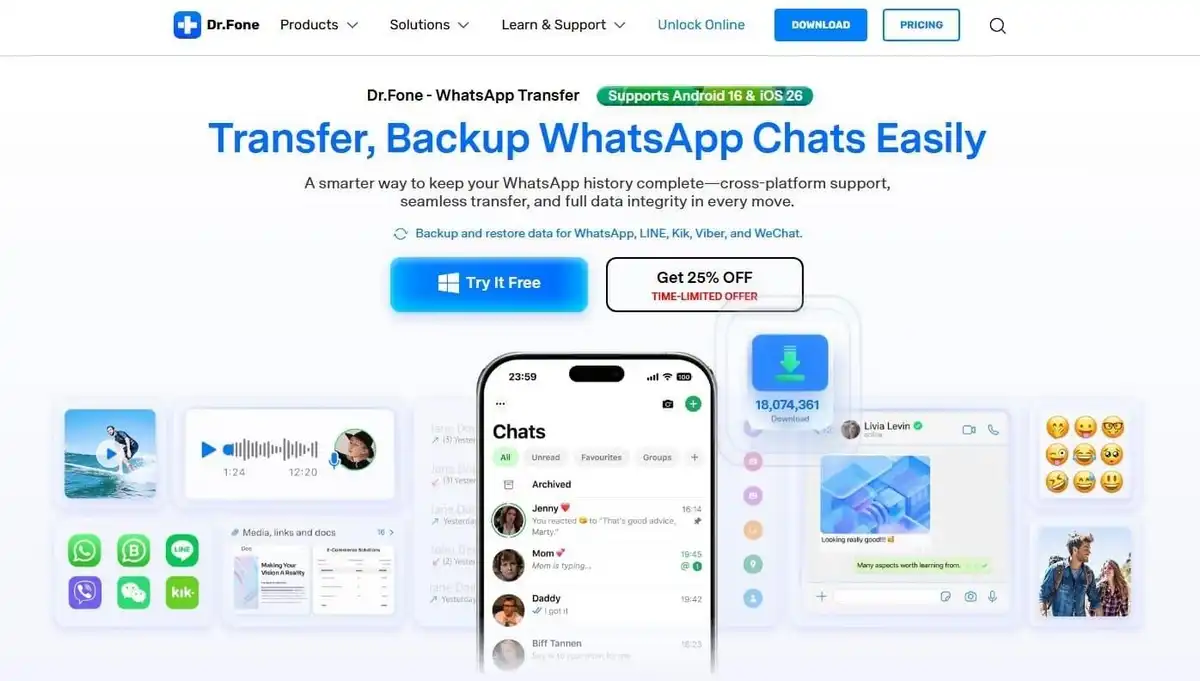
Dr.Fone maintains 100% complete data integrity to transfer data without altering content. Also, it even works with both WhatsApp and WhatsApp Business for professional users. Plus, the software guarantees 96% quicker speeds compared to conventional tools during migration. In addition, users can also back up WhatsApp data in one click for extra protection.
Key Features
- Preview Backup: Allows previewing backup content before restoring or exporting to devices.
- Large Backup: Handles massive chat histories or media-heavy WhatsApp backups.
- Export Options: Export chats as PDF or HTML for offline viewing without hassle.
Quick Guide to Utilize Dr.Fone – WhatsApp Transfer for WhatsApp Migration
To learn how you can use this dedicated program, follow the given guide to move WhatsApp data from Android to iPhone:
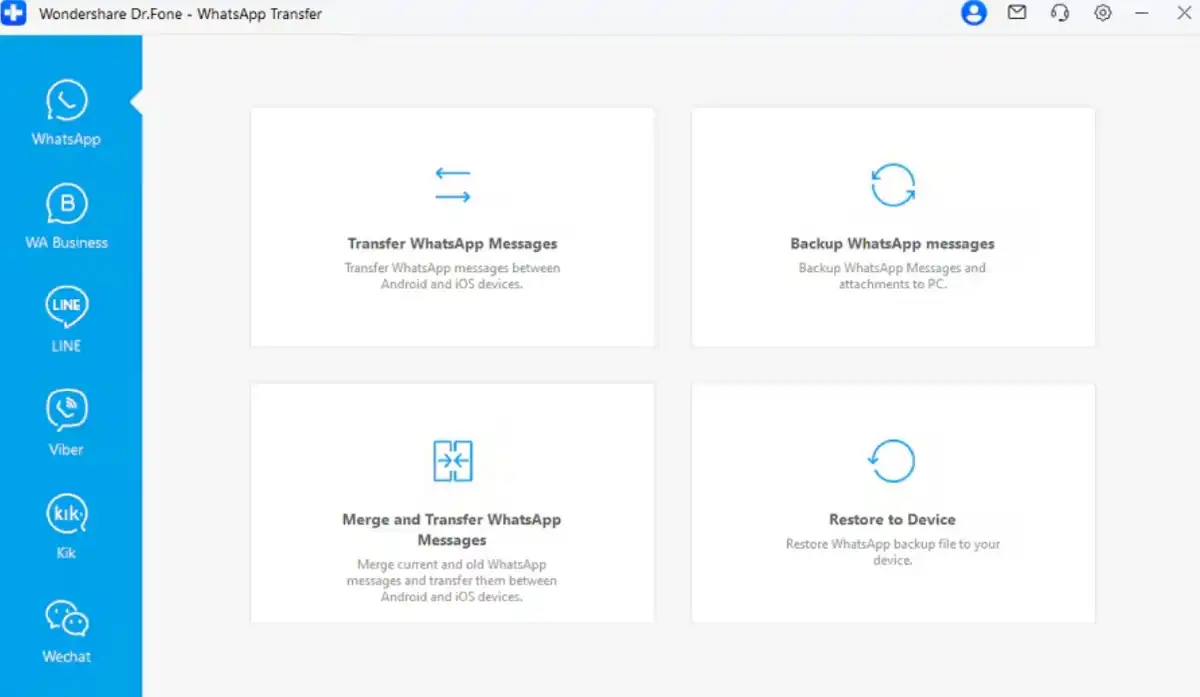
Step 1. Start the WhatsApp Migration Tool
When you navigate to the “Toolbox” tab, opt for the “WhatsApp Transfer” feature. Connect both your phones to the computer and click “Transfer WhatsApp Messages.”
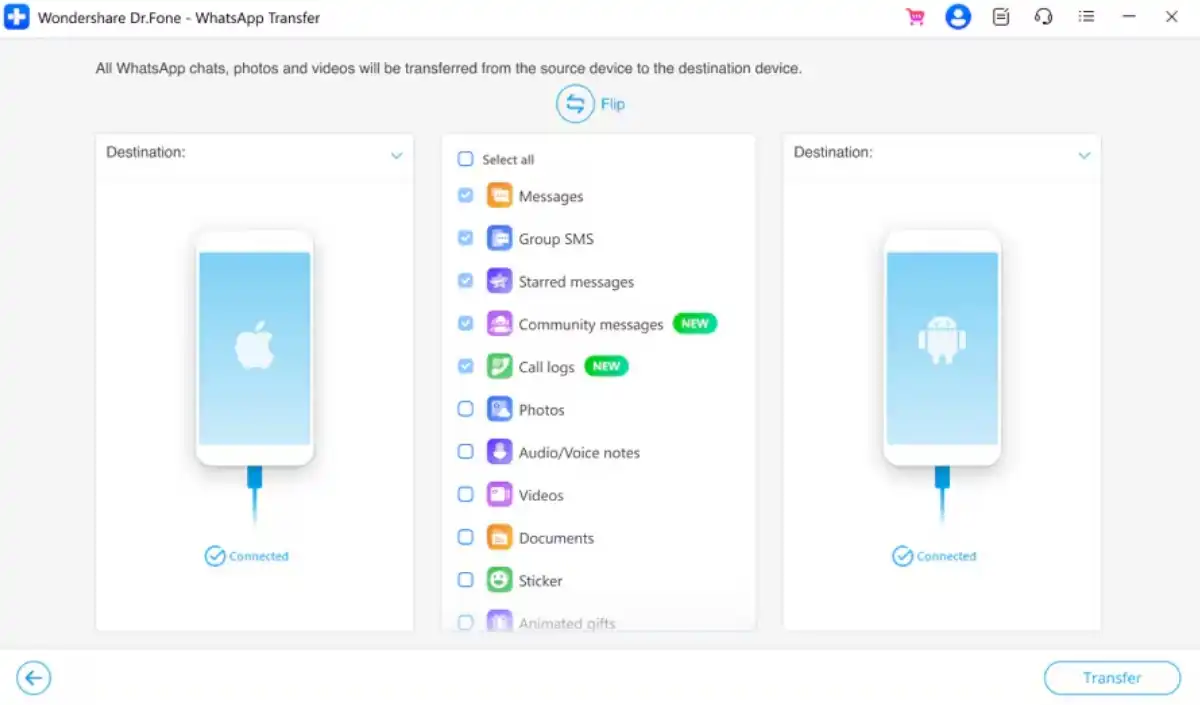
Step 2. Select WhatsApp Data to Move
Review the displayed WhatsApp chats and media and choose the items to transfer. Upon selecting, opt for the “Transfer” button to prepare for migration.
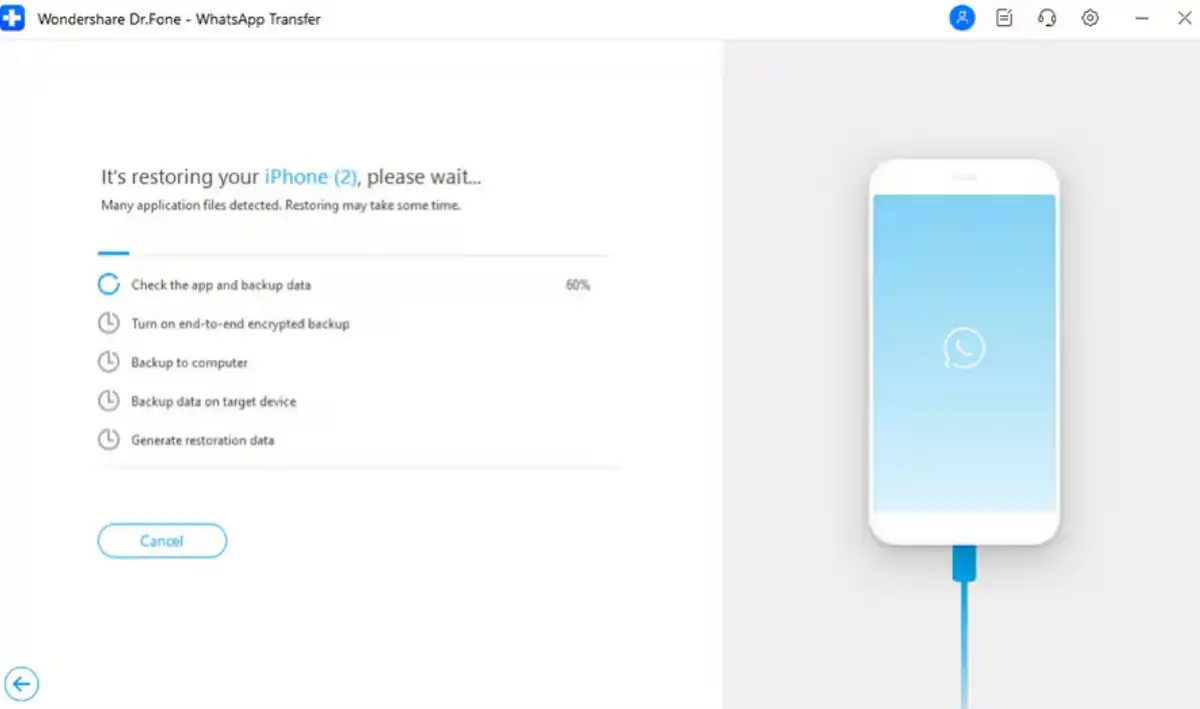
Step 3. Transfer WhatsApp to the New Phone
Afterward, Dr.Fone will then move your selected data, completing WhatsApp migration.
Conclusion
To conclude, migrating WhatsApp from Android to iPhone requires the right tools to avoid data loss. Yet, following a structured plan prevents lost chats, media, or repeated transfer errors. Official methods work only on new iPhones, but they limit flexibility for most users. Plus, small mistakes cause incomplete transfers or corrupted chat history. For a reliable, fast, and stress-free process, use Dr.Fone – WhatsApp Transfer today.
![20 Most Essential iPhone 16 Settings [iOS 26 Easy Tweaks]](https://www.techdemis.com/wp-content/uploads/2026/06/Essential-iPhone-16-Settings-800x450.webp)

![vnROM Bypass Complete Guide [2026]: How It Works, Android Compatibility, Security Risks & Alternatives](https://www.techdemis.com/wp-content/uploads/2026/06/vnROM-Bypass-Complete-Guide-800x450.webp)


