Instagram Story: Put a Picture on Top of Another Picture

Instagram Stories are a great way to share creative visuals. Overlaying one picture on another adds depth. I’ll guide you through Instagram’s tools and third-party apps to master this. Let’s create engaging Stories.
Why Overlay Pictures?
Overlaying pictures makes Stories stand out. It lets you combine images, highlight details, or create collages. This grabs attention and adds creativity. It’s simple with Instagram’s features.
Stories last 24 hours. Overlays keep viewers engaged. You can mix photos to tell a story. It works for personal moments or promotions.
Using the Gallery Sticker
How to Use It
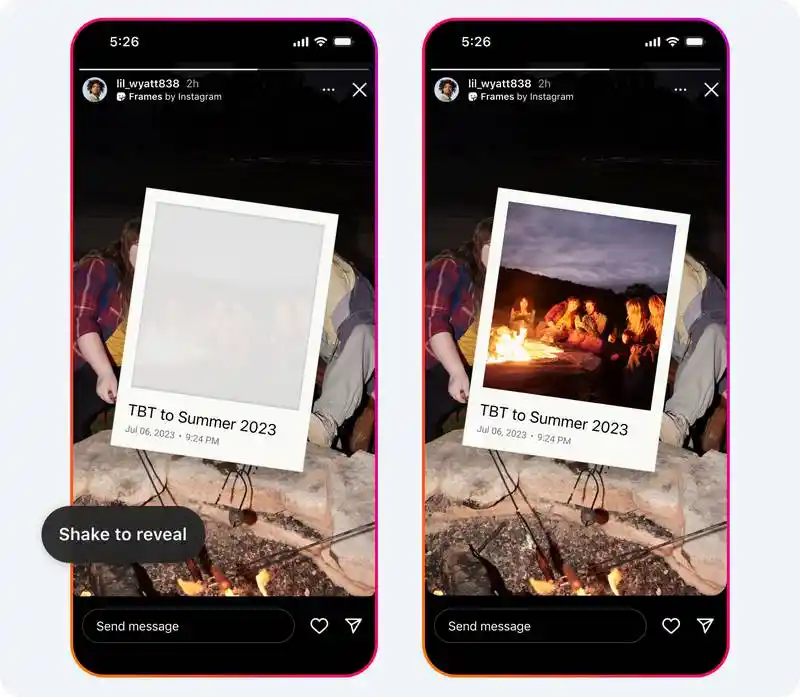
The Gallery Sticker is easy. Open Instagram. Swipe right for Stories. Choose a background photo. Tap the sticker icon (square with a smiley). Select the Gallery Sticker. On Android, it’s a plus sign. On iPhone, it’s an image thumbnail.
Pick the overlay picture. It appears on your background. Tap to change shapes (circle, square, heart). Drag to move. Pinch to resize. Add multiple stickers for more layers.
Saving or Sharing
Tap “Your Story” to post. To save, tap the three-dot icon and select “Save.” It downloads to your phone. This method is fast and needs no extra apps.
Also read: The://vital-mag.net Blog
Why It Works
The Gallery Sticker is versatile. It supports full images and adjustable shapes. It’s beginner-friendly and works on Android and iPhone. Ideal for quick collages.
Using the Cutout Sticker
How to Use It
Cutout Stickers highlight specific objects. Start a Story. Add a background. Tap the sticker icon. Choose “Cutouts.” Instagram detects objects in your second photo. If it fails, tap the object manually.
Preview the cutout. Tap “Use Sticker” to add it. Move or resize it. Combine with Gallery Stickers for layered effects.
Reusing Cutouts
Cutouts save to your sticker gallery for reuse. Create cutouts from posts too. Tap the three-dot icon on a post and select “Create a cutout sticker.” They sync across devices.
Best Uses
Cutouts work best for clear subjects like people or products. They’re less effective for complex backgrounds. Use them to emphasize key elements, like a face over a group photo.
Combining Stickers
Mixing Tools
Use Gallery and Cutout Stickers together. Add a background. Use a Gallery Sticker for a full image. Add a Cutout for a detail. This creates a layered design. Adjust placement and sizes.
For example, use a Gallery Sticker for a landscape. Add a Cutout of yourself in the foreground. It builds a cohesive story.
Creative Ideas
Try themed designs. For a birthday, use a party background. Add a cake Cutout and balloon Gallery Sticker. For travel, use a landmark base with a cutout of yourself.
Experiment with combinations.
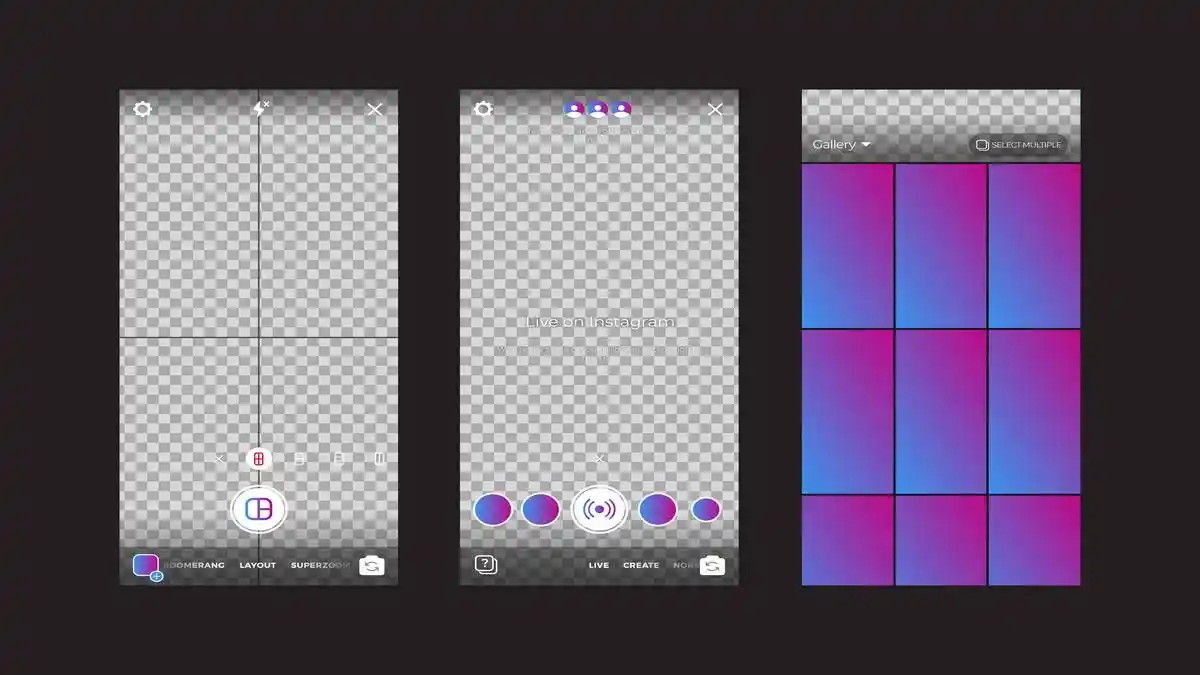
Using the Layout Feature
How It Works
The Layout feature creates grids. Swipe right for Stories. Tap the Layout icon (square with lines). Choose a grid (two, four, or six sections). Select photos from your camera roll. Each fills a grid slot.
Images are fixed in the grid. Add stickers or text after. Tap “Your Story” to post. It’s great for structured collages.
When to Use It
Layout suits equal-sized images. It’s less flexible than stickers. Use it for side-by-side photos, like product angles or family shots. It’s simple but limited for overlays.
Copy-and-Paste Sticker Hack
How It Works
The Sticker Hack is a workaround. Start a Story. Add a background. Exit Instagram. Open your camera roll. Copy the overlay photo. Return to Instagram. Tap the “Add Sticker” prompt quickly. The photo appears as a sticker.
Resize and move it. Repeat for more photos. It works on Android and iPhone but needs practice.
Pros and Cons
The Sticker Hack offers creative freedom. It’s less smooth than native tools. Use it for unique layouts if stickers aren’t available. Otherwise, stick to Gallery or Cutout Stickers.
Third-Party Tools
Canva
Canva offers precision. Go to Canva’s website or app. Select “Instagram Story.” Upload a background photo. Add a second photo. Adjust size, position, or transparency. Add borders or effects.
Download the design. Post to Instagram. Canva is free and great for polished Stories, like branded content.
Fotor
Fotor is fast. Visit Fotor’s website. Choose “Collage.” Pick a layout. Upload photos. Adjust spacing or transparency. Download and post to Instagram. It’s ideal for quick, modern collages.
Why Use Them?
Third-party tools give more control. Instagram’s features are simple but limited. Canva and Fotor suit businesses or influencers. Use them for complex designs. For quick edits, Instagram works fine.
Tips for Better Overlays
Use Contrast
Choose contrasting images. A bright overlay on a dark background pops. Avoid similar colors. A white object on a dark scene stands out. Test combinations for clarity.
Keep It Simple
Use one or two overlays. Too many confuse viewers. Focus on a clear message. A single cutout with text is often enough. Simple designs are more engaging.
Stay Consistent
Stick to a theme or color palette. Pastels create a soft look. Bold colors add energy. Consistency builds your brand. Ensure Stories align with your profile.
Add Text or Filters
Use text or filters to enhance overlays. Add a short caption. Filters set the mood. Place text where it’s readable, not over key details.
Also read: PonderShort.com
Common Mistakes
Too Many Stickers
Too many stickers look cluttered. Use a few. Stories are quick. Focus on one key image. Preview for clarity before posting.
Low-Quality Images
Blurry photos hurt your Story. Use high-resolution images. Check your camera roll for sharp shots. Export high-quality designs from Canva or Fotor.
Poor Placement
Don’t cover important background details. Place overlays in empty spaces. Preview to ensure balance. Good placement guides the viewer’s eye.
Instagram Tools Comparison
| Tool | Best For | Ease of Use | Flexibility | Availability |
|---|---|---|---|---|
| Gallery Sticker | Full image overlays | Easy | Moderate | Android & iPhone |
| Cutout Sticker | Highlighting objects | Moderate | High | Android & iPhone |
| Layout Feature | Grid collages | Easy | Low | Android & iPhone |
| Sticker Hack | Manual layering | Hard | High | Android & iPhone |
This table helps you choose. Gallery Stickers are easiest. Cutouts offer precision. Layout is structured. The Sticker Hack is for advanced users.
Third-Party Tools Comparison
| Tool | Key Features | Free Plan | Best For |
|---|---|---|---|
| Canva | Templates, transparency, borders | Yes | Polished designs |
| Fotor | Collage layouts, quick edits | Yes | Fast Story collages |
Canva suits detailed work. Fotor is great for speed. Both enhance Instagram’s tools.
Advanced Techniques
Interactive Stories
Add polls or questions. Overlay a product photo. Add a poll like “Buy now or later?” Place it near the overlay. Interactive elements boost engagement.
Animated Overlays
In Canva, create an overlay. Add a subtle animation (bounce or fade). Download as a video. Post to Stories. Keep it simple to avoid distractions.
Brand Consistency
Use brand colors or fonts. In Canva, apply your palette. In Instagram, use consistent filters. Consistent branding looks professional and builds trust.
Troubleshooting
Missing Stickers
Can’t find stickers? Update Instagram via your app store. If they’re still missing, use the Sticker Hack or Canva. Features may roll out slowly.
Cutout Issues
If Cutouts fail, use a photo with a clear subject. Busy backgrounds confuse Instagram. Tap the object manually or edit in Canva.
Cluttered Story
Too many overlays? Remove some. Focus on one image. Use empty space for text. Preview to ensure it’s clean.
Final Thoughts
Overlaying pictures in Instagram Stories is simple and creative. Use Gallery Stickers for full images. Cutouts highlight details. Mix them for depth. Layouts create grids.
The Sticker Hack is a backup. Canva or Fotor offer pro results. Keep it simple, use contrast, and experiment. Start today and make your Stories shine.
Also read: SaveFrom.net