Autodraft AI Tutorial: Make Moral Stories & Animated Videos Without Skills
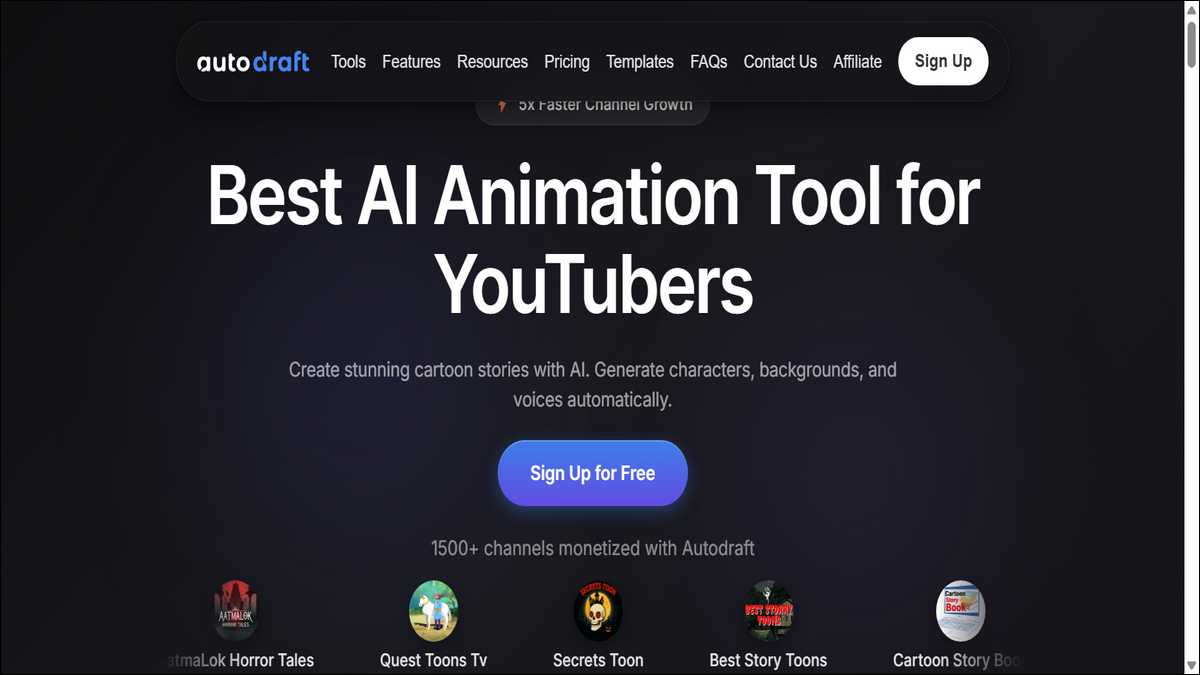
Autodraft AI lets you generate 2D cartoon animations and full short videos from text prompts. This tool runs in a web browser, so you don’t need to download anything.
Also, you won’t need prior animation training either to get started with this tool. Lots of people use it to make moral stories, nursery rhymes, and simple explainers for YouTube.
But results depend on your project size and how much time you spend on revisions. While short videos of three to five minutes work best when you’re just starting out. But longer stories need more generations and a bit more patience.
That gives you the basic idea. Here are a few key points before you get started:
- The company reports over 30 million assets created and more than 150,000 creators, though independent verification of the exact numbers isn’t available publicly.
- Generation times often range from several minutes to over 20 minutes per task.
- You’ve got a free tier for testing. Paid plans start around 10 to 35 dollars per month.
What Autodraft AI Actually Offers?
Autodraft AI focuses on text-to-image generation and basic animation controls.
You describe scenes or characters in words, and the system can produce backgrounds, character assets, and simple movements. You can then arrange these pieces in the editor, and it will do the rest of the work.
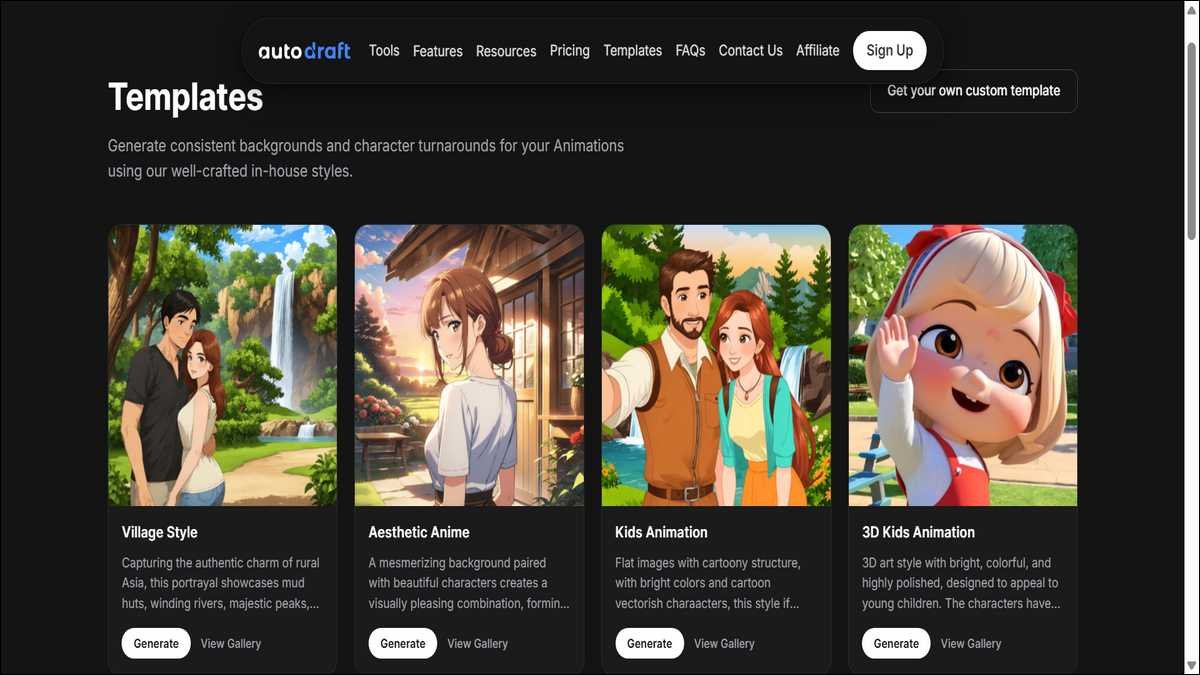
It supports over 100 style templates. These can help keep visual consistency across scenes. Moreover, its custom model training lets you upload reference images so that the same character appears consistently.
Core capabilities include these features:
- Text prompts, storyboards, sketches, or flat-color images turn into assets.
- Character turnaround vectors work if you also do traditional animation.
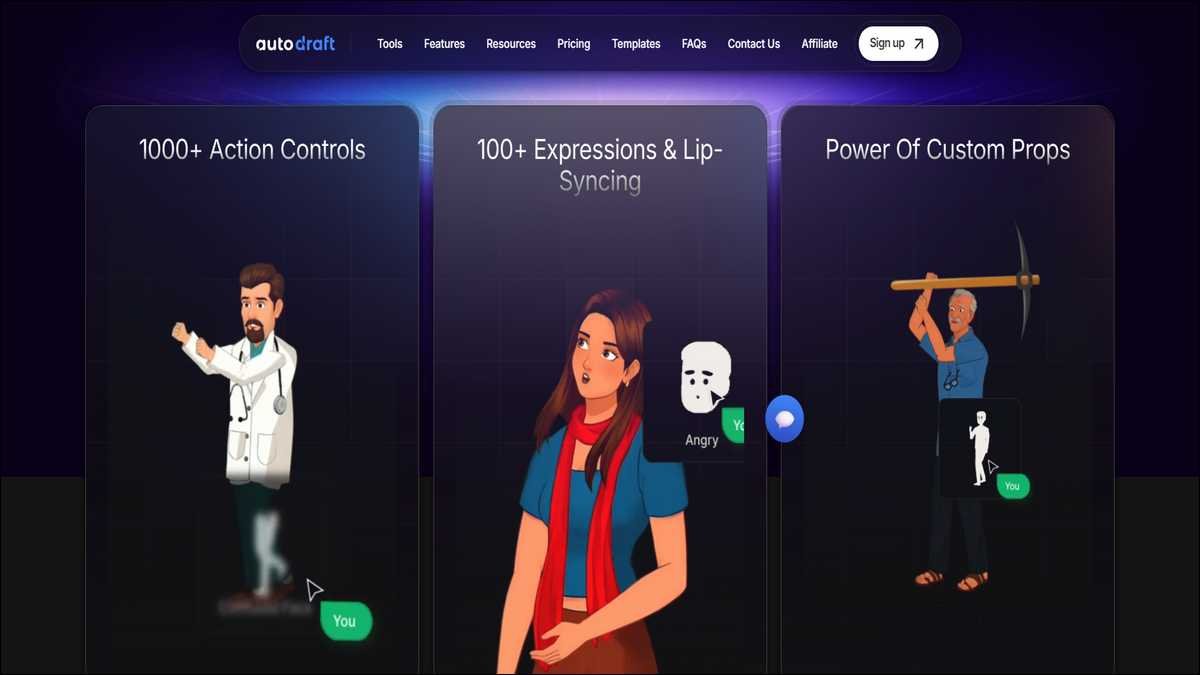
- Controls cover expressions, lip syncing, props, primary animations, and secondary animations.
- There are over 1,000 action options and over 100 expression choices in the editor.
- AI voiceover presets and copyright-free background music come built in.
The platform works on desktop browsers and mobile browsers. Many tutorial videos show the full process on phones. However, using this AI tool on desktop screens brings better control of the editor.
Honest performance notes from user reports and reviews:
- Character consistency improves when you train custom models with 15 to 25 clear reference images.
- Text-to-image results look usable for simple moral story backgrounds and characters.
- Lip sync and full animation sequences often feel basic compared with dedicated animation software.
- Some users report generation errors or long wait times, especially during peak hours.
You get a complete pipeline in one place. You don’t need separate tools for every step. However, final polish sometimes requires export to another editor like CapCut for smoother timing or extra effects. That’s a common approach many creators take.

Pricing Plans and Real Costs
Autodraft AI offers a free tier plus two main paid plans. However, you should always check the official pricing page for current rates because they can change. Prices come from recent user reviews and directory listings.
Pricing overview table:
| Plan | Monthly Cost (approx.) | Credits per Month | Main Limits | Best For |
|---|---|---|---|---|
| Free | 0 | Limited (around 25 generations reported) | 1 project, basic features only | Testing the tool and learning the interface |
| Base | 10 to 27 USD | 1,000 | More generations and unlimited 4K downloads on some reports | Creators making a few short videos per month |
| Pro | 35 to 105 USD | 4,000 | Highest generation volume | Channels that publish regularly and need faster iteration |
Credits don’t roll over to the next month.
And you should know that complex scenes or many revisions could use your credits quickly. One 30-second animated sequence can require 20 or more generations; that said, you’d better use this tool very effectively.
Key cost considerations:
- The free tier lets you complete one simple scene for practice.
- Paid plans remove some storage and download limits.
- You can still pay the monthly fee even if you generate fewer assets than the credit allowance.
- Unclear credit consumption makes exact budgeting difficult before you start a project.
To get an idea, you should start with the free tier. Complete two or three short test videos before you subscribe. Through this approach, you would know whether the generation speed and reliability fit your schedule or not. That’s the safest way to test the waters.
How to Begin Using Autodraft AI
You can create an account at the official site with an email address. No credit card is required for the free tier. Once you sign up and log in, the dashboard brings options to start a new project or browse the existing templates to build your first video.
First steps in order:
- Sign up and confirm your account.
- Choose or create a new project.
- Pick a style template that matches your story tone.
- Write a clear prompt for your first background or character.
- Generate the asset and review the result.
Prompt quality matters. Specific descriptions produce better starting points than vague ones. Include details like setting, character age, mood, and art style.
Example prompts that work well:
- “A kind young boy helping an elderly woman cross a village road, bright cartoon style, clear daylight, moral story scene, simple background.”
- “Colorful school classroom with happy children listening to a teacher, friendly 2D cartoon style, warm lighting.”
- “Quiet forest path at sunset with a small rabbit character looking thoughtful, soft colors, storybook illustration style.”
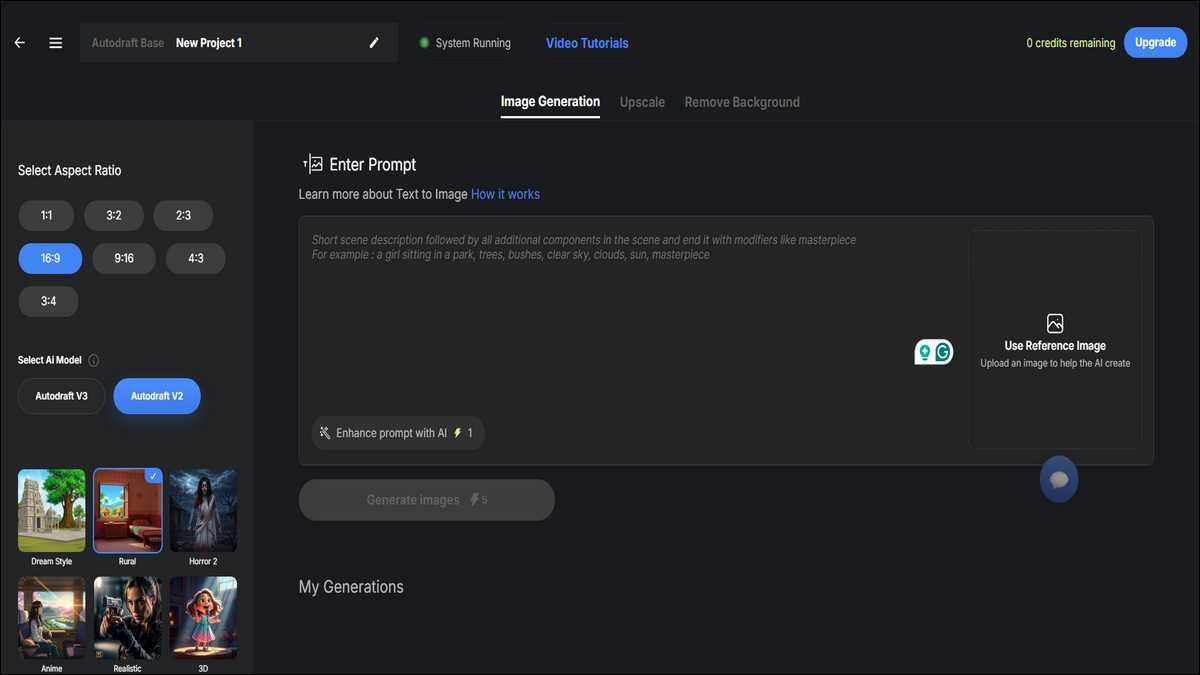
You can test several variations of the same prompt. This tool produces different options each time. Keep the best one and discard the rest. This step uses credits, so work on short scenes first for better results.
Step-by-Step Process to Create a Moral Story Video
A complete short moral story video follows six main stages. Total time for a three-minute video often ranges from two to six hours spread across sessions.
Generation waits, and revisions take most of that time.
- You can begin with stage one: writing a simple script. Keep stories short and focus on one clear lesson. Break the script into 8 to 12 scenes. Each scene needs a visual description and dialogue.
- Once the script is ready, move to stage two: generating backgrounds and environments. You can use the prompt method described earlier. Create one background per major location and save good versions in your project library.
- After that, you can handle stage three: creating or training characters. For one-off stories, generate characters directly from prompts. For series, train a custom model. Upload 15 to 25 reference images of the same character in different poses and expressions. The tool learns the face and style.
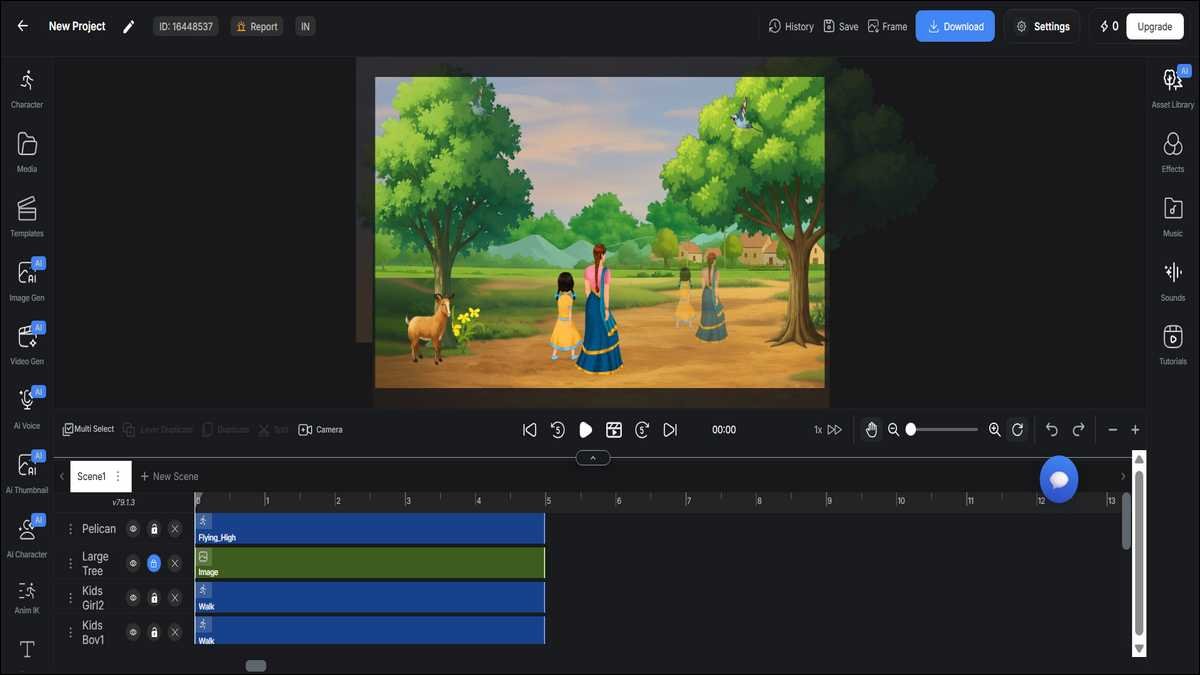
- With characters in place, move to stage four: building animation in the editor. Drag assets onto the timeline. You can apply actions from the 1,000-plus library. Add expressions and props as needed. Set primary movements like walking and layer secondary movements like arm gestures.
- Next comes stage five: adding voiceover and music. Choose from AI voice presets or upload your own recording. The system attempts automatic lip sync. Add matching background music from the library.
- Finally, reach stage six: preview, adjust, and export. Watch the full sequence. Fix timing or expression issues as you go. Export in 4K when you use a paid plan. Download the video file to your device.
Work scene by scene; finish and save one scene before you start the next. This method reduces the chance of losing progress if a generation fails.
Training Custom Characters for Consistent Series
To get the best out of this tool, you should use this feature. The custom model training helps the same character look consistent across episodes. You just upload reference images, and the tool starts learning the style so you can reuse the character in new stories.
So, you would not need to describe the character again and again! Here’s how it works:
Training process:
- Collect or create 15 to 25 clear images of your character.
- Show different angles, expressions, and simple poses.
- Upload the images in the custom model section.
- Wait for the training to finish. This step uses credits.
- Test the trained model by generating new scenes.
Results and limitations:
- Good reference sets produce reliable consistency in standard cartoon styles.
- Complex clothing, unusual poses, or abstract designs often show inconsistencies.
- You can train multiple models for different characters in one story.
- Training data remains private according to the platform, but review current privacy terms yourself.
You can test the trained model on a simple scene first. Generate the same character in two different backgrounds. And check whether the face and body style match and remain consistent all the time.
Retrain with more or better images if needed. That’s how most people refine it over time.
How To Add Voice, Music, and Fine Controls
Voiceovers and music complete the video. The tool offers preset voices and a library of copyright-free tracks.
Voiceover options:
- Select a preset voice that matches the character age and tone.
- Type the dialogue and generate the audio.
- Lip sync applies automatically in many cases.
- Some paid plans allow voice cloning from a short sample you provide.

Music and sound effects:
- Browse the library by mood or scene type.
- Preview tracks before you add them.
- Adjust volume levels in the editor.
Editor controls worth learning:
- Expression sliders change face details quickly.
- Prop library adds objects like books, balls, or tools.
- Primary animation presets handle walking, sitting, or waving.
- Secondary animations add smaller movements on top.
Lip sync works better with clear, moderate-speed speech. Fast dialogue or strong accents sometimes produce mismatched mouth movements.
In those cases, adjust timing manually in the editor when the option exists or regenerate the voice clip.
Also read: 18 Best Vocal Remover Tools Tested
Common Problems and Practical Fixes
Common problems include slow generations, inconsistent characters, and lip sync issues. You can fix most of them with these adjustments.
Generation takes too long or fails:
- Simplify your prompt. Remove extra details and try again.
- Work during off-peak hours if possible.
- Start a new project if the current one shows repeated errors.
- Check your internet connection. Stable connections reduce failures.
Characters look inconsistent even after training:
- Use higher-quality, consistent reference images next time.
- Increase the number of references to 20 or more.
- Generate the character in the same style template throughout the video.
Lip sync looks off:
- Regenerate the voice clip with clearer pronunciation.
- Shorten long sentences in the script.
- Adjust mouth positions manually in the editor when the option exists.
Project feels slow on mobile:
- Use a tablet or desktop for detailed editing work.
- Do initial generation and rough assembly on the phone.
- Finish timing and fine controls on a larger screen.
Support response times vary according to user reports. Some people receive quick help. Others wait longer or receive limited replies. Keep notes of your steps so you can describe problems clearly if you contact support.
That’s the practical way to get better assistance.
How to use your Videos on YouTube
You can export videos and upload them to YouTube. The platform states that content generated with Autodraft AI doesn’t trigger copyright claims from the tool itself.
You can still follow all YouTube rules, though.
YouTube considerations:
- Content made for children faces extra rules under COPPA. Review current guidelines.
- Some creators add a short note that parts of the video use AI assistance.
- Consistent character design and clear stories help with viewer retention.
- Post regularly and study your analytics to see what works.
Realistic timeline: A finished three-minute moral story video can take several hours across multiple sessions. Plan your publishing schedule around generation time rather than assuming instant results.
Many channels that focus on moral stories and simple animations report steady growth when they maintain a regular schedule. Quality still depends on story strength and clear visuals more than the tool alone. That’s worth keeping in mind.
How Autodraft AI Compares with Similar Tools
Autodraft AI costs less to start and offers stronger text-based character consistency than many alternatives. It trades off speed and animation refinement. You can test the free tier against your specific story needs before you compare paid plans across tools.
Comparison table:
| Tool | Starting Price | Strong Points | Limitations | Choose This When |
|---|---|---|---|---|
| Autodraft AI | Free tier, then ~10-35 USD/mo | Custom character consistency from text prompts, all-in-one browser workflow | Generation speed varies, animation polish is basic, occasional errors reported | You want low-cost entry and series characters without heavy software |
| Vyond | ~49 USD/mo | Professional polished output, reliable performance | Higher monthly cost, steeper learning curve for full features | You need business-grade explainers and consistent high production value |
| Animaker | ~19 USD/mo | Good templates, marketing video focus | Less emphasis on custom character training from scratch | You create shorter marketing or social videos with templates |
| Canva Magic Studio | Included in Canva plans (~12-15 USD/mo) | Very easy interface, quick simple animations | Limited advanced character control and lip sync | You need fast, simple motion graphics mixed with other design work |
On the other hand, if you need daily uploads or very high production polish, you may need backup tools or a different primary platform.
Many creators treat Autodraft AI as one useful option in a larger workflow rather than the only tool.
Tips for Better Results and Credit Management
Small habits improve output quality and reduce wasted credits. You can apply these tips right away.
Prompt tips:
- Describe the main action first, then add style and mood.
- Mention character age, clothing, and emotion.
- Specify “2D cartoon style” or name a template when you want consistency.
- Test one change at a time when you revise a prompt.
Credit-saving habits:
- Generate small test versions before full scenes.
- Save successful assets in your project library for reuse.
- Work on one scene completely before moving to the next.
- Review results immediately and discard weak generations quickly.
Story structure tips:
- Keep moral lessons simple and visual.
- Limit the number of characters per scene.
- Use recurring backgrounds to save generation time.
- Plan dialogue length so lip sync stays manageable.
Hybrid workflow example: Generate characters and backgrounds in Autodraft AI. Export image sequences. Finish timing, transitions, and extra sound in CapCut or a similar free editor.
This approach sometimes reduces total time and improves final polish. Many creators mix tools this way.
Limitations Worth Considering
Autodraft AI doesn’t replace professional animation studios or high-end software for every use case. Understanding its boundaries helps you set realistic expectations from the start.
Main limitations:
- Animation quality and timing often require manual adjustments.
- Generation speed and reliability vary. Some sessions produce quick results. Others involve repeated errors.
- Advanced features carry a learning curve despite the beginner-friendly marketing.
- Support experiences differ among users. Response times aren’t always fast.
- Long videos or stories with many scene changes consume significant time and credits.
- The tool works best for straightforward 2D cartoon styles. Highly detailed or realistic output isn’t its focus.
If your channel needs daily uploads or very high production polish, you may need backup tools or a different primary platform. Many creators treat Autodraft AI as one useful option in a larger workflow rather than the only tool.
That’s a balanced way to look at it.
Frequently Asked Questions
Yes, you can. The interface provides prompts, templates, and controls that let new users build short animated stories. Expect to spend time on revisions and learning the editor controls during the first few projects.
A three-minute video typically requires two to six hours spread over one or more sessions. Generation waits and testing different options account for most of the time.
The free tier supports basic generation and exports with limits. Many people complete simple test videos on the free plan. Paid plans remove storage and download restrictions for regular use.
Yes, you can. Custom model training creates reusable characters. Consistency improves with good reference images. You can apply the trained model to new scenes and stories.
You can discard the result and generate again. Simpler prompts and stable internet connections reduce failure rates. Some users start fresh projects when errors repeat.
The company states generated content doesn’t create copyright claims from the platform. You must still follow YouTube’s own policies on AI content, children’s content, and monetization requirements. Review current YouTube guidelines directly.
Many users create content on mobile browsers. Basic generation and assembly work on phones. Detailed timeline editing and precise control feel easier on tablets or desktop computers.
Usage varies. Simple backgrounds may use few credits. Full animated scenes with voice and revisions can use 20 or more generations. Track your own usage on early projects to estimate future needs.
Some plans allow voice upload or cloning. Preset AI voices work for most moral story narration. Test both options to see which fits your story tone.
Bright, friendly 2D cartoon styles with clear characters perform well. Avoid overly dark or complex styles for children’s moral content. Match the visual tone to the lesson you want to share.
Wrapping Up!
Autodraft AI gives you a practical way to produce short 2D animated moral stories and videos without traditional animation skills or expensive software. The combination of text prompts, custom character training, and built-in controls removes many technical barriers.
Success depends on realistic expectations. Short projects, clear prompts, and willingness to revise generations lead to better outcomes. The free tier plan lets you test the full workflow before any payment is made.
Consider your available time and desired output quality. The tool works well for consistent character series on a budget. It shows limitations in speed, animation polish, and occasional reliability. Many creators combine it with other free editors for final adjustments.
Start with one simple moral story scene today. Follow the stages in order. Note what works and what needs adjustment. Build from there. Regular practice improves both your prompts and your understanding of the editor controls.
The platform continues to receive updates. Check the official site and recent user reports before you commit to a paid plan. Your results will come from clear planning and steady iteration more than from any single tool feature. That’s the honest picture.