Magnific AI (formerly Freepik) Ultimate Guide: Features, Pricing, Spaces & Workflows Explained
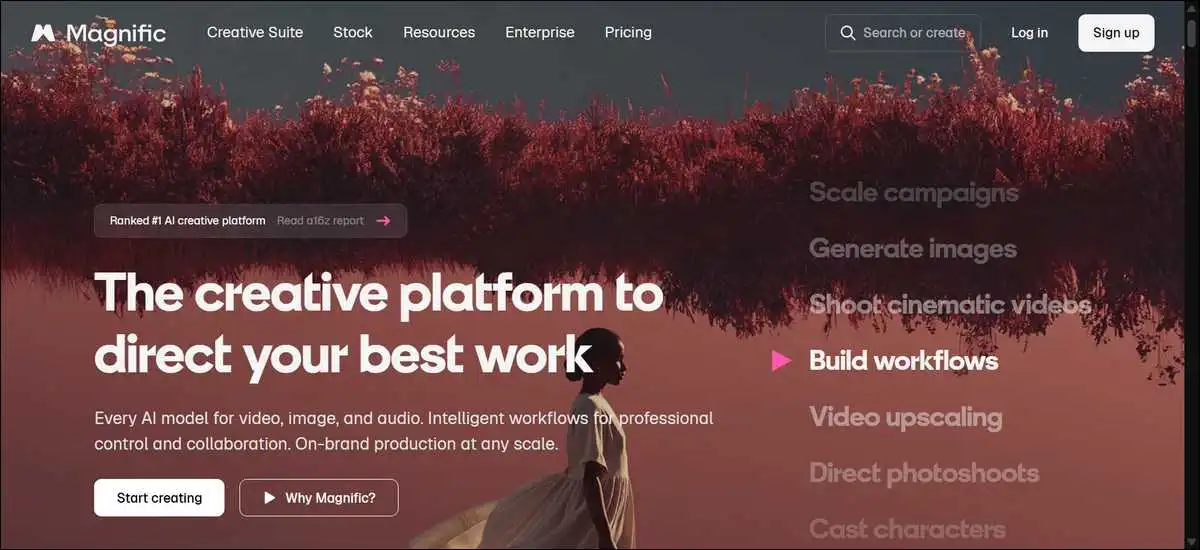
Magnific works as one platform that brings a large licensed stock library and AI tools together for images, video, and audio. You can generate, edit, and organize your work without jumping between separate apps. That’s the kind of setup many creators appreciate when they want clearer commercial rights and fewer tool changes.
The story behind it goes back to 2010, when the company started as Freepik with a focus on stock visuals and design resources. In April 2026, it rebranded to Magnific. This brought the original stock tools together with the AI upscaler it had acquired earlier and newer generation features.
If you’ve had a Freepik account, your login, projects, and active subscriptions carry over during the move. The mobile app updates to the new name for most users too.

Magnific Shares Scale Details Around the Rebrand
The platform reports more than one million paying subscribers. It also lists over 290 enterprise teams among its users, including brands such as BBC, Puma, and Delivery Hero. Around the April 2026 rebrand, the company shared that annual recurring revenue had reached 230 million dollars, with video generation forming a large part of that figure.
You also get access to 250 million licensed assets. These include photos, editable vectors, templates, 4K video clips, and icons. More than 40 AI models integrate into the platform.
Common examples include Flux variants, Kling versions, Google Veo and Nano Banana models, Runway, and ElevenLabs.
Key statistics for the Magnific AI platform, including subscriber count, asset library size, and revenue at rebrand:
Magnific in Numbers
Key figures at the April 2026 rebrand
Stock Assets Give You a Reliable Starting Point
Many creators like to begin projects with licensed stock instead of generating every element from scratch. The library holds high-resolution photos and vectors, with many PSD files keeping layers intact for easy editing. You can use these items as references or as final pieces in your work.
This method helps lower some licensing risks that come with pure AI output. You keep commercial rights on downloaded stock. The same rights cover AI-generated content under the platform license.
Still, it’s worth reviewing the specific terms for each asset type before commercial use.
Key points for easy reference:
- You keep commercial rights on both stock downloads and generated content.
- Many vectors and illustrations arrive as editable PSD files with layers preserved.
- Stock assets work well as references to guide AI generations.
Image Tools Let You Generate, Refine, and Upscale
You can generate images from text prompts or reference images if that fits your project. After that, built-in editing tools help with retouching, background removal, and small adjustments. Consistency features support keeping the same character look or brand colors across several outputs.
The upscaler handles resolution increases and often recovers fine details on creative or stylized work. Reviewers who tested it on AI-generated art frequently note solid results. Real-world photography sometimes shows different performance compared with dedicated upscalers.
You can mix stock photos with AI variations for product visuals or campaign assets when it makes sense for your needs.
Video and Audio Tools Support Complete Scene Work
Moving into motion and sound, you can create video clips from text, still images, or a mix of both. Camera controls allow reframing after generation. Upscaling options exist for finished clips too. Audio tools cover text-to-speech, sound effects, and music generation.
You can add voice or music to video projects inside the same workspace. This reduces the need for extra export and import steps. Credit use rises faster with longer or higher-quality video. Many users find it helpful to track usage closely on bigger projects so they don’t get surprised later.
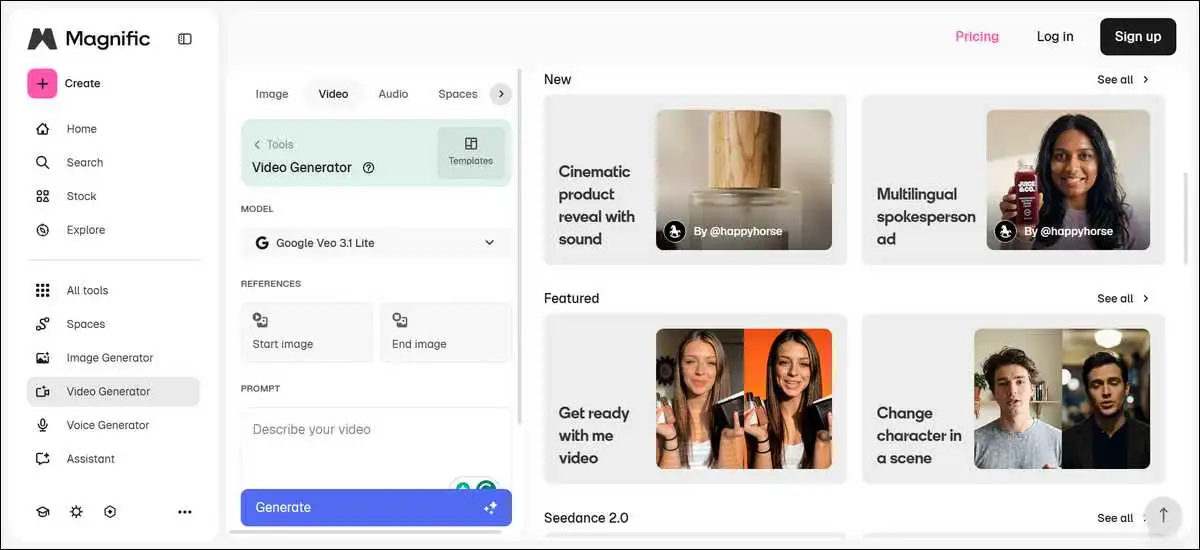
Spaces Offer a Visual Canvas for Workflows
Spaces act as a node-based canvas where you connect different tools and models. You can branch ideas, compare versions side by side, and automate common sequences. Work organizes into Projects, and you have the option to save useful flows as one-click Apps.
This setup helps teams keep output consistent across many assets. You set references or brand guidelines once in the flow. Later generations tend to follow those rules more closely. The canvas also supports real-time collaboration so several people can work on the same project view when they need to.
Key things to know about Spaces:
- You connect tools as nodes to create visual workflows.
- Saved Apps let you repeat successful sequences with one click.
- Branching and version comparison happen directly on the canvas.
Agents Help Apply Brand Rules Across Projects
On top of the canvas tools, Agents give you another way to keep things consistent. You build custom Agents by uploading brand books, reference images, or simple rule files. The Agent remembers your preferences across different sessions. It applies those rules when running tasks on the canvas.
This feature works well for ongoing campaigns or series work. You invest time setting it up once. After that, new outputs stay closer to your guidelines without constant re-prompting. Results still improve with a human review step, especially for client-facing work.
Pricing Runs on a Credit System with Different Tiers
Magnific uses credits instead of unlimited access in most plans. You receive an annual credit pool that doesn’t reset monthly. Top-ups stay available whenever you need extra capacity.
Tiers range from Essential for lighter testing to Pro for teams with higher output. Higher tiers bring larger credit amounts, unlimited generations on many models, and broader licenses such as music rights. Some plans also add extra upscaling options.
Credit needs vary by task. Simple images usually cost less than longer video clips or detailed edits. Users often notice that similar tasks can use slightly different amounts, so checking usage regularly supports better planning. Exact pricing and credit numbers can differ by region and may change, so it helps to review the current details on the official site.
Here’s a quick look at how the main tiers differ:
| Plan Tier | Often Suits | Key Benefit |
|---|---|---|
| Essential | People starting out | Lower credit entry point with core tools |
| Premium | Regular individual creators | Balanced credits for steady work |
| Premium+ | Higher-volume solo or small teams | Unlimited on many models plus extra licenses |
| Pro | Agencies and production teams | Highest credits, admin tools, and enterprise options |
Note: This table gives a general view. Credit amounts, pricing, and exact perks can vary. Always check the official Magnific pricing page for the latest information in your region.
You Can Begin with Simple Steps and Expand Later
You might start with these simple steps if you’re new to the platform. Once you’re in, things tend to flow from there.
- Visit magnific.com.
- Log in with your existing Freepik details if you already have an account.
- Browse the stock library or open a new Space.
- Pick a generation tool and add text or reference images.
- Refine results with the editor tools.
- Connect nodes in Spaces when you want to repeat a successful flow.
- Save useful sequences as Apps for future use.
For a product shot example, you might pull a base stock photo, generate a few angle variations with AI, clean up backgrounds, and upscale the final images. The whole process stays inside one workspace for most steps.
How Magnific Compares with Separate Specialized Tools
Many creators combine tools such as Midjourney or Flux for images, Runway or Kling for video, and ElevenLabs for audio, plus separate stock sites. This path lets you choose the current strongest option for each specific task. You often reach high quality in one area because each tool focuses deeply on its strength.
Reviewers who tested chained workflows report good results when they move outputs between apps. Image consistency across a full campaign can still need extra manual fixes or third-party editors.
File transfers and different licensing rules from several services add steps. Costs are also spread across multiple subscriptions.
Magnific brings generation, editing, stock references, and a workflow canvas together in one place. You cut down on context switching and manage commercial rights under one main license.
The node system in Spaces helps set consistency rules that tools handle less automatically. At the same time, a single model inside Magnific may not always match the very latest standalone release in a narrow style such as hyper-real video.
Credit tracking stays simpler with one system. Some people still prefer mixing tools when a project needs the absolute top result from one category, and the budget supports separate services.
Running a small test job in both setups often shows which flow matches your pace and quality goals better.
How Magnific Compares with Adobe Firefly and Creative Cloud Tools
Another approach many consider is staying inside Adobe’s ecosystem. Adobe places Firefly generation inside Photoshop, Illustrator, and Express. You stay in interfaces you may already know, with strong layer control and enterprise security options. Many agencies keep existing Adobe licenses, so the AI tools feel like a natural addition.
Feedback from users often highlights reliable results when working with existing Adobe files and precise masking. The wider ecosystem supports heavy print and production pipelines well.
Stock choices inside Adobe can feel more limited than dedicated libraries for some commercial needs. Generation speed and model variety sometimes lag behind newer standalone options according to direct comparisons shared by reviewers.
Magnific provides a larger stock library alongside its AI tools and a visual workflow canvas that Adobe doesn’t match in the same way. You get easier access to 250 million assets and node-based automation without leaving the platform.
Enterprise plans include legal indemnification and SSO options that many teams value. The main trade-off involves learning a new interface versus extending tools you already use every day.
Adobe often fits teams already deep in its subscription and file formats. Magnific can suit creators who want one workspace for stock plus generation plus orchestration and who prefer to simplify vendor relationships.
Honest Strengths and Practical Limitations
The combined stock and AI tools reduce app switching for many everyday tasks. You keep commercial rights on both stock and generated content under one main license structure. Spaces and Agents support teams that need consistent output across larger projects.
Credit costs grow with video-heavy or high-volume work. Usage amounts can vary between similar tasks, which makes exact budgeting less predictable. The node canvas in Spaces gives useful control but includes a learning curve for people new to visual workflows. Some specialized models outside the platform may still deliver stronger results in very specific creative styles.
Reviewers often praise detail recovery in upscaling tests on creative assets. Real-world photo work sometimes favors dedicated upscalers instead. Enterprise security features exist in higher tiers, yet smaller teams may not need the full set at the beginning.
A quick reference list:
- Strength: One workspace for stock, generation, editing, and workflows.
- Caveat: Credit use requires monitoring, especially for video.
- Strength: Agents and Spaces help maintain brand consistency.
- Caveat: New users may need practice time with the canvas.
- Strength: Commercial license covers generated content.
- Caveat: Always review asset-specific terms before client work.
Magnific Often Works Well for These Users
You tend to benefit most if you regularly combine stock references with AI generation and want basic editing plus consistency tools in one place. Agencies and studios that run repeated campaign or series work gain from saved workflows and Agents.
Solo creators who produce moderate volumes and prefer to avoid managing several subscriptions often find the structure practical. Teams already heavily invested in Adobe may choose to extend those tools unless they specifically need the larger stock library or node-based orchestration.
It helps to test with the free or entry tier on a real project. Track both time saved and credits used. That direct experience usually gives clearer signals than feature lists alone.
Here’s a visual checklist of common Magnific AI use cases, including product photography, ad campaigns, and short video production:
Popular Ways Creators Use Magnific
Here are some of the most common real-world applications
Frequently Asked Questions
No, you have a practical overview of what Magnific offers in mid-2026. Starting with a small test project lets you see how the tools fit your actual workflow.
Compare time and output quality against what you use now. Adjust based on the results you observe rather than general descriptions. Features and pricing details continue to evolve, so checking the official site regularly keeps information current.
If you like this guide, make sure to drop your thoughts below! We would be very happy to hear from you!