EzClasswork: How It Works, Features & Classroom Use Guide

Teaching today involves creating assignments, tracking progress, checking work, and giving feedback — often across multiple tools. This can feel overwhelming, especially when every class and student learns differently.
And EzClasswork is designed to make this easier. It’s an online classroom tool that helps teachers:
- Share classwork and homework digitally
- See which students have completed their work
- Grade assignments faster
- Give feedback in one place
Students get a simple dashboard where they can:
- View their tasks
- Submit work online
- Check their progress
Parents and guardians (when enabled) can also see updates, which supports learning at home.
Basically, EzClasswork brings assignments, tracking, and feedback into one clear space. So, teachers spend less time managing tools and more time teaching.
What is EzClasswork?
EzClasswork is an online platform teachers use to create, assign, and review classwork or homework.
Everything happens in one place, so students don’t have to search through apps or loose worksheets.
What it solves
In many classrooms, assignments are shared through:
- Printed worksheets
- Messaging apps
- Verbal reminders
This makes it hard to track who has completed what.
EzClasswork simplifies that by providing:
- One dashboard for teachers
- One clean workspace for students
Who can use it:
| Role | How they use EzClasswork |
|---|---|
| Teachers | Create assignments, track progress, give scores and feedback |
| Students | View tasks, submit work online, see feedback |
| Parents/Guardians (optional) | Monitor progress and encourage completion |
| School Admins | Manage classrooms, track usage, support teachers |
Why teachers like it
- It’s easy to set up
- It reduces checking time
- Students can’t “lose” their work
- Everything stays organized and visible
Why students like it
- They always know what’s due
- They can work from any device
- Feedback is instant and clear
Also read: Top-10 Facts About Orion Stars
Key Features of EzClasswork
EzClasswork keeps things quite simple and straightforward. The platform focuses on the tools teachers use every day, without adding extra complexity.
Here are the features explained simply:
1. Easy Assignment Creation
Teachers can create assignments in just a few clicks.
You can:
- Add instructions
- Attach files or links
- Set due dates
- Choose which class or group receives the task
Example: You assign a reading passage and ask students to answer three short questions — all inside the platform.
2. Student Progress Tracking
The teacher dashboard shows who has:
- Not started yet
- Started but not finished
- Completed and submitted work
This makes it easy to see who needs help and who is on track.
Helpful for: Quick check-ins during class or planning small support groups.
3. Built-In Grading Tools
Teachers can score work directly on the platform.
You can:
- Leave comments or suggestions
- Give scores or points
- Return work for correction
This reduces paper checking and gives students faster feedback.
4. Student Dashboard
Students see:
- What assignments are due today
- What is coming up soon
- What has already been graded
There is no clutter, so students know exactly what to do.
5. Real-Time Feedback
Teachers can leave notes like:
- “Check question 2 again.”
- “Great explanation — clear reasoning!”
This supports students while they are learning, not weeks later.
6. Works Across Devices
Students and teachers can use it on:
- Laptops
- Tablets
- Chromebooks
- Phones
As long as the student has a browser, they can complete work.
7. Classroom Organization
Teachers can set up:
- Class groups
- Subjects
- Weekly schedules
Everything stays sorted — no files scattered across apps or drives.
So, here’s what we get:
| Feature | Benefit for Teachers | Benefit for Students |
|---|---|---|
| Assignment Creation | Faster planning | Clear instructions |
| Progress Tracking | Easy monitoring | Less confusion |
| Grading Tools | Streamlined feedback | Quick improvements |
| Student Dashboard | Organized classwork | No missed tasks |
| Real-Time Notes | Supports learning process | Encourages revisions |
| Multi-Device Access | Flexibility in teaching | Work anywhere |
How EzClasswork Works (Step-by-Step Workflow)
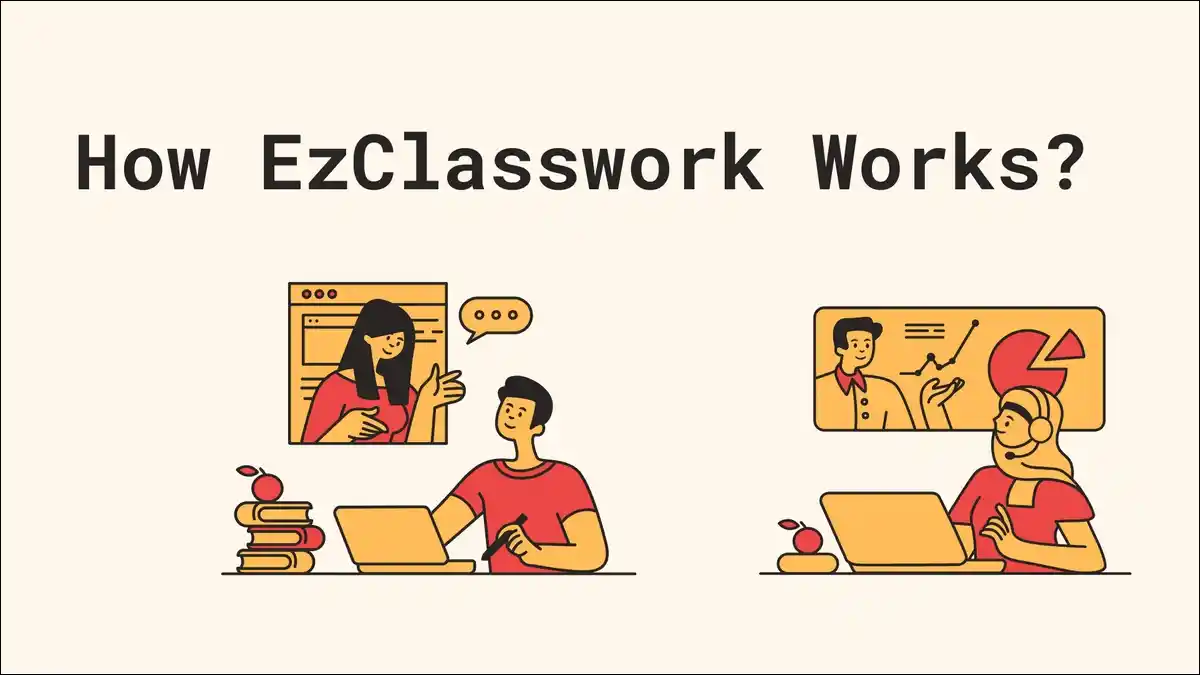
This part explains what teaching with EzClasswork looks like in real classroom use. Let’s keep it simple and practical.
Step 1: Teacher Creates a Class
When you first log in, you set up your class.
You give the class a name, such as:
- “Grade 6 English”
- “Science — Period 3”
- “Math Group A”
Then you add students by:
- Importing a list (if your school uses a system), or
- Giving students a join code to enter themselves
Takes about: 2–5 minutes.
Step 2: Create and Assign Work
Teachers can create assignments directly on the platform.
You can:
- Type instructions
- Add images / documents
- Include questions
- Attach learning resources (videos, notes, articles)
Example:
You assign a “Photosynthesis Quick Review” with:
- A short explanation text
- Three multiple-choice questions
- One short answer question
You choose:
- Which class receives it
- Whether it’s graded
- Due date
Step 3: Students View and Complete the Assignment
Students log in and see a clean list of tasks.
For each task, they can:
- Read instructions
- Complete answers directly on screen, or
- Upload a file/photo if needed (helpful for artwork, notebook pages, or math workings)
Good for:
Classwork, homework, revision tasks, quick checks.
Step 4: Teacher Reviews Student Work
As students begin working, the teacher dashboard updates automatically.
You can see:
- Who has started
- Who is still idle
- Who has finished and submitted
You click a student’s work to review it.
Step 5: Grading and Feedback
Teachers can:
- Add comments beside answers
- Highlight strong parts
- Ask students to retry certain questions
- Give points / scores (if grading mode is on)
Example comment:
“Your idea is correct — now try to explain it in your own words.”
Students can see feedback instantly and can revise if needed and make it better!
Step 6: Record Keeping
Once assignments are reviewed:
- Scores are saved in the class gradebook
- Students can view their progress anytime
- Teachers can export data if needed for reports
Everything stays organized and easy to find later.
In summary:
- Teacher creates class
- Teacher assigns work
- Students complete it
- Teacher reviews and gives feedback
- Results stay organized in one place
This reduces paper, saves time, and helps students understand expectations clearly.
EzClasswork’s Classroom Use Examples
To make EzClasswork easier to picture, here are simple real classroom scenarios. These show how teachers might use it day-to-day.
1. Daily Homework Routine
A teacher wants to make homework more consistent.
How it works:
- Every afternoon, the teacher posts a short assignment (for example, 5 math practice questions).
- Students open EzClasswork at home, complete the task, and submit.
- The teacher sees who has done it before the next class.
Result:
No lost notebooks. No “I didn’t know we had homework.” Everything is clear and visible.
2. In-Class Quick Check (Exit Ticket)
You want to know if students understood today’s lesson.
Example:
After teaching a science topic, you assign:
- “Explain in one sentence what photosynthesis is.”
Students answer on their devices before leaving class.
You see:
- Who understood
- Who needs help tomorrow
This helps you plan your next lesson more effectively.
3. Group Projects
Students are working in teams on a topic (e.g., Renewable Energy).
How EzClasswork supports it:
- Each group submits a shared document, poster, or slideshow.
- The teacher leaves feedback on the shared submission.
- Students revise based on comments before final grading.
This reduces confusion about who turned in what.
4. Make-Up Work for Absent Students
A student was absent for two days.
Normally, they would miss instructions — or classmates would share incomplete notes.
With EzClasswork:
- The student logs in.
- Sees the missed assignments.
- Completes the work when they return.
No extra teacher effort needed.
5. Parent Involvement (Optional)
If enabled, parents can view:
- What work is due
- Which tasks are completed
- Teacher comments that encourage growth
This is helpful especially for younger students or for those who need extra support at home.
Why these examples matter
These scenarios show that EzClasswork is not just a digital “assignment box.”
It actively supports learning routines, keeps communication clear, and makes class management smoother.
EzClasswork vs Google Classroom / Schoology / Canvas
Teachers often ask how EzClasswork compares to other classroom tools they may already know. Here’s a clear and simple comparison focused on everyday use:
Here’s a Quick Comparison Table
| Feature / Experience | EzClasswork | Google Classroom | Schoology / Canvas |
|---|---|---|---|
| Ease of Setup | Very easy — quick class setup | Easy if you use Google accounts | More setup needed; admin-driven |
| Assignment Creation | Simple and guided | Flexible but more steps | Very flexible but can feel complex |
| Student Dashboard | Clean and minimal | Simple but can get crowded | Feature-rich but busy for younger students |
| Grading Tools | Built-in, works directly on student answers | Good, but navigation can feel layered | Powerful, but requires time to learn |
| Progress Tracking | Clear visual progress view | Basic tracking | Advanced analytics |
| Best for… | Everyday assignments and feedback | Schools already using Google tools | Larger institutions with trained staff |
| Learning Curve | Low | Moderate | Higher — training helpful |
When EzClasswork is a Better Fit
Choose EzClasswork if you want:
- A simple tool that anyone can learn quickly
- To reduce time spent organizing and checking work
- A clear dashboard for both students and teachers
- Easy, fast feedback loops
It works especially well in:
- Elementary and middle grade classrooms
- Small to medium-sized schools
- Classes where students need clear structure
When Google Classroom or Canvas Might Be Better
Choose Google Classroom if:
- Your school already uses Chromebooks, Google Drive, and Google Docs heavily.
Choose Schoology / Canvas if:
- Your school has a dedicated IT team and wants deeper reporting, testing modules, or district-wide integration.
Simple takeaway
EzClasswork focuses on clarity and ease — it removes extra layers so teachers can get straight to teaching.
Pricing and Availability of EzClasswork
Is EzClasswork free?
From available information, access to EzClasswork may include a free tier, but the full feature set may require payment, depending on how the school or teacher sets it up.
How it’s typically offered
- Many teachers can start using the platform at little to no cost, especially for basic assignments and feedback.
- Schools or districts may need to opt for a paid licence if they want advanced features (larger classes, integrations, analytics).
- Because pricing isn’t always published clearly in public sources, you’ll need to check with the vendor or your school’s site to get the exact plan for your region.
Availability
- The platform works on web browsers and any device with internet access (laptop, tablet, Chromebook, phone).
- Since it’s cloud-based, there’s nothing heavy to install.
- It appears to be used globally, so it should work in schools in India (Delhi) if internet and device access are available.
Quick Checklist for Teachers
- Ask: “What features are included in the free plan?”
- Ask: “Are there costs for student or parent access?”
- Confirm: “Does it integrate with our school’s existing systems (e.g., LMS, Google Workspace)?”
- Check: “Does the local region / school allow the use of this platform and support it technically?”
When using any classroom technology, privacy matters.
Teachers, parents, and schools want to be sure student data is protected and only used for learning.
Here’s how EzClasswork typically handles safety and privacy:
1. Accounts Are Controlled
Students only access EzClasswork using:
- A teacher-created class code, or
- A school-managed account
This helps ensure that:
- Only enrolled students join your class
- Strangers can’t enter or message students
2. Student Work Stays Private
Assignments, grades, and submissions are visible to:
- The student
- Their teacher
- School admins (if enabled)
Parents may also view progress, but only if the teacher or school grants access.
No one outside the class can see student work.
3. Data Is Stored Securely
EzClasswork stores data on secure servers. This is standard for modern educational platforms.
This typically includes:
- Assignments
- Submission files
- Feedback and scores
- Basic student profile information
It does not require unnecessary personal details.
4. No Public Profiles
Students do not have:
- Public usernames
- Social timelines
- Messaging forums
This reduces opportunities for distraction or online bullying.
5. Designed to Support School Requirements
While policies can vary by region, EzClasswork is designed to align with common school privacy expectations (like protecting minors’ data and limiting access based on roles).
Schools can also:
- Restrict who can create classes
- Monitor teacher and student activity
- Control what data is exported
6. Tips for Safe Classroom Use
To keep everything safe and comfortable:
| Teacher Setting | Why It’s Helpful |
|---|---|
| Enable parent/guardian view (only when appropriate) | Encourages home support |
| Set clear class naming conventions | Keeps classes easy to manage |
| Review feedback tone and expectations | Supports positive interaction |
| Use school-managed logins when available | Adds extra security |
EzClasswork is built to support safe, structured classroom use — with privacy controls that protect students while keeping learning visible and organized.
EzClasswork: Pros and Cons
To help you decide whether EzClasswork is a good fit for your classroom, here’s a balanced, clear overview.
Pros
| Strength | Why It Helps |
|---|---|
| Simple for teachers and students | Easy to learn and start using right away. |
| Clean, organized assignment workflow | Helps prevent missed or forgotten tasks. |
| Built-in grading and feedback tools | Saves time and keeps feedback in one place. |
| Real-time progress tracking | Makes it easier to support students who need extra help. |
| Works across devices | Students can complete work from home or school. |
| Reduces paper and manual checking | Less clutter, faster turnaround. |
Cons
| Limitation | What to Consider |
|---|---|
| Not as feature-heavy as large LMS platforms | Schools needing deep analytics or testing modules may prefer Canvas or Schoology. |
| Pricing details are not always publicly listed | Schools may need to contact support for official plans. |
| Requires consistent device/internet access | Some classrooms may still rely heavily on paper assignments. |
Who Can Actually Benefits The Most?
EzClasswork works especially well for:
- Teachers who want simple digital assignments
- Classrooms where students need clear structure
- Schools looking for a tool that is easy to roll out quickly
Final Thoughts
EzClasswork is a practical tool for classrooms that want to simplify assignments and feedback without adding extra complexity. It keeps everything clear: what’s assigned, what’s completed, and what needs improvement.
Teachers spend less time managing tools and more time helping students learn.
Students benefit because:
- Their tasks are easy to find
- Feedback is quick and clear
- They always know where they stand
Schools benefit because:
- Work stays organized
- Progress is visible
- Communication is smoother
If your priority is clarity, routine, and easy classroom organization, EzClasswork is a strong choice.
It’s especially helpful in:
- Elementary and middle grades
- Classes that need structure
- Schools rolling out digital work for the first time
If your school needs advanced analytics, deep integrations, or district-wide data dashboards, a larger LMS may be a better fit.
But for teachers who simply want a clean, friendly system for daily classwork, EzClasswork does the job well.
Frequently Asked Questions:
EzClasswork is an online platform that helps teachers share assignments, track student progress, and give feedback in one organized space.
A basic version may be available for free. Some schools may choose paid plans for additional features or administrator controls.
Students open the assignment in their dashboard, complete the work directly on screen or upload a file, and then click submit.
Yes, parents or guardians can view progress if the teacher or school enables parent access.
Yes. EzClasswork is browser-based, so students and teachers can use it on laptops, tablets, Chromebooks, or phones.