
How to Geek Out with Google Play Store on Your Fire Tablet
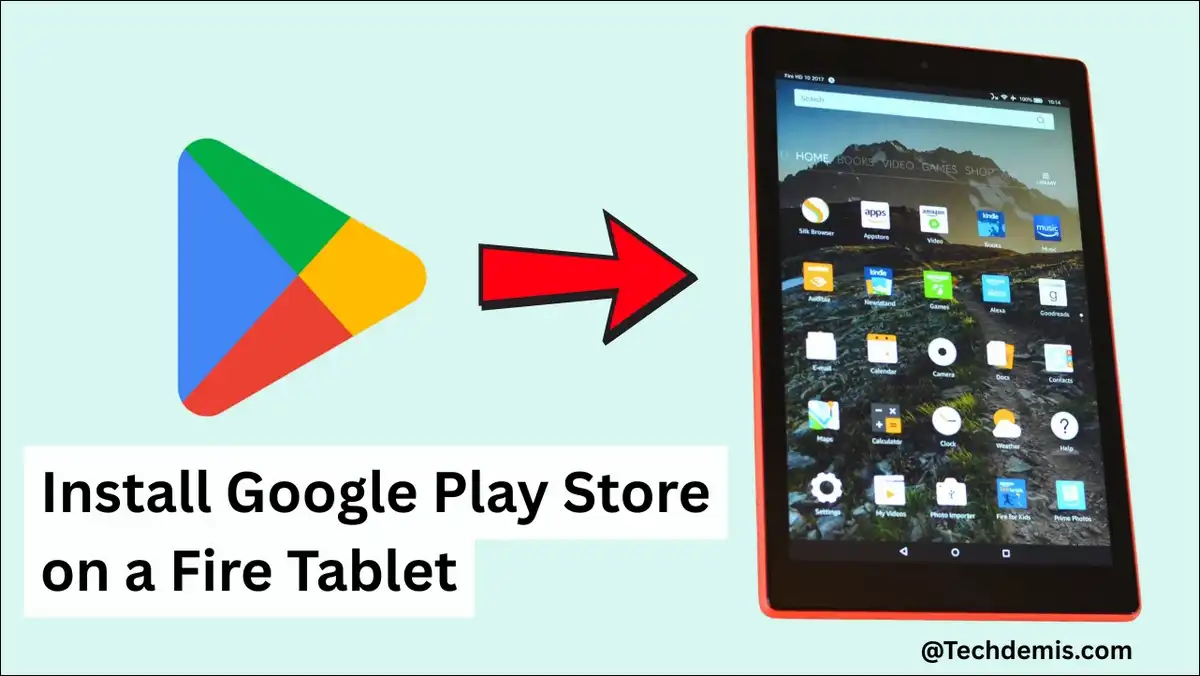
Did you know you can install the full Google Play Store on most Amazon Fire Tablets? Yes, that’s true!
The process uses four APK files downloaded directly on the device. It works on models from 2014 onward when you follow the correct order and versions.
That said, success depends on matching the right files to your specific tablet. We’ve found that skipping this step causes most failures. So, let’s go ahead and learn how to geek out with Google Play Store on a Fire Tablet, with a complete installation guide.
Why Install Google Play Store on a Fire Tablet?
Here’s why you should give this a try and install the Google Play Store on your Fire Tablet.
Google Play Store contains far more apps than the Amazon Appstore. Third-party trackers report roughly 1.5 to 2 million active apps on Google Play. This comes after recent quality cleanups. Google removed hundreds of thousands of lower-quality listings in 2024 and 2025. Exact counts shift because definitions of active vary by source.
Amazon lists around 785,000 apps on its store. Many popular titles remain missing or limited there. Gmail, full Chrome, Telegram, and certain automation tools often work better through Google Play.
Here’s the thing with the Amazon Appstore, though. Amazon announced it will end support for the store on Android devices after August 2025. Apps already installed on Fire Tablets should keep working.
New development and long-term guarantees move toward other options. This change makes sideloading Google Play more relevant now.
So how do you actually get started without running into trouble? The next sections walk through every step.
What You Need Before Starting
Confirm your Fire Tablet model and Fire OS version first.
- Go to Settings > Device Options > About Fire Tablet.
Note the generation and current software version. Most tablets from 2014 or later support the process.
- You need a stable Wi-Fi connection and enough storage space.
- Remove any microSD card during installation. Reinsert it afterwards. Some users report file placement issues when the card stays inserted.
- Use only APKMirror.com for the files. The site shows verified safe downloads and clear buttons. Avoid random sites that push bundles or extra software.
Step-by-Step: Install Google Play Store on Your Fire Tablet
Here’s how you can install Google Play Store on your Fire Tablet:
Follow these steps in order. The whole process usually takes 15 to 30 minutes.
- Enable unknown sources
Open Settings on your Fire Tablet. Go to Security & Privacy. Tap Apps from Unknown Sources. Turn on the toggle for Silk Browser. This lets you install the files safely.
- Download the four required APKs
You need exactly four files from APKMirror. Visit this page to get started: https://www.apkmirror.com/apk/google-inc/
Search for and download these packages in this order. Always choose the version that matches your Fire Tablet model and Fire OS version:
1. Google Account Manager
2. Google Services Framework
3. Google Play Services (pick 64-bit ARM or 32-bit depending on your device)
4. Google Play Store (choose APK, not Bundle)
Tip: Check your tablet’s model and Fire OS version first in Settings > Device Options > About Fire Tablet. Newer tablets (2022 and later) usually need the Android 11+ or higher variants. - Install the files in the correct order
Open the Files or Downloads app. Install one file at a time. Tap each file and confirm the install.
Do not open Google Play Store yet. Install them in this exact sequence:
1. Google Account Manager
2. Google Services Framework
3. Google Play Services
4. Google Play Store - Restart your tablet
After all four files are installed, restart your Fire Tablet. Hold the power button and tap Restart. This step is important.
- Open Google Play Store and sign in
Find Google Play Store in your app drawer or home screen. Open it and sign in with your Google account. Wait 5 to 10 minutes for background updates to finish. You may need to grant Phone and SMS permissions on some newer models.
- Verify everything works
Try installing a free app from Google Play Store. If it works without errors, you’re done. You now have access to the full Google Play catalogue alongside your Amazon apps.
Note: Some newer Fire OS versions require extra permission steps. Long-press the Play Store icon. Go to App Info > Permissions. Allow Phone and SMS if prompted.
That’s it. You’ve done it, and now you can access the Google Play Store right on your Fire Tablet. That gives you access to unlimited apps and games!

Common Problems and How to Fix Them
- Parsing package errors usually mean a version mismatch. The Play Store APK must align with the Google Play Services version you installed. Return to APKMirror and try the previous compatible build for your Fire OS level.
- Sign-in failures sometimes trace to missing Contacts permission. Grant it in the Google Play Services app info screen. Clear cache and data for Play Store and Play Services if the sign-in button does nothing.
- Apps may stay hidden or refuse to install after sideloading. SafetyNet certification fails on modified devices. Many titles still appear and run. Others require workarounds such as sideloading the APK directly from another source.
- Future Fire OS updates can break functionality. Revisit APKMirror for updated files that match the new software version. In such cases, a factory reset followed by the same install sequence restores access.
Quick troubleshooting table
| Problem | Likely Cause | First Fix |
|---|---|---|
| Parsing package error | Version or architecture mismatch | Try previous compatible APK build |
| Won’t sign in | Missing permission | Grant Contacts permission to services |
| Apps hidden or won’t run | SafetyNet / certification | Direct APK sideload for specific apps |
| Broken after system update | New Fire OS version | Download updated APKs for new version |
What this means is most issues trace back to version matching or permissions. A quick check usually fixes them.
After Installation: Make the Most of Google Play on Fire OS
Open Gmail and Chrome first.
These apps deliver the full Google experience that the Amazon versions often lack. Install any productivity or communication tools you missed before.
Grant permissions selectively. Review what each new app requests. Turn off unnecessary background data for Google services if battery life drops. Many users notice only minor impact once initial sync finishes.
Use both stores together. Keep Kindle, Prime Video, and Amazon shopping in the Amazon ecosystem. Route everything else through Google Play. Set defaults in Settings > Apps when conflicts appear.
Check for updates regularly in both stores. Google Play Services and the Play Store itself update automatically in the background. Give them ten to fifteen minutes after the first sign-in.

Security Practices Worth Following
Here are some safety tips you should know, and keep in your mind:
- Download every file from APKMirror only. Verify the verified safe label and correct file size before tapping. Never install APKs from email links or random websites.
- Turn on Google Play Protect inside the Play Store settings. It scans apps for known malware. Run a manual scan after the initial setup.
- Review app permissions monthly. Remove access for apps that no longer need location, camera, or contacts. This habit reduces risk on any Android-based device.
- Two-factor authentication on your Google account adds another layer. Use an authenticator app rather than SMS when possible. Some services behave differently on sideloaded setups.
Power User Moves for Google Play on Fire Tablet
If you’re not an ordinary user, here are some things you could do more:
- Install apps remotely from the Google Play website on any computer. Sign in with the same account. Choose your Fire Tablet from the device list and send the app. It installs over the air once the tablet connects to Wi-Fi.
- Join beta programs for apps you use heavily. The Play Store shows a Join beta option on supported titles. Test new features early and provide feedback.
- Manage multiple Google accounts in the Play Store settings. Switch profiles without logging out of the main account. This setup helps separate work and personal apps.
- Use the web version of Play Store for discovery. Search and read reviews on a larger screen. Then send the chosen apps directly to the tablet.
Google Play Store vs Amazon Appstore: Real Differences
Google Play offers broader developer support and faster updates for most third-party apps. Cloud sync, purchase history, and family sharing work more consistently across devices.
Amazon Appstore still hosts some exclusives and ties directly into Prime benefits. Its smaller catalogue means more gaps for everyday tools and newer releases.
Many users keep both stores active. They route media and shopping through Amazon while handling communication, productivity, and niche apps through Google.
Should You Consider a Different Tablet Instead?
Native Android tablets from other brands come with Google Play preinstalled. Options in similar price ranges include certain Lenovo, Samsung Galaxy Tab A series, and Walmart onn. models.
These devices avoid the sideloading step entirely. They also receive more consistent Google service updates. The trade-off is usually weaker integration with Kindle books and Prime Video compared with a Fire Tablet.
Choose a native Android tablet if you value simplicity and plan to rely heavily on Google apps. Stick with sideloading on your current Fire Tablet if you already own it and mainly want occasional Google access.
What Changes Might Come in 2026 and Beyond?
Amazon has signalled interest in higher-end tablets running closer to stock Android. Such devices could include Google Play by default. This would reduce the need for manual installs.
The end of Amazon Appstore support for new Android development already shifts the landscape. Fire Tablet owners who want the widest app selection now have clearer reasons to maintain Google Play access.
Keep your install files and notes. Future Fire OS updates may require repeating parts of the process with newer APK versions. The core method has remained stable since 2015 with only minor permission adjustments.
Wrapping Up This Guide
Sideloading Google Play Store on a Fire Tablet remains straightforward in 2026. The four-APK sequence works when you match versions to your exact model and Fire OS level.
The real value appears after installation. You gain practical access to a much larger app library. You can blend both ecosystems without major friction. Regular permission reviews and background update patience keep the setup reliable.
Test the steps on your specific tablet. Note which APK variants succeed. Share working combinations in comments so others with the same generation can benefit from current data.
Questions tend to pop up during the process. Here are the ones we hear most often.
Frequently Asked Questions
Does sideloading Google Play Store void my Fire Tablet warranty?
Amazon generally does not void warranties for this common modification. Support for Google apps may be limited, but the device itself stays covered for hardware issues.
How long does the installation usually take?
Most users finish the full process in 15 to 30 minutes. The longest part is waiting for background updates after the first sign-in.
Will apps from Google Play work the same as on a regular Android phone?
Most apps run normally. Some titles that rely on strict SafetyNet checks may hide or limit features. Direct APK installs often resolve these cases.
What happens if Amazon releases a Fire OS update that breaks Play Store?
Download newer compatible APKs from APKMirror and repeat the install sequence. Many users restore functionality this way after each major update.
Can I still use Kindle books and Prime Video after adding Google Play?
Yes. Both ecosystems coexist. Keep Amazon apps for reading and video. Route other needs through Google Play.
Is it safe to download the APKs from APKMirror?
APKMirror verifies files and shows clear safety labels. It remains the source most guides and users recommend for this process.


